5.4.1 SLAM Mapping
Overview
SLAM stands for Simultaneous Localization and Mapping. This section uses ROS2 SLAM-Toolbox as the mapping algorithm. Control the robot in Gazebo to build a map and observe the mapping result in Rviz2. SLAM-Toolbox runs on the RDK, while Gazebo and Rviz2 run on a PC on the same network as the RDK.
Supported Platforms
| Platform | Runtime Environment |
|---|---|
| RDK X3, RDK X3 Module, | Ubuntu 20.04 (Foxy), Ubuntu 22.04 (Humble) |
| RDK X5, RDK X5 Module | Ubuntu 22.04 (Humble) |
| RDK S100, RDK S100P | Ubuntu 22.04 (Humble) |
| RDK S600 | Ubuntu 24.04 (Jazzy) |
Preparation
RDK Platform
-
The RDK has been flashed with the Ubuntu system image.
-
TogetheROS.Bot has been successfully installed on the RDK.
-
After tros.b is installed, install SLAM-Toolbox
- Foxy
- Humble
- Jazzy
# 配置tros.b环境
source /opt/tros/setup.bash
# 配置tros.b环境
source /opt/tros/humble/setup.bash
# 配置tros.b环境
source /opt/tros/jazzy/setup.bash
sudo apt-get install ros-${ROS_DISTRO}-slam-toolbox
If installation fails with the following error:
  The following packages have unmet dependencies:
   ros-foxy-slam-toolbox : Depends: ros-foxy-nav2-map-server but it is not going to be installed
  E: Unable to correct problems, you have held broken packages.
Run the following commands before installing again:
apt update
sudo apt install libwebp6=0.6.1-2ubuntu0.20.04.3
If the sudo apt update command fails or reports an error, please refer to the FAQ section Q10: How to handle apt update command failure or error? for resolution.
If the sudo apt update command fails or reports an error, please refer to the FAQ section Q6: How to handle apt update command failure or error? for resolution.
:::
- A PC on the same network as the RDK with Ubuntu, ROS2 desktop edition, Gazebo simulation environment, and Rviz2 visualization tool installed.
- Foxy
- Humble
- Jazzy
source /opt/ros/foxy/setup.bash
Ubuntu 20.04 and ROS2 Foxy desktop edition
source /opt/ros/humble/setup.bash
Ubuntu 22.04 and ROS2 Humble desktop edition
source /opt/ros/jazzy/setup.bash
Ubuntu 24.04 and ROS2 Jazzy desktop edition
After ROS2 is installed on the PC, install Gazebo and Turtlebot3 related packages as follows:
sudo apt-get install ros-${ROS_DISTRO}-gazebo-*
sudo apt install ros-${ROS_DISTRO}-turtlebot3
sudo apt install ros-${ROS_DISTRO}-turtlebot3-bringup
sudo apt install ros-${ROS_DISTRO}-turtlebot3-simulations
sudo apt install ros-${ROS_DISTRO}-teleop-twist-keyboard
Usage
RDK Platform
This section describes how to run the SLAM algorithm on the RDK and observe the mapping result on the PC.
Start the simulation environment on the PC:
- Foxy
- Humble
- Jazzy
source /opt/ros/foxy/setup.bash
source /opt/ros/humble/setup.bash
source /opt/ros/jazzy/setup.bash
export TURTLEBOT3_MODEL=burger
ros2 launch turtlebot3_gazebo turtlebot3_world.launch.py
If startup fails with the error [ERROR] [gzclient-2]: process has died, run source /usr/share/gazebo/setup.sh and start again.
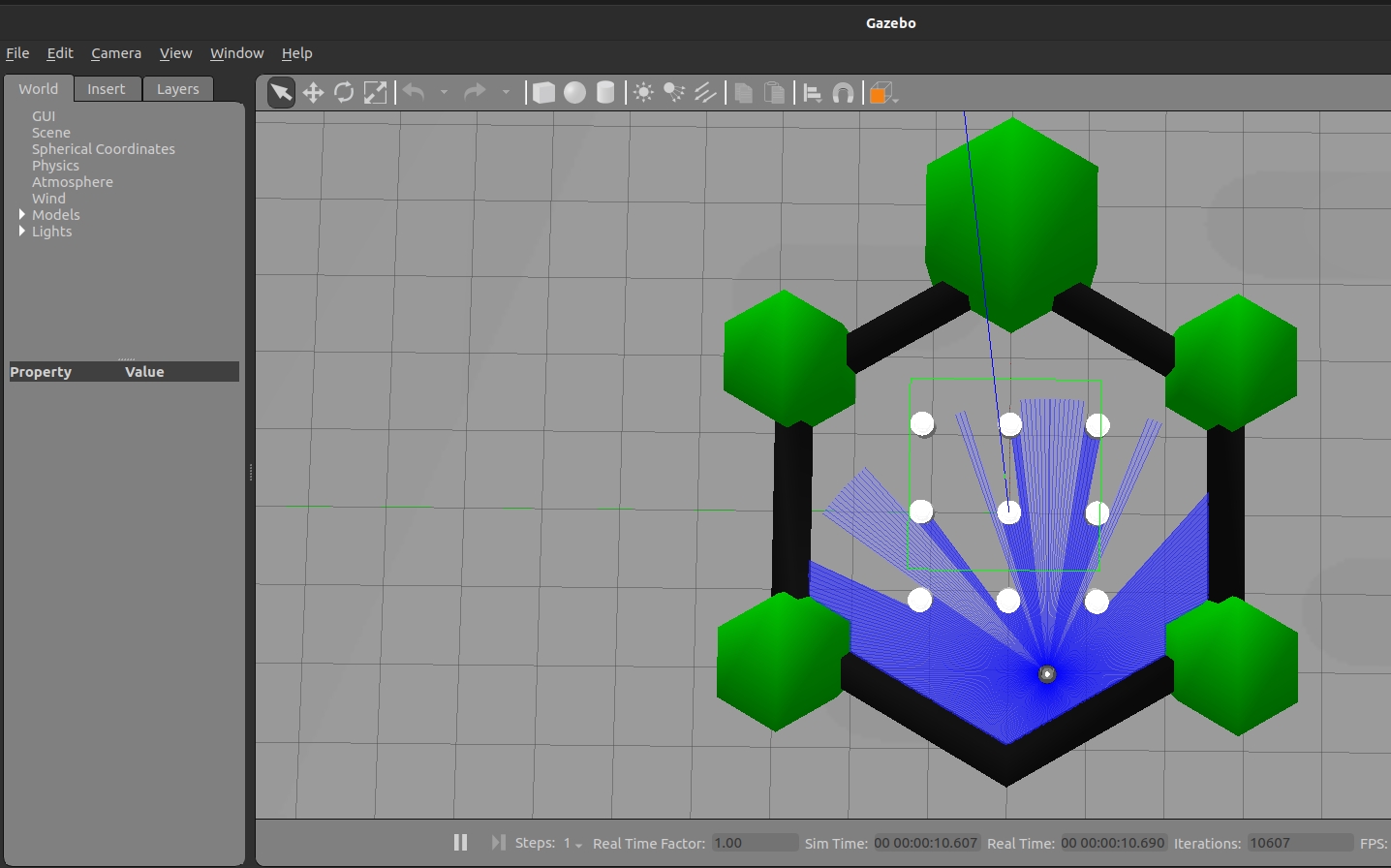
The simulation environment is shown below:
Open another console on the PC and start Rviz2 to observe the mapping result:
- Foxy
- Humble
- Jazzy
source /opt/ros/foxy/setup.bash
source /opt/ros/humble/setup.bash
source /opt/ros/jazzy/setup.bash
ros2 launch turtlebot3_bringup rviz2.launch.py
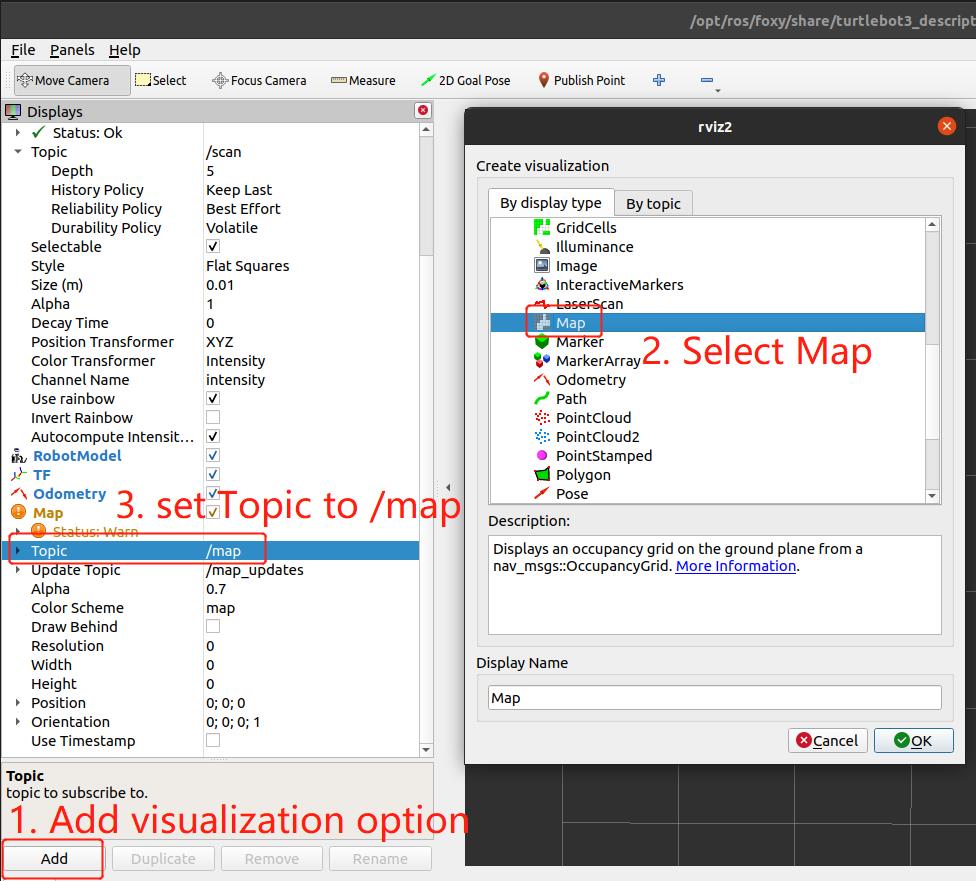
After opening Rviz2, add the "map" visualization option to display the built map as shown below:
Run SLAM-Toolbox on the RDK:
- Foxy
- Humble
- Jazzy
# 配置tros.b环境
source /opt/tros/setup.bash
# 配置tros.b环境
source /opt/tros/humble/setup.bash
# 配置tros.b环境
source /opt/tros/jazzy/setup.bash
#启动SLAM launch文件
ros2 launch slam_toolbox online_sync_launch.py
Open another console on the PC and start the control tool. Use the keyboard to control robot movement. Refer to the log printed in the console for control instructions, which are not repeated here:
- Foxy
- Humble
- Jazzy
source /opt/ros/foxy/setup.bash
ros2 run teleop_twist_keyboard teleop_twist_keyboard
source /opt/ros/humble/setup.bash
ros2 run teleop_twist_keyboard teleop_twist_keyboard
source /opt/ros/jazzy/setup.bash
ros2 run teleop_twist_keyboard teleop_twist_keyboard --ros-args -p stamped:=True
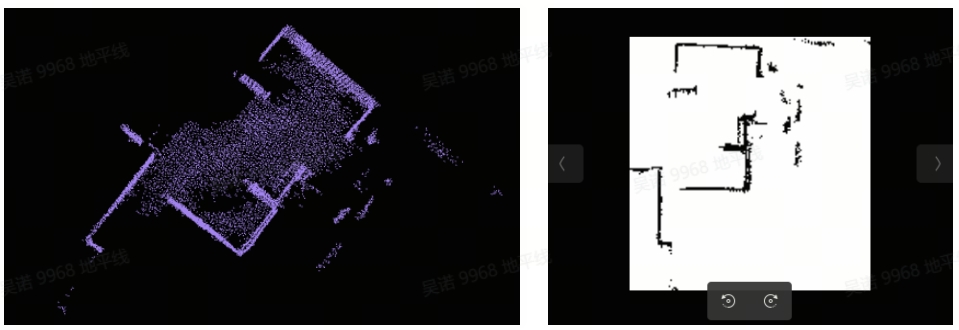
Drive the robot around. As the lidar detects more environmental information, the SLAM algorithm builds the environment map, which can be observed in Rviz2.
Result Analysis
The RDK terminal outputs the following information:
[INFO] [launch]: All log files can be found below /root/.ros/log/2022-06-10-06-40-34-204213-ubuntu-5390
[INFO] [launch]: Default logging verbosity is set to INFO
[INFO] [sync_slam_toolbox_node-1]: process started with pid [5392]
[sync_slam_toolbox_node-1] [INFO] [1654843239.403931058] [slam_toolbox]: Node using stack size 40000000
[sync_slam_toolbox_node-1] [INFO] [1654843240.092340814] [slam_toolbox]: Using solver plugin solver_plugins::CeresSolver
[sync_slam_toolbox_node-1] [INFO] [1654843240.096554433] [slam_toolbox]: CeresSolver: Using SCHUR_JACOBI preconditioner.
[sync_slam_toolbox_node-1] Info: clipped range threshold to be within minimum and maximum range!
[sync_slam_toolbox_node-1] [WARN] [1654843589.431524393] [slam_toolbox]: maximum laser range setting (20.0 m) exceeds the capabilities of the used Lidar (3.5 m)
[sync_slam_toolbox_node-1] Registering sensor: [Custom Described Lidar]