FCOS
Overview
The FCOS object detection example uses images as input, performs inference on the BPU, and publishes smart messages containing object categories and bounding boxes.
FCOS is an ONNX model open-sourced by D-Robotics, trained on the COCO dataset. It supports 80 object detection categories including people, animals, fruits, and vehicles.
Code repository: (https://github.com/D-Robotics/hobot_dnn)
Application scenarios: Released in 2019, FCOS is a single-stage object detection algorithm that can perform pedestrian detection, vehicle detection, and other tasks, mainly in autonomous driving, smart home, and related fields.
Multispectral object detection case study: (https://github.com/hdjsjyl/Multispectral-FCOS)
Supported Platforms
| Platform | Runtime Environment | Example Features |
|---|---|---|
| RDK X3, RDK X3 Module | Ubuntu 20.04 (Foxy), Ubuntu 22.04 (Humble) | · Start MIPI/USB camera and display inference rendering results via web · Use local feedback; rendered results are saved locally |
| RDK X5, RDK X5 Module | Ubuntu 22.04 (Humble) | · Start MIPI/USB camera and display inference rendering results via web · Use local feedback; rendered results are saved locally |
| X86 | Ubuntu 20.04 (Foxy) | · Use local feedback; rendered results are saved locally |
Algorithm Information
| Model | Platform | Input Size | Inference Frame Rate (fps) |
|---|---|---|---|
| fcos | X3 | 1x3x512x512 | 74.91 |
| fcos | X5 | 1x3x512x512 | 258.92 |
Prerequisites
RDK Platform
-
The RDK has been flashed with the Ubuntu system image.
-
TogetheROS.Bot has been successfully installed on the RDK.
-
A MIPI or USB camera is installed on the RDK. If no camera is available, you can experience the algorithm by feeding local JPEG/PNG images or MP4, H.264, and H.265 videos.
-
Confirm that the PC can access the RDK over the network.
X86 Platform
-
The X86 environment is configured with Ubuntu 20.04 system image.
-
tros.b has been successfully installed on the X86 environment.
Usage
RDK Platform
Publish Images Using a MIPI Camera
The FCOS object detection example subscribes to images published by the sensor package, performs inference, and publishes algorithm messages. The websocket package renders and displays the published images and corresponding algorithm results in a PC browser.
- Foxy
- Humble
# 配置tros.b环境
source /opt/tros/setup.bash
# 配置tros.b环境
source /opt/tros/humble/setup.bash
# 配置MIPI摄像头
export CAM_TYPE=mipi

# 启动launch文件
ros2 launch dnn_node_example dnn_node_example.launch.py dnn_example_config_file:=config/fcosworkconfig.json dnn_example_image_width:=480 dnn_example_image_height:=272
Publish Images Using a USB Camera
- Foxy
- Humble
# 配置tros.b环境
source /opt/tros/setup.bash
# 配置tros.b环境
source /opt/tros/humble/setup.bash
# 配置USB摄像头
export CAM_TYPE=usb

# 启动launch文件
ros2 launch dnn_node_example dnn_node_example.launch.py dnn_example_config_file:=config/fcosworkconfig.json dnn_example_image_width:=480 dnn_example_image_height:=272
Use Local Image Feedback
The FCOS object detection example uses local JPEG/PNG images for feedback. After inference, images with rendered algorithm results are saved in the working directory.
- Foxy
- Humble
# 配置tros.b环境
source /opt/tros/setup.bash
# 配置tros.b环境
source /opt/tros/humble/setup.bash
# 启动launch文件
ros2 launch dnn_node_example dnn_node_example_feedback.launch.py dnn_example_config_file:=config/fcosworkconfig.json dnn_example_image:=config/target.jpg
X86 Platform
Use Local Image Feedback
The FCOS object detection example uses local JPEG/PNG images for feedback. After inference, images with rendered algorithm results are saved in the local working directory.
# 配置tros.b环境
source /opt/tros/setup.bash

# 启动launch文件
ros2 launch dnn_node_example dnn_node_example_feedback.launch.py dnn_example_config_file:=config/fcosworkconfig.json dnn_example_image:=config/target.jpg
Result Analysis
Publish Images Using a Camera
The terminal outputs the following information during execution:
[example-3] [WARN] [1655092908.847609539] [example]: Create ai msg publisher with topic_name: hobot_dnn_detection
[example-3] [WARN] [1655092908.849393011] [example]: Create img hbmem_subscription with topic_name: /hbmem_img
[example-3] [WARN] [1655092543.834432739] [img_sub]: Sub img fps 31.16
[example-3] [WARN] [1655092543.864126080] [example]: Smart fps 31.56
[example-3] [WARN] [1655092544.867603759] [img_sub]: Sub img fps 30.01
[example-3] [WARN] [1655092544.899715339] [example]: Smart fps 29.95
[example-3] [WARN] [1655092545.900991853] [img_sub]: Sub img fps 30.01
[example-3] [WARN] [1655092545.931518037] [example]: Smart fps 30.07
[example-3] [WARN] [1655092546.901658559] [img_sub]: Sub img fps 30.00
[example-3] [WARN] [1655092546.938970895] [example]: Smart fps 29.79
[example-3] [WARN] [1655092547.934894494] [img_sub]: Sub img fps 30.01
[example-3] [WARN] [1655092547.973566486] [example]: Smart fps 29.98
[example-3] [WARN] [1655092548.967549745] [img_sub]: Sub img fps 30.10
[example-3] [WARN] [1655092548.997125216] [example]: Smart fps 30.30
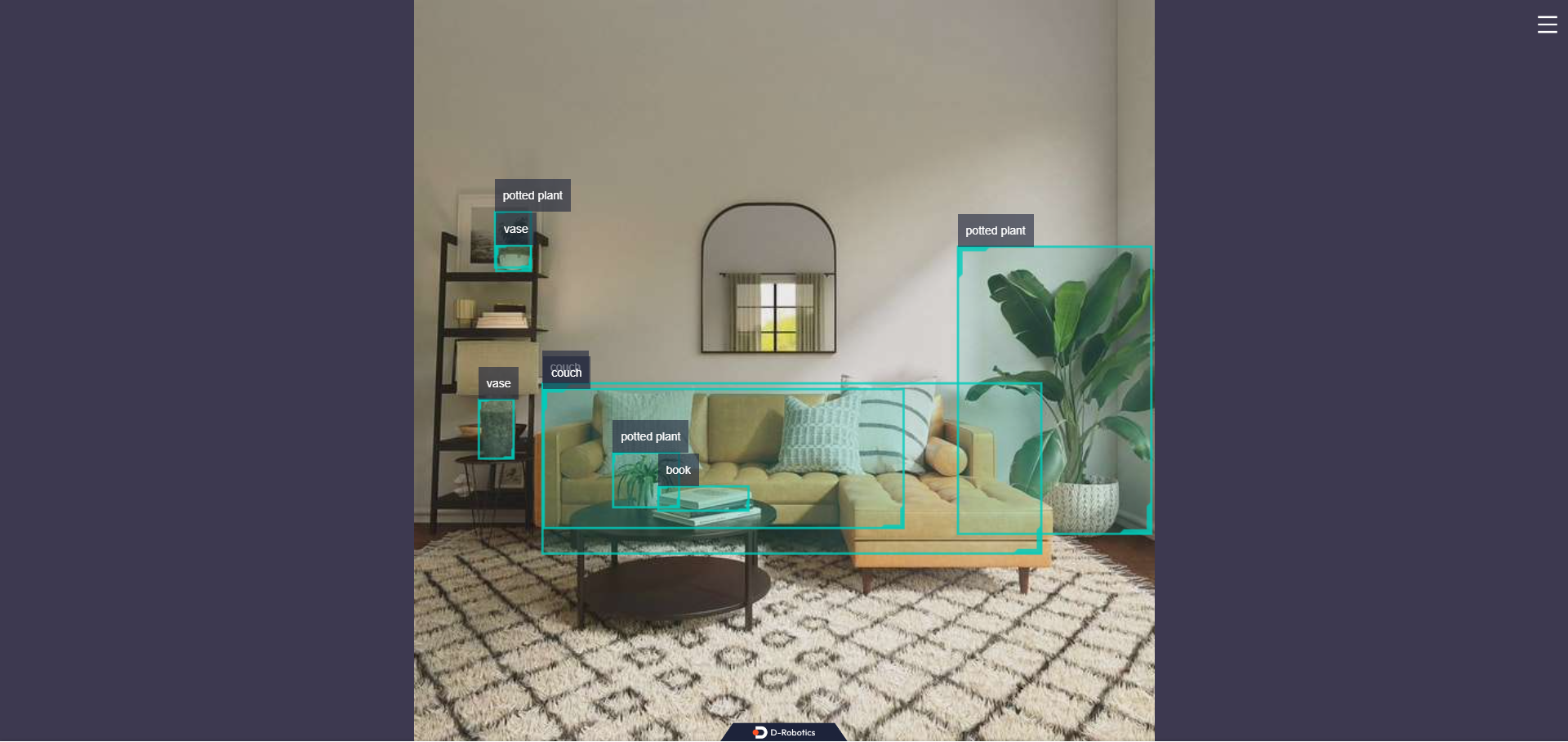
The log shows that the topic for publishing algorithm inference results is hobot_dnn_detection, and the topic for subscribing to images is /hbmem_img. The subscribed image and algorithm inference output frame rate is approximately 30 fps.
Enter http://IP:8000 in a PC browser to view the image and algorithm rendering results (IP is the RDK's IP address):
Use Local Image Feedback
The terminal outputs the following information during execution:
[example-1] [INFO] [1654766336.839353395] [PostProcessBase]: out box size: 6
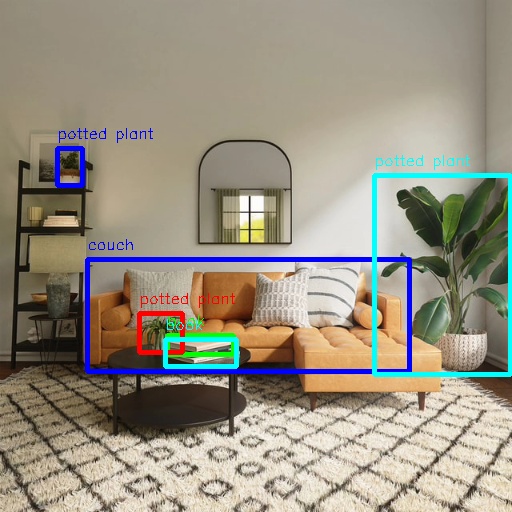
[example-1] [INFO] [1654766336.839427767] [PostProcessBase]: det rect: 87.2364 259.123 409.917 371.59, det type: couch, score:0.782941
[example-1] [INFO] [1654766336.839523764] [PostProcessBase]: det rect: 374.212 175.732 510.993 375.211, det type: potted plant, score:0.719925
[example-1] [INFO] [1654766336.839597637] [PostProcessBase]: det rect: 167.183 335.857 234.13 355.308, det type: book, score:0.548071
[example-1] [INFO] [1654766336.839671426] [PostProcessBase]: det rect: 139.87 313.279 183.4 352.292, det type: potted plant, score:0.542984
[example-1] [INFO] [1654766336.839738966] [PostProcessBase]: det rect: 57.9695 148.59 83.5923 186.552, det type: potted plant, score:0.502935
[example-1] [INFO] [1654766336.839823755] [PostProcessBase]: det rect: 165.691 339.25 237.475 366.896, det type: book, score:0.500648
The log shows that the algorithm detected 6 objects from the input image and output the bounding box coordinates (in the order of top-left x and y, then bottom-right x and y) and categories. The saved rendered image file is named render_feedback_0_0.jpeg. Rendered image result: