5.2.3 Image Encoding and Decoding
Overview
The image encoding and decoding functionality is similar to the ROS image_transport package. RDK uses hardware units to accelerate conversion between MJPEG/H264/H265 and BGR8/RGB8/NV12 formats, which can significantly reduce CPU usage while improving format conversion efficiency. The X86 platform only supports conversion between MJPEG and BGR8/RGB8/NV12 formats.
Code repository: (https://github.com/D-Robotics/hobot_codec)
Supported Platforms
| Platform | Runtime Environment | Example Function |
|---|---|---|
| RDK X3, RDK X3 Module | Ubuntu 20.04 (Foxy), Ubuntu 22.04 (Humble) | Start MIPI camera to capture images, encode them, and display via Web |
| RDK X5, RDK X5 Module, RDK S100 | Ubuntu 22.04 (Humble) | Start MIPI camera to capture images, encode them, and display via Web |
| RDK S600 | Ubuntu 24.04 (Jazzy) | Start MIPI camera to capture images, encode them, and display via Web |
| X86 | Ubuntu 20.04 (Foxy) | Use the image publisher tool to publish YUV images, encode them, and display via Web |
Prerequisites
RDK Platform
-
RDK has been flashed with the Ubuntu system image.
-
TogetheROS.Bot has been successfully installed on RDK.
-
RDK is connected to an F37 or other MIPI camera.
X86 Platform
-
The X86 environment is configured with Ubuntu 20.04 system image.
-
The X86 version of tros.b has been installed.
Usage
The following uses JPEG encoding as an example to describe obtaining NV12 format image data from a camera or image publisher tool, compressing and encoding it as JPEG, and previewing the image on a PC web browser.
RDK Platform
-
Obtain YUV data and start JPEG encoding:
Log in to RDK via SSH, use mipi_cam as the data source, configure hobot_codec input as NV12 format and output as JPEG format. You can change mipi_cam to the actual sensor model in use.
a. Start mipi_cam
- Foxy
- Humble
- Jazzy
# Configure tros.b environment
source /opt/tros/setup.bash
# Configure tros.b environment
source /opt/tros/humble/setup.bash# Configure tros.b environment
source /opt/tros/jazzy/setup.bashros2 launch mipi_cam mipi_cam.launch.py mipi_video_device:=F37b. Start hobot_codec encoding
- Foxy
- Humble
- Jazzy
# Configure tros.b environment
source /opt/tros/setup.bash
# Configure tros.b environment
source /opt/tros/humble/setup.bash# Configure tros.b environment
source /opt/tros/jazzy/setup.bashros2 launch hobot_codec hobot_codec_encode.launch.py codec_in_mode:=shared_mem codec_in_format:=nv12 codec_out_mode:=ros codec_out_format:=jpeg codec_sub_topic:=/hbmem_img codec_pub_topic:=/image_jpeg -
View JPEG encoded images on the web. Open another terminal:
- Foxy
- Humble
- Jazzy
# Configure tros.b environment
source /opt/tros/setup.bash
# Configure tros.b environment
source /opt/tros/humble/setup.bash# Configure tros.b environment
source /opt/tros/jazzy/setup.bashros2 launch websocket websocket.launch.py websocket_image_topic:=/image_jpeg websocket_only_show_image:=true -
Open a browser on the PC (Chrome/Firefox/Edge) and enter
http://IP:8000, where IP is the RDK/X86 device IP address. Click Web Display in the upper left to view the real-time JPEG encoded feed.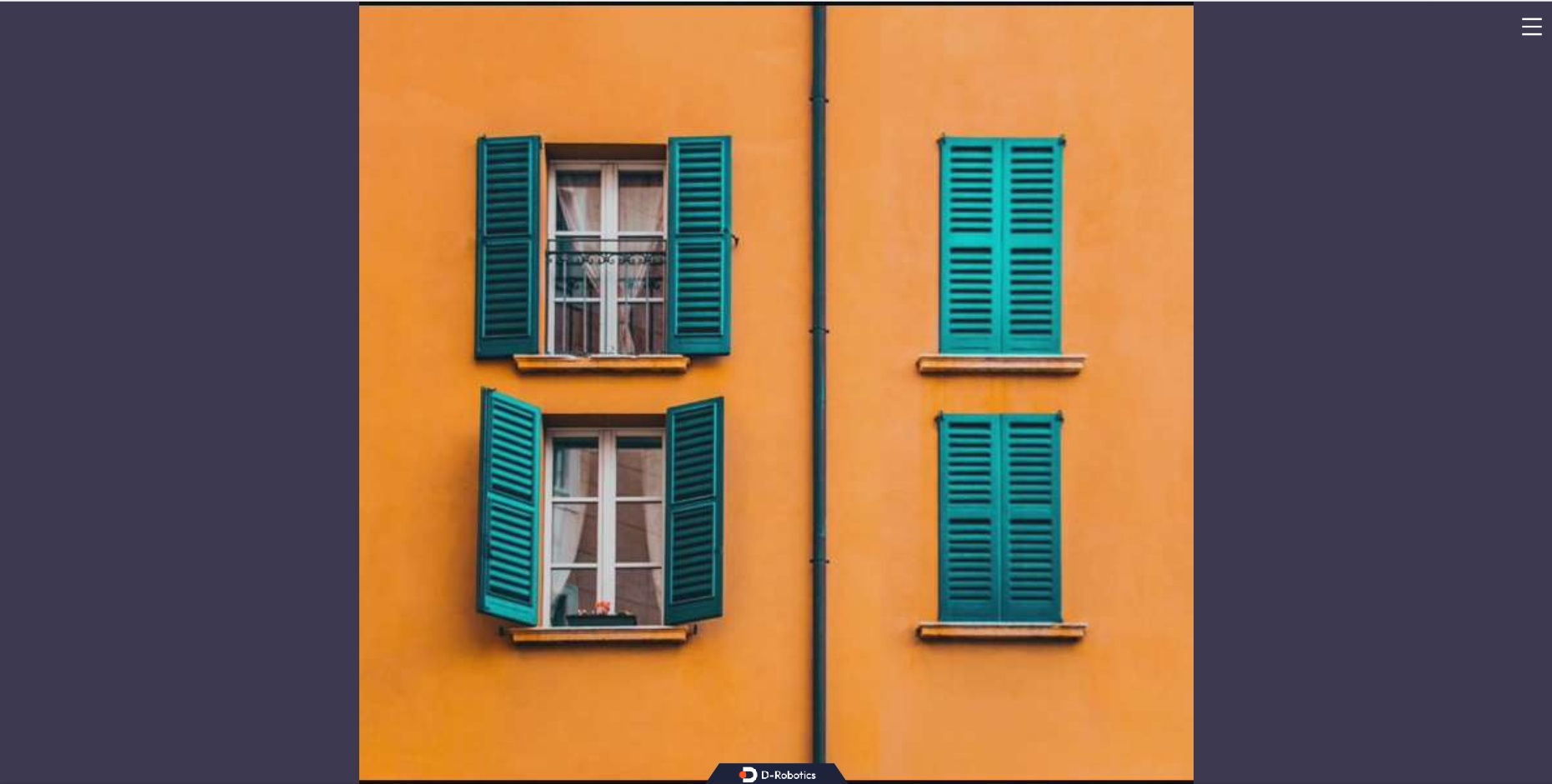
X86 Platform
-
Obtain YUV data and start JPEG encoding:
a. Start the image publisher node
- Foxy
- Humble
- Jazzy
# Configure tros.b environment
source /opt/tros/setup.bash
# Configure tros.b environment
source /opt/tros/humble/setup.bash# Configure tros.b environment
source /opt/tros/jazzy/setup.bash// Copy the image files required for the example from the tros.b installation path
cp -r /opt/tros/${TROS_DISTRO}/lib/hobot_image_publisher/config/ .
// Start the image publisher node
ros2 launch hobot_image_publisher hobot_image_publisher.launch.py publish_output_image_w:=960 publish_output_image_h:=544 publish_message_topic_name:=/hbmem_img publish_fps:=20b. Start JPEG image encoding and publishing pkg
- Foxy
- Humble
- Jazzy
# Configure tros.b environment
source /opt/tros/setup.bash
# Configure tros.b environment
source /opt/tros/humble/setup.bash# Configure tros.b environment
source /opt/tros/jazzy/setup.bashros2 launch hobot_codec hobot_codec.launch.py codec_in_mode:=shared_mem codec_in_format:=nv12 codec_out_mode:=ros codec_out_format:=jpeg codec_sub_topic:=/hbmem_img codec_pub_topic:=/image_jpeg -
View JPEG encoded images on the web. Open another terminal:
- Foxy
- Humble
- Jazzy
# Configure tros.b environment
source /opt/tros/setup.bash
# Configure tros.b environment
source /opt/tros/humble/setup.bash# Configure tros.b environment
source /opt/tros/jazzy/setup.bashros2 launch websocket websocket.launch.py websocket_image_topic:=/image_jpeg websocket_only_show_image:=true -
Open a browser on the PC (Chrome/Firefox/Edge) and enter
http://IP:8000, where IP is the RDK/X86 device IP address. Click Web Display in the upper left to view the real-time JPEG encoded feed.
Notes
If the Hobot codec node fails to start, troubleshoot using the following steps:
- Check whether the tros.b environment is configured
- Verify parameters are correct. For details, refer to the Hobot_codec README.md