8.2 Interfaces, Peripherals, and Drivers
40-PIN Interface
Q1: Does the development board support using VDD_5V on the 40-PIN header as a power input?
A: Development boards with version V1.2 and above support this feature. You can usually confirm the version by checking the silkscreen on the PCB. Proceed with caution and verify that your board version actually supports this function. An incorrect power supply method may cause hardware damage.
Q2: Does the development board support controlling 40-PIN GPIO interfaces using C/C++?
A: Yes, it is supported. You can refer to related articles and code examples in the Horizon developer community forum, for example:
- C/C++ GPIO libraries: Prefer the interfaces and examples provided in the current documentation and SDK.
- Consult the GPIO development chapter in the official documentation for your RDK model. It usually provides low-level operation methods or recommended libraries.
Serial Port
Q3: After powering on the development board, no logs appear on the debug serial port. What should I do?
A: Follow these troubleshooting steps:
- Power indicator: Check whether the red power indicator on the development board is lit normally. If not, resolve the power supply issue first.
- Serial cable connection:
- Ensure the debug serial cable (usually one end connected to the board DEBUG port and the other end connected to a USB-to-serial module) is connected correctly.
- Pay special attention to the TX, RX, and GND wiring between the USB-to-serial module and the board DEBUG port (usually module TX to board RX, module RX to board TX, and module GND to board GND).
- Refer to the connection diagrams in the official documentation sections on "Debug Serial Port" or "Remote Login".
- Serial terminal software configuration:
- Ensure the serial terminal software on your PC (such as PuTTY, MobaXterm, minicom, SecureCRT, etc.) is configured correctly. The typical debug serial port settings for RDK boards are:
- Baud rate: 921600 (This is a high-speed baud rate. Some older models or specific scenarios may use 115200. Refer to your board documentation.)
- Data bits: 8
- Stop bits: 1
- Parity: None
- Flow control: None
- Serial port (COM Port): Ensure you select the correct COM port recognized in Device Manager after connecting the USB-to-serial module.
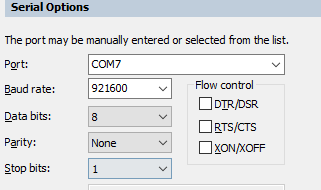
- Ensure the serial terminal software on your PC (such as PuTTY, MobaXterm, minicom, SecureCRT, etc.) is configured correctly. The typical debug serial port settings for RDK boards are:
- USB-to-serial module driver: Ensure the driver for the USB-to-serial module is installed correctly on your PC.
- Try another serial module or USB port: Rule out faults in the module or USB interface.
Network Interface
Q4: The development board is connected to the network but cannot access the Internet. How should I handle this?
A:
- Check the physical connection:
- Wired network: Ensure the Ethernet cable is connected correctly to the board's Ethernet port and the router/switch, and that the corresponding port indicator status is normal.
- Wireless network: Ensure you are connected to the correct Wi-Fi SSID and that the password is entered correctly.
- IP address configuration:
- DHCP auto-assignment: In most cases, the network should be configured to obtain an IP address automatically via DHCP. Check whether the router's DHCP service is working normally and whether the board has successfully obtained an IP address (use the
ifconfigorip addrcommand to verify). - Static IP: If you configured a static IP address, ensure the IP address, subnet mask, gateway address, and DNS server addresses are all configured correctly and match your LAN environment.
- DHCP auto-assignment: In most cases, the network should be configured to obtain an IP address automatically via DHCP. Check whether the router's DHCP service is working normally and whether the board has successfully obtained an IP address (use the
- Gateway and DNS check:
- Ensure the board has obtained or been configured with the correct gateway address (usually the router IP address).
- Ensure valid DNS server addresses are configured (you can test with public DNS servers such as
8.8.8.8or114.114.114.114). Use commands such asping www.baidu.comto test DNS resolution and external network connectivity.
- Check network status:
- Use
ifconfigorip addrto view network interface status and IP configuration. - Use
route -nto view routing table information. - Use
ping <gateway IP>to test connectivity to the gateway.
- Use
- Refer to official documentation: For detailed network configuration steps and troubleshooting methods, refer to the "Network Configuration" section in the official documentation.
Q5: The development board cannot be connected remotely via SSH. What could be the cause?
A:
-
Message
Connection timed out:- Cause: This usually indicates a network communication issue. Your PC cannot find or connect to the SSH service port on the development board (default port 22) over the network.
- Troubleshooting:
- Confirm that the development board is powered on and successfully connected to the network (wired or wireless).
- Confirm that you know the correct IP address of the development board.
- On your PC, try
ping <board IP address>to see whether it responds. If ping fails, resolve the network connection issue first (check IP configuration, Ethernet cable, Wi-Fi connection, router settings, firewall, etc.). - Confirm that the SSH service (
sshd) is running on the development board. After logging in via the serial port, runsudo systemctl status sshorps aux | grep sshdto check. If it is not running, try starting it withsudo systemctl start ssh. - Check whether a firewall on your PC or in the network is blocking connections to port 22 on the development board.
- Reference: SSH Login section (Please replace the link with the actual valid documentation path).
-
Message
Authentication failedorPermission denied, please try again.:- Cause: This indicates that the network connection has been established, but the username or password you provided is incorrect and the SSH server rejected your login request.
- Troubleshooting:
- Carefully verify that the username you entered is correct (for example,
sunrise,root,hobot, etc., depending on your system image and configuration). - Carefully verify that the password you entered is correct, paying attention to case sensitivity.
- Try using the board's default account and password (if they have not been changed).
- Carefully verify that the username you entered is correct (for example,

Q6: When using wireless networking, the connection is unstable or the transfer speed is slow. What should I do?
A:
- Signal strength and interference:
- The onboard Wi-Fi antenna performance of the development board may be limited, especially when there is a metal enclosure, large heatsink, or interference from other electronic devices. Wi-Fi signal strength may be reduced.
- Solution: If your development board supports an external Wi-Fi antenna (usually with an IPEX or SMA connector), it is strongly recommended to install an external Wi-Fi antenna to improve signal reception and connection stability.
- Router location and channel:
- Place the development board as close to the wireless router as possible and reduce physical obstacles.
- Try changing the Wi-Fi channel in the router settings to avoid crowded channels from other wireless signals nearby.
- Driver and firmware: Ensure the Wi-Fi module driver and firmware on the development board are up to date or stable (usually provided through system updates).
- Network load: Check whether other devices on the LAN are consuming a large amount of bandwidth.
- 2.4GHz vs 5GHz: If both your development board and router support 5GHz Wi-Fi, try connecting to the 5GHz band. It usually has less interference and higher speed (but weaker wall penetration than 2.4GHz).
Q7: Wireless networking does not work, and the wlan0 device (or similar wireless network interface name) cannot be found with the ifconfig command. How should I handle this?
A: If the output of ifconfig or ip addr does not show a wireless network interface (such as wlan0), possible causes and solutions include:
- Wireless module soft-disabled (RFKill):
- The system may have disabled the wireless module at the software level through the RFKill mechanism.
- Solution: Try running the following commands to unblock WLAN:
Then use
sudo rfkill unblock wlan
# or sudo rfkill unblock allifconfig -aorip link showagain to check whether the interface appears.
- Driver issue:
- The wireless module driver may not be loaded correctly or may not be working properly. Check the kernel log (
dmesg | grep -i wlanordmesg | grep -i wifi) for related error messages. - Ensure the correct driver and firmware for the wireless chip are installed (usually provided by packages such as
hobot-wifi).
- The wireless module driver may not be loaded correctly or may not be working properly. Check the kernel log (
- Hardware issue: In rare cases, the wireless module itself may be faulty.
- System image or configuration issue: Ensure the system image you are using supports the onboard wireless module and that the related kernel configuration is enabled.
USB Interface
Q8: After connecting a USB camera to the development board, what is the default device node?
A: On RDK boards, when you connect a standard UVC (USB Video Class) camera, the video device node created in the Linux system is usually not the common /dev/video0 seen on PCs.
- The default device node is usually:
/dev/video8 - It may also be
/dev/video9,/dev/video10, etc., if there are other video devices or multiple USB cameras in the system.
After connecting the USB camera, run ls /dev/video* to view the actual device nodes generated. When using the camera in programs such as OpenCV, specify the correct device node number (for example, cv2.VideoCapture(8)).
Q9: After inserting a USB camera into the development board, the expected /dev/video8 (or other) device node is not created. What should I do?
A:
- Confirm that the USB camera itself is working:
- Connect the USB camera to a PC and check whether it is recognized and works correctly. This helps determine whether the issue is with the camera or the board.
- Check the USB connection:
- Ensure the USB camera is firmly inserted into the development board's USB Host port.
- Try replugging the camera or switching to another USB Host port on the board (if the board has multiple ports).
- Avoid Micro USB port conflicts (for specific boards):
- On some development boards, the Micro USB port may be used for system debugging, ADB, or USB Device functionality. When this Micro USB port is connected to a PC via a data cable, it may affect the functionality of other USB Host ports on the board or the enumeration of USB devices.
- Solution: If the Micro USB port is connected to a data cable (for example, for serial debugging or ADB), try disconnecting that Micro USB data cable and then test whether the USB camera can be recognized.
- Check the kernel log:
- After inserting the USB camera, immediately log in to the board via serial port or SSH and run
dmesg | tailto view the latest kernel log. The log usually contains detailed information about USB device insertion, recognition, driver loading, or failure.
- After inserting the USB camera, immediately log in to the board via serial port or SSH and run
- USB power supply issue:
- Some high-power USB cameras may require sufficient current from the USB port. If the development board USB port cannot supply enough power (uncommon for standard UVC cameras), recognition may fail. Try connecting the camera through a USB hub with independent power.
- Driver compatibility:
- Most USB cameras follow the UVC standard, and the RDK Linux kernel usually includes the UVC driver built in. However, a very small number of non-standard or special USB cameras may have driver compatibility issues.
Q10: After connecting a USB game controller (Gamepad/Joystick) to the development board, it does not work and no /dev/input/js0 device node is created. How can I resolve this?
A: If no /dev/input/jsX (such as js0) device node is automatically created after connecting a USB game controller, the corresponding kernel driver or userspace tools are usually missing.
- Update the system: First, ensure your development board system is up to date, because newer systems may include more driver support.
sudo apt update && sudo apt upgrade - Load the kernel driver module: Game controllers usually require the
joydevkernel module. Try loading it manually:After loading, check again whethersudo modprobe joydev
# or sudo modprobe -a joydev (try loading all related modules)jsXdevices appear under the/dev/input/directory. - Install test tools (joystick package): To facilitate testing and using the controller, install the
joystickpackage, which includes some userspace tools.sudo apt install joystick - Test the controller: After installing the
joystickpackage, if the/dev/input/js0(or otherjsX) device node exists, use thejstestcommand to test whether the controller buttons and axes can be read correctly:Whilejstest /dev/input/js0jstestis running, press buttons or move the joystick. You should see corresponding event output in the terminal. - Check the kernel log: If the steps above do not work, check the
dmesglog after inserting the controller for error messages related to USB device recognition or driver loading.
MIPI CSI Interface
Q11: After connecting a MIPI camera to the development board, it does not work and the i2cdetect command cannot detect the camera's I2C address. What could be the cause?
A:
- Incorrect camera connection:
- FPC cable orientation: MIPI cameras are connected via FPC flexible cables. Make sure the cable is inserted in the correct orientation (usually the blue reinforcement side on both ends of the cable should face the latch side of the connector, or follow the markings on the board and camera module). Incorrect insertion will prevent communication.
- Connector locking: Ensure the FPC cable is fully inserted into the connector and that the latches on both sides of the connector are securely locked.
- Port matching: If the board has multiple MIPI CSI interfaces, ensure the camera is connected to the interface specified in your software configuration or device tree.
- Reference documentation: Carefully review the "MIPI Camera" connection section in the hardware manual or quick start guide for your RDK board model to confirm connection details.
- Do not hot-plug:
- Never plug or unplug a MIPI camera while the development board is powered on! Hot-plugging can easily cause short-circuit damage to the camera module or the board's MIPI interface circuit due to instantaneous current surges or incorrect pin contact order.
- I2C bus and address:
- Confirm that the
<bus_number>in thei2cdetect -y -r <bus_number>command you use is the I2C bus number to which the camera is actually connected. Different MIPI interfaces may correspond to different I2C buses. - Confirm that you know the correct I2C slave address of the camera module.
- Confirm that the
- Camera power supply or clock issue: Ensure the camera module receives the correct power supply and that the MIPI clock signal is normal.
- Camera module or FPC cable damage: If you have checked all the factors above and still cannot detect the device, the camera module itself or the FPC cable may be physically damaged.
- Device tree configuration: Ensure the Linux kernel device tree correctly configures the MIPI interface and the driver information for the connected camera model.
Q12: When running a MIPI camera sample program, the error ValueError: invalid literal for int() with base 10: b'open device /dev/lt8618_ioctl failed\ndevice not open\n1080' occurs. How can I resolve this?
A: This error message ValueError: invalid literal for int() with base 10: b'open device /dev/lt8618_ioctl failed\ndevice not open\n1080' usually indicates that the program tried to parse a string expected to contain only digits but received a string containing both error information and numbers mixed together. In this specific example, in b'open device /dev/lt8618_ioctl failed\ndevice not open\n1080', the program may have expected to obtain only resolution-related digits (such as '1080'), but because opening the display-related device (/dev/lt8618_ioctl, which appears to be an HDMI-related control interface) failed, an error message was returned instead.
Main causes and solutions:
- Insufficient permissions: Many operations that interact directly with hardware (such as opening device nodes and configuring display parameters) require root privileges. If you run the sample program as a regular user (such as
sunrise), opening the device may fail due to insufficient permissions.- Solution: Try running the sample program with root privileges using
sudo:sudo python3 mipi_camera.py
- Solution: Try running the sample program with root privileges using
- Dependent display device not ready or misconfigured:
lt8618appears to be the model of an HDMI transmitter chip. If the sample program depends on this HDMI output device and the device fails to initialize correctly or is occupied by another program, this error may also occur.- Ensure the HDMI display is connected correctly and recognized by the system (if the sample requires HDMI output).
- Check the related kernel log (
dmesg) for errors related tolt8618or display initialization.
Display Interface
Q13: What resolutions does the development board's HDMI interface support?
A: The specific resolution types supported by the HDMI interface on RDK development boards vary depending on the board model, SoC model, and the RDK OS system version running on the board.
-
General support: Most RDK boards support at least some common resolutions, such as:
- 1920x1080 (1080p) @ 60Hz/50Hz/30Hz
- 1280x720 (720p) @ 60Hz/50Hz
- Lower resolutions such as 640x480, 800x600, etc.
-
Specific models and versions:
- Newer versions of RDK OS usually introduce support for more resolution and refresh rate combinations.
- Boards in different performance tiers differ in HDMI output capability (such as whether 4K resolution is supported).
-
Query methods:
- Official documentation: The most accurate information source is the official User Manual or Hardware Specification for your specific RDK board model and system version, in the section on "HDMI Interface" or the display subsystem.
- In-system query (if a display is connected):
- If the board is connected to a display and can boot into the Linux system (for example, the Desktop edition), you can sometimes use the
xrandrcommand (in an X Window environment) to view the resolution modes supported by the currently active output. - Check the kernel boot log (
dmesg | grep -i hdmiordmesg | grep -i drm). It sometimes prints the display modes detected during display driver initialization.
- If the board is connected to a display and can boot into the Linux system (for example, the Desktop edition), you can sometimes use the
srpi-configtool: In some RDK system versions, thesrpi-configtool may allow you to view or configure HDMI output resolution.
If you encounter compatibility issues with a specific display, in addition to checking resolution, consider whether the board can correctly parse the display's EDID information.