8.1 Hardware, System, and Environment Configuration
Many issues can be resolved by updating the system. For related download resources, see: Download Resources
For certified accessories and purchase links, see the RDK S100 Certified Accessories List
Q1: What is the D-Robotics RDK Kit?
A: D-Robotics Developer Kits, abbreviated as the D-Robotics RDK Kit, are robot developer kits built on D-Robotics intelligent chips.
Q2: How do I check the system version on an RDK board?
A: After logging in to the RDK board system, you can use the following commands:
-
Check the major system version:
cat /etc/versionFor example, the output may be
2.0.0orx3_ubuntu_v1.1.6. -
Check installed D-Robotics core package versions:
apt list --installed | grep hobotOr use the
rdkos_infocommand (for newer system versions such as 2.1.0 and later):rdkos_infoSample output (RDK OS 2.x, e.g., 2.0.0):
root@ubuntu:~# apt list --installed | grep hobot
hobot-boot/unknown,now 2.0.0-20230530181103 arm64 [installed]
hobot-bpu-drivers/unknown,now 2.0.0-20230530181103 arm64 [installed]
# ... other hobot-* packages
root@ubuntu:~# cat /etc/version
2.0.0
Sample output (RDK OS 1.x, e.g., 1.1.6):
root@ubuntu:~# apt list --installed | grep hobot
hobot-arm64-boot/unknown,now 1.1.6 arm64 [installed]
# ... other hobot-arm64-* packages
root@ubuntu:~# cat /etc/version
x3_ubuntu_v1.1.6
Q3: What is the relationship between RDK OS versions and hardware platforms?
A:
- RDK OS 2.x and newer (e.g., 2.0.0, 2.1.0, 3.0.x):
- Built from the D-Robotics Linux open-source codebase.
- Typically supports RDK hardware for the corresponding chip; confirm compatibility for your system version and board model.
- RDK OS 1.x:
- Built on a closed-source Linux system; a legacy release.
- Mainly supports early RDK hardware and is no longer the current mainline.
Important notes:
- Version upgrade: RDK OS 1.x cannot be upgraded directly to 2.x or newer via
apt. To upgrade, you must re-flash a new system image and install the operating system again. - TROS compatibility: Different major TROS releases (e.g., Foxy-based and Humble-based TROS) are usually tied to specific RDK OS major versions. For example, RDK OS 2.x typically ships with TROS based on ROS 2 Foxy, while RDK OS 3.x typically ships with TROS based on ROS 2 Humble.
Q4: What precautions apply when connecting or disconnecting a camera?
A: Never connect or disconnect a camera while the board is powered on, as this can easily damage the camera module or the board connector. Always disconnect all power from the board before connecting or removing a camera.
Q5: The board fails to boot, shows no display after power-on, or reboots repeatedly. What are possible causes and how do I troubleshoot?
A: These issues are usually related to power supply, boot media (SD card/eMMC), or hardware connections.
-
Insufficient or unstable power supply:
-
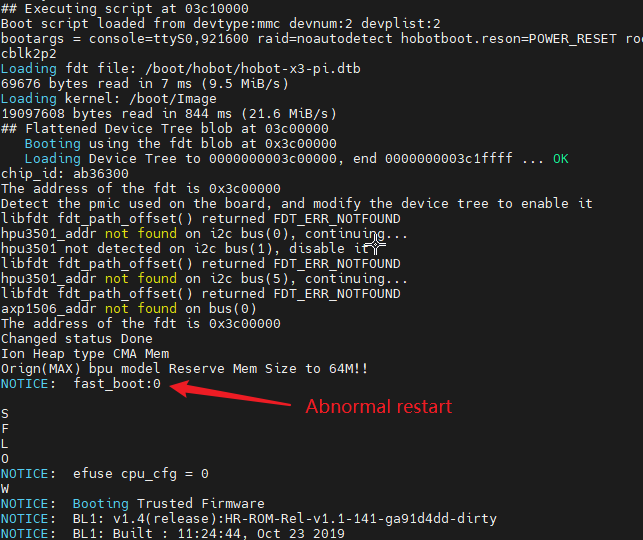
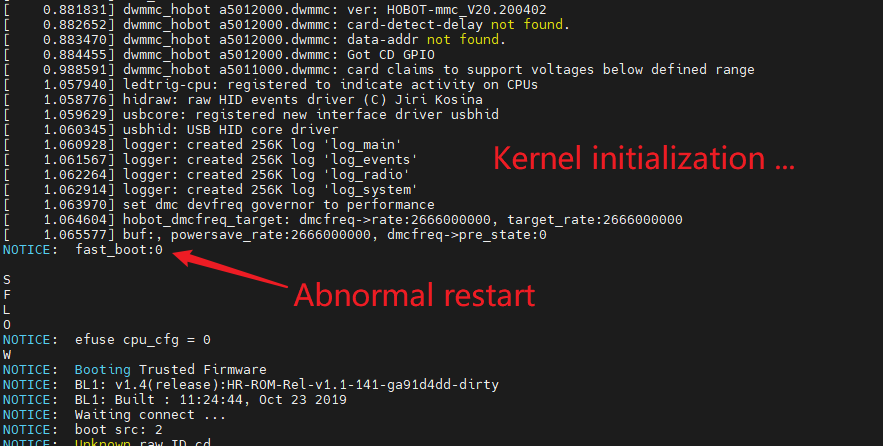
Symptoms: The system reboots without clear error logs while U-Boot loads the kernel or early in kernel boot; abnormal status LEDs or a completely black HDMI display.
-
Troubleshooting and fixes:
- Use a power adapter that meets board requirements (QC/PD 5V/3A or higher is recommended).
- Do not power the board from a PC USB port.
- Use a reliable USB Type-C power cable.
- Refer to the accessory list in this documentation site and choose a power adapter that meets official recommendations.
-
-
Boot media issues (Micro SD card/eMMC):
-
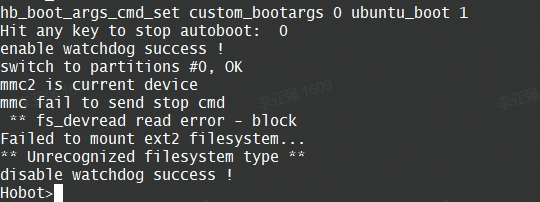
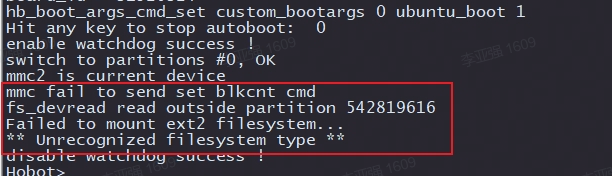
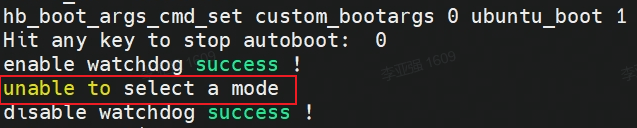
Symptoms: Serial logs show failure to mount the filesystem, missing partitions, or MMC/SD initialization errors/timeouts.
-
Troubleshooting and fixes:
- Confirm the SD card image was flashed correctly and completely.
- Try re-flashing the system image.
- Replace with a new, reliable high-speed Micro SD card.
- Clean the SD card slot and contacts.
-
-
Serial port accidentally enters U-Boot:
- Symptoms: Boot stops at the U-Boot command line (e.g.,
hobot>). - Troubleshooting and fixes: Unexpected input on the debug serial port during power-on may interrupt auto-boot. Try disconnecting the serial cable and powering on again. At the U-Boot prompt, try typing
bootand pressing Enter.
- Symptoms: Boot stops at the U-Boot command line (e.g.,
-
Other hardware issues or peripheral conflicts:
- If the above checks pass, remove non-essential peripherals (USB devices, expansion boards, etc.) and try booting again.
- In rare cases, the board itself may be faulty.
-
Detailed guide: See the forum post Board Boot Failure Troubleshooting Guide. Connecting the debug serial port and capturing the full boot log is essential for diagnosis.
Q6: How do I handle apt update failures or errors?
Common error types
- GPG key verification failure or expiration
- Repository hostname cannot be resolved
- Lock file held by another process
- Network connectivity issues
Troubleshooting and resolution
1. Repository domain change or GPG key issues
Typical error messages:
Clearsigned file isn't valid, got 'NOSPLIT'The repository '...' is no longer signed.Could not resolve 'archive.sunrisepi.tech'(or other legacy hostnames)The following signatures couldn't be verified because the public key is not available: NO_PUBKEY ...
Cause: The D-Robotics official APT repository hostname or GPG signing key has changed, leaving local configuration outdated.
Resolution steps:
-
Check current repository configuration
cat /etc/apt/sources.list.d/sunrise.listCorrect configuration should look like:
deb [signed-by=/usr/share/keyrings/sunrise.gpg] http://archive.d-robotics.cc/ubuntu-rdk-s100 jammy main #RDK S100 -
Update hostname configuration
If you find legacy hostnames (such as
archive.sunrisepi.techorsunrise.horizon.cc), update them:# Replace legacy hostname with the new one
sudo sed -i 's/archive.sunrisepi.tech/archive.d-robotics.cc/g' /etc/apt/sources.list.d/sunrise.list
sudo sed -i 's/old-domain-name/archive.d-robotics.cc/g' /etc/apt/sources.list.d/sunrise.list -
Switch from beta to release repository As of 2025-07-14, the RDK S100 release repository was not yet published.
If you use the beta repository (with a
-betasuffix), switch to the release repository:sudo sed -i 's/ubuntu-rdk-s100-beta/ubuntu-rdk-s100/g' /etc/apt/sources.list.d/sunrise.list -
Update the GPG key
sudo wget -O /usr/share/keyrings/sunrise.gpg http://archive.d-robotics.cc/keys/sunrise.gpg -
Refresh package lists again
sudo apt update
2. APT lock file held
- Example error:
E: Could not get lock /var/lib/apt/lists/lock. It is held by process XXXX (apt-get)
N: Be aware that removing the lock file is not a solution and may break your system.
E: Unable to lock directory /var/lib/apt/lists/ - Cause: A background update/install may be running, or a previous apt operation did not finish cleanly and left locks in place.
- Resolution:
- Wait: Background tasks may finish on their own; wait a moment and retry.
- Kill the holding process: If the lock persists, kill the process ID shown in the error (e.g.,
XXXXin the example):sudo kill XXXX - Remove lock files (⚠️ use with caution): After confirming no apt or dpkg process is running, you may remove lock files. This can damage your package manager; proceed carefully.
sudo rm /var/lib/apt/lists/lock
sudo rm /var/cache/apt/archives/lock
sudo rm /var/lib/dpkg/lock
sudo rm /var/lib/dpkg/lock-frontend
sudo dpkg --configure -a # Try to fix incomplete package configuration - Run
sudo apt updateagain.
3. ROS 2 GPG key issues
Typical error messages:
W: GPG error: http://packages.ros.org/ros2/ubuntu jammy InReleaase: The following signatures couldn't be verified because the public key is not available: NO_PUBKEY F42ED6FBAB17C654
E: The repository 'http://packages.ros.org/ros2/ubuntu jammy InRelease' is not signed.
N: Updating from such a repository can't be done securely, and is therefore disabled by default.
N: See apt-secure(8) manpage for repository creation and user configuration details.
Cause: The ROS 2 official repository GPG signing key was updated, leaving local configuration outdated.
Resolution steps:
-
Update the GPG key
curl -sSL https://raw.githubusercontent.com/ros/rosdistro/master/ros.key | sudo tee /usr/share/keyrings/ros-archive-keyring.gpg > /dev/null -
Refresh package lists again
sudo apt update
Q7: How do I configure an RDK application to start on boot?
A: There are two main approaches:
-
Via
/etc/rc.local(legacy): Edit this file (create it or enablerc-local.servicefrom a template if missing) and add commands beforeexit 0. Ensure the script is executable.#!/bin/bash -e
#
# rc.local
#
# This script is executed at the end of each multiuser runlevel.
# Make sure that the script will "exit 0" on success or any other
# value on error.
#
# In order to enable or disable this script just change the execution
# bits.
#
# By default this script does nothing.
# Example: Start your application in the background
# /usr/bin/python3 /home/sunrise/my_app.py &
# Insert what you need before this line
exit 0 -
Via a
systemdservice (modern, recommended): Create a.servicefile (e.g.,/etc/systemd/system/myapp.service) defining the start command, dependencies, user, restart policy, and so on. Examplemyapp.servicefile:[Unit]
Description=My Application Service
After=network.target multi-user.target
[Service]
User=sunrise
ExecStart=/usr/bin/python3 /home/sunrise/my_app.py
Restart=on-failure
# StandardOutput=append:/var/log/myapp_stdout.log
# StandardError=append:/var/log/myapp_stderr.log
[Install]
WantedBy=multi-user.targetThen enable and start the service:
sudo systemctl daemon-reload  # After creating or editing the service file
sudo systemctl enable myapp.service
sudo systemctl start myapp.service
# Check status: sudo systemctl status myapp.service
# View logs (if configured): journalctl -u myapp.service
Autostart notes:
- Ensure script/program paths are correct and executable.
- Handle dependencies (network, hardware init) and environment variables.
- For GUI apps, set
DISPLAYcorrectly and ensure the X server is running. - Redirect application output to log files to debug failed autostart.
Q8: What are the default login credentials?
A: Boards typically ship with these default accounts:
- Regular user: username
sunrise, passwordsunrise - Superuser (root): username
root, passwordroot(Default credentials may vary by image version and source; check the release notes for your image.)
Q9: How do I mount an NTFS USB drive or disk on an RDK board with read/write access?
A: Ubuntu may provide incomplete or read-only NTFS write support by default. Install the ntfs-3g package for full read/write access:
- Install
ntfs-3g:sudo apt update
sudo apt -y install ntfs-3g - Mount the NTFS partition:
After installation, use
mount. The system usually selects thentfs-3gdriver automatically for read/write access.- First, create a mount point (if needed):
sudo mkdir /mnt/my_ntfs_disk - Mount the device (assuming
/dev/sda1; adjust for your setup):sudo mount /dev/sda1 /mnt/my_ntfs_disk
# Or specify type explicitly (usually unnecessary)
# sudo mount -t ntfs-3g /dev/sda1 /mnt/my_ntfs_disk
/mnt/my_ntfs_disk. - First, create a mount point (if needed):
Q10: Can I install VS Code locally on an RDK board? How do I use VS Code on a PC to connect remotely?
A:
- Local VS Code: As embedded ARM devices, RDK boards generally do not support running the full VS Code desktop application locally. Official VS Code builds target x86_64 desktops.
- Remote development (recommended):
Install VS Code on your PC (Windows, macOS, or Linux) and use the Remote - SSH extension to connect to the RDK board. You get the full VS Code experience on the PC while build, run, and debug execute on the board.
Overview:
- Install the "Remote - SSH" extension in VS Code on your PC.
- Ensure the PC and RDK board are on the same LAN and SSH is enabled and reachable on the board.
- Configure SSH in VS Code (typically
ssh user@board-ip). - After connecting, open folders on the RDK board directly in VS Code.
Q11: How do I enable and use ADB (Android Debug Bridge) on an RDK board?
A: RDK Ubuntu images often include adbd (ADB daemon), but USB mode and configuration may need adjustment for ADB.
- Verify
adbd: Check whether the service is running or has a startup script. - USB mode: The Type-C or OTG/Device USB port may need USB Device mode (not Host) for PC ADB recognition. Configure via
srpi-config, device tree, or kernel parameters. - PC setup: Install ADB (Android SDK Platform Tools) on your computer.
- Connect: Link the PC to the board USB port configured as Device mode.
- Verify: Run
adb deviceson the PC. A correctly configured board should appear in the list. - Usage: Use
adb shellfor a terminal,adb push <local-file> <board-path>to upload,adb pull <board-file> <local-path>to download, and so on.
Note: Steps vary by RDK model and OS version. See official ADB documentation for your board. Bootloader update guides may also mention ADB prerequisites. Reference (may focus on bootloader updates but relates to ADB): Bootloader image update (see ADB-specific documentation when available).
Q12: What are common ways to transfer files between the board and a PC?
A: Common transfer methods include:
-
SCP (Secure Copy Protocol) — over SSH:
- Copy from PC to board:
# Copy a single file
scp /path/to/local_file sunrise@<board-ip>:/path/on/rdk/
# Copy a folder (use -r)
scp -r /path/to/local_folder sunrise@<board-ip>:/path/on/rdk/ - Copy from board to PC:
scp sunrise@<board-ip>:/path/on/rdk/remote_file /path/to/local_destination/
scp -r sunrise@<board-ip>:/path/on/rdk/remote_folder /path/to/local_destination/
The PC needs an SCP client (built in on Linux/macOS; WinSCP, MobaXterm, or Git Bash on Windows).
- Copy from PC to board:
-
SFTP (SSH File Transfer Protocol) — over SSH: Clients such as FileZilla and WinSCP support SFTP with a graphical UI. Select SFTP and use SSH credentials and the board IP.
-
USB storage (flash drive/external disk):
- Format media as FAT32, exFAT, or NTFS (with
ntfs-3ginstalled). - Copy files on the PC, then plug the drive into a USB Host port on the board.
- Mount on the board (
sudo mount /dev/sda1 /mnt/usb_disk— device node may vary), then access files.
- Format media as FAT32, exFAT, or NTFS (with
-
ADB (Android Debug Bridge) — if configured:
- Push from PC to board:
adb push C:\local\path\file.txt /remote/path/on/rdk/ - Pull from board to PC:
adb pull /remote/path/on/rdk/file.txt C:\local\path\
- Push from PC to board:
-
Network shares (Samba, NFS): Configure Samba or NFS on the board to share directories on the LAN. Setup is more involved.
-
Python HTTP server (quick small-file sharing): To let a PC download files from a directory on the board, start a simple HTTP server there:
# On the board, enter the directory to share
cd /path/to/share
python3 -m http.server 8000
Then open
http://<board-ip>:8000in a browser on the PC to list and download files.
Choose based on file size, frequency, and network. For code and config sync during development, SCP/SFTP or VS Code Remote-SSH is usually most convenient.
Q13: The desktop goes black during apt upgrade. What should I do?
A: Run updates from a serial or SSH text-only session (e.g., sudo apt update && sudo apt upgrade). Updating from a desktop terminal can interrupt the display or restart the X server when desktop packages upgrade, causing a black screen.
Q14: Why does the board boot from the SD card once, but not after I remove it?
A: This depends on your RDK model and boot configuration:
Confirm your board model and current boot medium settings.
Q15: Can RDK OS Server be upgraded directly to Desktop?
A: Server and Desktop differ significantly in preinstalled packages. Desktop includes a GUI (e.g., XFCE) and related components; Server omits them to save resources.
- In theory: You could manually install Desktop packages (
xserver-xorg,xfce4,lightdm, dependencies, etc.) on Server to add a GUI. - Official support: D-Robotics does not provide or recommend this path and does not guarantee stability of a manually assembled Desktop system. The process is error-prone.
- Recommended: Flash the official Desktop system image for the full, tested experience.
Q16: Why is there no HDMI output or abnormal display?
A: HDMI issues may be caused by:
- Monitor compatibility:
- Some monitors may not fully support certain resolutions or refresh rates from the board.
- RDK OS 2.1.0+ adds more HDMI resolutions, which can affect older monitors.
- A standard 1080p (1920x1080) monitor connected at boot usually works well.
- Cable: Use a good HDMI cable with firm connections; try another cable.
- RDK system configuration:
- On Desktop images, ensure the display manager (e.g., LightDM) starts.
- On Server images, HDMI may show only boot logo or console, not a graphical desktop.
- On RDK OS 2.1.0+, if display is incompatible, connect via VNC (if enabled) and adjust HDMI resolution. See: HDMI display issues and resolution adjustment
- Power: Severe undervoltage can prevent proper display subsystem initialization.
- Hardware: Rarely, a faulty board HDMI port or monitor.
Q17: My HDMI monitor is unsupported. How do I capture EDID for technical support?
A: If HDMI output fails or is abnormal, support may need EDID (Extended Display Identification Data) to diagnose issues or add compatibility. EDID describes monitor capabilities, resolutions, and timings. Common ways to obtain EDID:
- Linux command-line tools (if the board is partially accessible):
- Use
get-edidandparse-edidfrom theread-edidpackage:sudo apt install read-edid. - Then read EDID from the connected display.
- Use
- Dedicated EDID hardware/software: Some test tools or EDID programmers can read and save EDID directly.
- Read on a PC: If the monitor works on a Linux or Windows PC, capture EDID there.
- On Linux:
xrandr --propsorget-edid | parse-edid. - On Windows: tools such as MonitorInfoView (NirSoft) or Phoenix EDID Designer.
- On Linux:
Provide the EDID data (binary file or hex text) to technical support. For EDID capture on D-Robotics RDK platforms, see: How to provide EDID for unsupported monitors
Q18: The SD card is not detected or detection is unstable. What should I do?
A: Troubleshoot SD detection issues as follows:
- SD card quality:
- Poor, worn, or damaged cards are a common cause. Try a new, reliable Class 10 / U1 / U3 Micro SD card.
- Contact between card and slot:
- Ensure the card is fully seated. Clean contacts with an eraser and check the slot for debris.
- SD card compatibility:
- Newer OS versions improve compatibility, but a few cards may still fail.
- For compatibility issues, use the official recommended image and reliable media. See: SD card compatibility and miniboot update
- Image or flashing issues:
- Verify the image is intact and flashing succeeded. Re-download and re-flash with balenaEtcher, Rufus, or similar tools.
- Power:
- Unstable power can indirectly affect SD detection and I/O.
- Board hardware:
- Rarely, the SD controller or slot may be faulty.
Serial logs with "mmc0: error -110 whilst initialising SD card" or "Card did not respond to voltage select" usually indicate SD initialization failure.
Q19: Boot stops at the hobot> U-Boot command line. What should I do?
A: Stopping at hobot> means the board entered U-Boot (Universal Boot Loader) CLI instead of booting Linux. Possible causes:
- Serial interference: Unexpected characters on the debug UART during early boot can interrupt auto-boot.
- Boot order: U-Boot boot order (SD, eMMC, network, etc.) may be wrong or the preferred medium has no valid system.
- Boot script: Errors or interruption in the U-Boot boot script.
- Key press: Some boards enter U-Boot when a specific key is pressed at boot.
Solutions:
- Quick try: At
hobot>, typebootand press Enter to run the default boot command. - Check serial: Ensure a stable debug connection; try power cycling without the serial cable attached.
- Check boot media: Verify SD or eMMC has a valid, bootable system image.
- Reset U-Boot environment (caution): If env vars were corrupted, restore defaults per U-Boot docs (e.g.,
env default -a; saveenv; reset). This clears custom variables.
Q20: What are common causes of image flashing failures?
A: Failures when flashing with balenaEtcher, Rufus, or similar tools may be due to:
- Image file issues:
- Not fully extracted: Flash the extracted
.imgfile, not the.zip,.gz, or.xzarchive. - Incomplete download: Re-download and verify MD5/SHA256 if provided.
- Not fully extracted: Flash the extracted
- SD card issues:
- Damaged or poor-quality card: Try a new, reliable SD card.
- Write protection: Ensure the physical write-protect switch is off.
- Insufficient capacity: Card must be larger than the extracted image.
- Card reader issues:
- Faulty or incompatible reader; try another reader.
- High-speed cards may fail in old or poor readers.
- Tool or host PC issues:
- Tool version: Update or try another flashing tool.
- USB port/driver: Try another USB port; verify drivers.
- Permissions: On Windows, run the tool as administrator.
- Security software: Temporarily disable AV/firewall that may block disk writes.
- Windows format prompt: Windows may ask to format unrecognized Linux partitions. Choose No or dismiss the dialog — formatting interrupts flashing.
- Cross-check: If possible, flash on another PC with the same card/reader, or try different card/reader combinations on the same PC.
Q21: What kernel log messages indicate a faulty or poorly seated Micro SD card?
A: Poor contact, damage, or incompatibility may produce MMC-related errors in serial logs or dmesg:
mmc0: card never left busy state
mmc0: error -110 whilst initialising SD card
mmc_rescan_try_freq: send_status error -110
Card did not respond to voltage select! : -110
mmc0: unrecognised CSD structure version x
mmc0: error -22 whilst initialising SD card
eMMC or SD Card not detected on mmchost 0  (mmchost X may refer to different MMC controllers)
MMC Device X not found
no mmc device at slot X
Such logs usually mean reseating the card, replacing it, or inspecting the slot.
Q22: The board runs hot under heavy load. What should I do?
A: High temperature affects stability and can damage hardware. Mitigation steps:
- Improve cooling:
- Passive vs. active: For sustained AI or video workloads, passive heatsinks alone may be insufficient. Use active cooling (fan heatsink) or a well-ventilated enclosure.
- Heatsink mounting: Ensure good contact with the SoC and proper thermal paste or pads.
- Airflow: Avoid enclosed or poorly ventilated locations.
- Monitor temperature:
- Use
hrut_somstatusor read/sys/class/thermal/thermal_zoneX/tempto monitor die temperature. - Know safe operating limits and avoid prolonged exceedance.
- Use
- Optimize workload:
- Optimize applications to reduce unnecessary CPU/BPU load.
- Consider lighter models or algorithms to cut power and heat.
- Power: Unstable supply can cause abnormal operation that affects thermals.
Important: Low power draw does not guarantee low temperature. Poor cooling still raises surface temperature quickly. Good thermal design is essential for stable embedded operation.
Q23: How do I use D-Robotics RDK Python packages (e.g., hobot.GPIO, hobot_dnn) in a Conda environment?
A: Packages such as hobot.GPIO and hobot_dnn are usually prebuilt for the system Python and depend on board-specific libraries and drivers. Conda virtual environments isolate dependencies, which complicates use.
Possible approaches and notes:
- Official Conda support or
.whlfiles:- Check latest D-Robotics docs, community, or GitHub for Conda install instructions or pip-installable
.whlfiles.
- Check latest D-Robotics docs, community, or GitHub for Conda install instructions or pip-installable
- pip from system paths (if no
.whl):- If packages exist under
/usr/lib/python3/dist-packages/and Python versions match, pip install from those paths may work but is not recommended and often fails.
- If packages exist under
- Modify
PYTHONPATHorsys.path(not recommended):- Adding system package paths to
PYTHONPATHorsys.pathbreaks Conda isolation. - Risk: Dependency conflicts and hard-to-debug errors. Avoid for production.
- Adding system package paths to
- Use system Python:
- For RDK-centric development, use the board system Python where packages are preconfigured.
- Docker:
- Official Docker images with full dependencies are a reliable alternative.
- Build from source (if provided):
- Building from source on ARM is possible but requires significant effort.
Summary: Prefer official Conda support. Otherwise use system Python. Avoid mixing environments via PYTHONPATH unless you understand the risks.
Q24: Loading a self-built kernel module (.ko) fails with signature or "Required key not available" errors. What should I do?
A: Newer kernels, especially with Secure Boot, require valid signatures on loadable .ko modules. Unsigned self-built modules may fail with insmod or modprobe.
Typical resolution steps:
-
Generate a signing key pair: Use
opensslto create public and private keys.openssl req -new -x509 -newkey rsa:2048 -keyout MOK.priv -outform DER -out MOK.der -nodes -days 36500 -subj "/CN=My Module Signing Key/"This produces
MOK.privandMOK.der. -
Sign the kernel module: Use the kernel
scripts/sign-filescript with your keys to sign the.kofile.# Assuming kernel source tree; MOK.priv and MOK.der in current directory
# Set KBUILD_SIGN_PIN if the key has a passphrase
sudo /usr/src/linux-headers-$(uname -r)/scripts/sign-file sha256 ./MOK.priv ./MOK.der /path/to/your/module.koAdjust paths and parameters for your kernel version and environment.
-
Enroll the public key in MOK (Machine Owner Key): Import
MOK.derwithmokutilso the kernel trusts your signature.sudo mokutil --import MOK.derYou will set a one-time password. Remember it.
-
Reboot and confirm in MOK Manager: After reboot, in the blue MOK Manager (Shim) screen, choose "Enroll MOK" and enter the one-time password.
-
Load the signed module: After enrollment, loading the
.kofile should succeed without signature errors.
Important notes:
-
Steps vary by distribution, kernel version, and Secure Boot settings.
-
See your distribution kernel documentation on Kernel Module Signing.
-
D-Robotics RDK Linux/driver development docs may include platform-specific signing guidance:
Kernel headers and module build (see the module signing section).
Q25: Out-of-memory errors when building large projects or running memory-heavy tools like hb_mapper. What should I do?
A: OOM is common on resource-limited boards. Mitigations:
-
Increase swap space: Swap uses disk as virtual memory when RAM is exhausted. It helps OOM but is much slower than RAM.
- Create and enable a swap file (4 GB example; adjust as needed):
# 1. Create a file of the desired size
sudo fallocate -l 4G /swapfile
# 2. Set permissions
sudo chmod 600 /swapfile
# 3. Format as swap
sudo mkswap /swapfile
# 4. Enable swap
sudo swapon /swapfile
# 5. (Optional) Verify swap is active
swapon --show
free -h - Enable at boot: Add a line to
/etc/fstab:/swapfile none swap sw 0 0 - Disable swap (if needed):
sudo swapoff /swapfile
sudo rm /swapfile # Remove if no longer needed
# Also remove the corresponding line from /etc/fstab
- Create and enable a swap file (4 GB example; adjust as needed):
-
Reduce build parallelism: Parallel builds (especially C++) use more memory.
make: Use-jto limit jobs. Single-threaded example:Trymake -j1-j2or-jN(N = half of CPU cores or fewer).colcon build(ROS 2):- Limit parallel packages:
colcon build --parallel-workers 1 - Serial package builds (slower, lower memory):
colcon build --executor sequential - Combined:
colcon build --executor sequential --parallel-workers 1
- Limit parallel packages:
cmake: CMake delegates to make; pass-jwhen invoking make.- Set
MAKEFLAGStemporarily:export MAKEFLAGS="-j1"
# Then run colcon build or other build commands
-
For
hb_mapper(Horizon model conversion tool):- In the conversion
yaml, look for options such ascompiler_parameters->jobs: 1to limit parallelism. See the latest algorithm toolchain documentation.
- In the conversion
-
Stop unnecessary services and apps: Close GUI, browsers, and other services before heavy builds to free RAM.
-
Use a more capable build machine: Cross-compile on a higher-memory x86 host when possible; on-board builds with limited RAM should prefer cross-compilation.
-
Incremental or modular builds: Build subprojects or modules separately when the build system allows.
Choose based on errors, resources, and time constraints. Adding swap is a common general mitigation.
Q26: What general pre-checks should I do before asking for help with RDK issues?
A: Before seeking help, perform these checks:
- Read the latest official manuals: Use current user manuals, developer docs, and release notes. Get updates from the RDK Resource Center.
- Update the system and packages: Many issues are fixed in newer releases. Update the OS and
hobot-*,tros-*, and other key packages:When asking for help, include output fromsudo apt update && sudo apt upgraderdkos_info,apt list --installed | grep hobot, and similar commands. - Check hardware connections: Power, SD card, serial, camera FPC, network, and peripherals — loose connections cause many failures.
- Provide complete reproduction details: When posting to the community or support, include:
- Clear description: What happened, what you expected, and what you observed.
- Hardware and OS version: e.g., RDK S100, RDK OS 4.x.
- Relevant package versions.
- Step-by-step reproduction.
- Full logs or screenshots: serial output,
dmesg, application errors. - Troubleshooting you already tried and the results. Complete information helps others diagnose faster.
Q27: Docker images, OE packages, or Samples downloads fail or are slow. What should I do?
A:
- Docker images (toolchain, cross-compile environments):
- Official sources: Images are often on Docker Hub; D-Robotics may also host mirrors on community resource posts.
- Network: Slow pulls from Docker Hub may be due to bandwidth limits; configure a regional mirror accelerator (e.g., Alibaba Cloud, DaoCloud).
- Community: Check announcements for mirror options. Example post: D-Robotics developer community forum (verify link currency).
- OE (OpenEmbedded) packages / BSP (Board Support Package):
- OE/BSP packages (kernel, drivers, rootfs build scripts) are large; use a stable, high-bandwidth connection.
- Downloads are usually in the community resource center or product documentation pages.
- Embedded development Samples:
- Samples may ship inside the BSP (e.g.,
bsp/samples/after extraction). - Or as standalone SDKs, GitHub repos under
D-Robotics, or archives. - See official docs or quick start guides for your RDK model and version.
- Samples may ship inside the BSP (e.g.,
- General download tips:
- Download managers: Use resumable downloads for large files.
- Network policy: Corporate firewalls or proxies may block large downloads or domains.
- Off-peak: Download during low-traffic periods.
- Official channels first: Prefer D-Robotics community links, documentation, and GitHub for integrity and security.
Q28: How should I set up a cross-compilation environment for RDK?
A: Cross-compiling for ARM RDK boards is usually done on an x86 Linux host (Ubuntu 20.04/22.04 LTS recommended) with a cross toolchain and target Sysroot. Steps depend on whether you build plain C/C++ apps or ROS/TROS packages, and on RDK model and OS version.
-
Cross-compiling plain Linux C/C++ applications:
- Obtain the toolchain: D-Robotics provides cross toolchains (e.g.,
aarch64-linux-gnu-gcc,aarch64-linux-gnu-g++) via SDK or community download. - Install and configure: Extract to e.g.
/opt/toolchains/and add the toolchainbindirectory toPATH. - Prepare Sysroot: Libraries and headers from the target rootfs (SDK or board). Pass
--sysroot=<path_to_sysroot>to the compiler. - CMake cross-build: Create a toolchain file (e.g.,
aarch64-rdk.cmake) specifying:CMAKE_SYSTEM_NAME(usuallyLinux).CMAKE_SYSTEM_PROCESSOR(usuallyaarch64).- Full paths for
CMAKE_C_COMPILERandCMAKE_CXX_COMPILER. - Sysroot path (
CMAKE_SYSROOT). CMAKE_FIND_ROOT_PATHfor libraries and headers. Configure with-DCMAKE_TOOLCHAIN_FILE=/path/to/your/aarch64-rdk.cmake.
- Official manuals: See the user manual or SDK guide for Linux application development and cross-compile setup.
- Obtain the toolchain: D-Robotics provides cross toolchains (e.g.,
-
Cross-compiling ROS/TROS packages:
- Official Docker cross-compile environment (strongly recommended): Preconfigured images include:
- Cross toolchain for your TROS release (Foxy, Humble, etc.).
- Ament/Colcon and ROS build tools.
- Cross-built ROS libraries matching the target board TROS environment.
- Workflow:
- Pull the cross-compile Docker image from Docker Hub or D-Robotics hosting.
- Start the container per official docs and mount your ROS workspace.
- Run
colcon buildinside the container (cross-compile settings are usually preset).
- Manuals: TROS user guide sections on source install, developer guide, or cross-compile include Docker examples. See: TROS manual.
- Manual ROS/TROS cross-compile (not recommended): Building the full stack without Docker is complex and error-prone; only for experienced developers.
- Official Docker cross-compile environment (strongly recommended): Preconfigured images include:
General cross-compile advice:
- Follow official docs for your RDK model and OS version.
- Match library versions on the host Sysroot to the target board to avoid link or runtime mismatches.
- Sysroot configuration is critical for both Linux and ROS builds.
Q29: How do I connect an IMX219 (or similar) MIPI camera to RDK S100? How do I verify it?
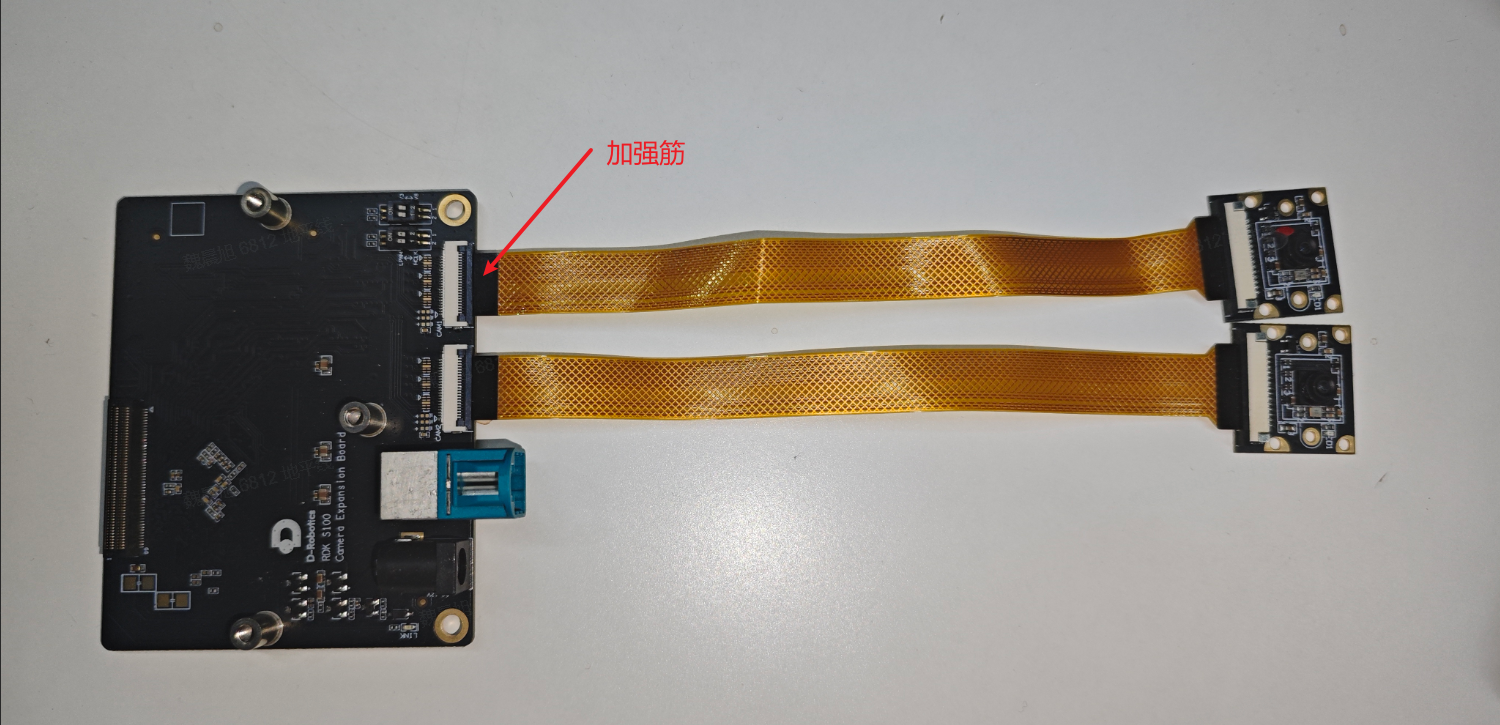
A: IMX219-class MIPI camera modules connect via a 24-pin FPC (flexible flat cable). Connection note: FPC cables often have a blue or black stiffener. Insert with the stiffener facing up (or toward the connector latch per your connector type) on both board and module, and lock the latch.
IMX219 camera connection diagram:
Verification after connection:
-
Ensure the camera is connected and the board is powered.
-
Run the MIPI camera sample (RDK S100 example):
cd /app/pydev_demo/10_mipi_camera_sample # Path may vary by OS version
python3 01_mipi_camera_yolov5x.py
If successful, you should see live camera output and optional AI overlays via HDMI or another configured output. Example HDMI output with detections (
teddy bear,cup,vase):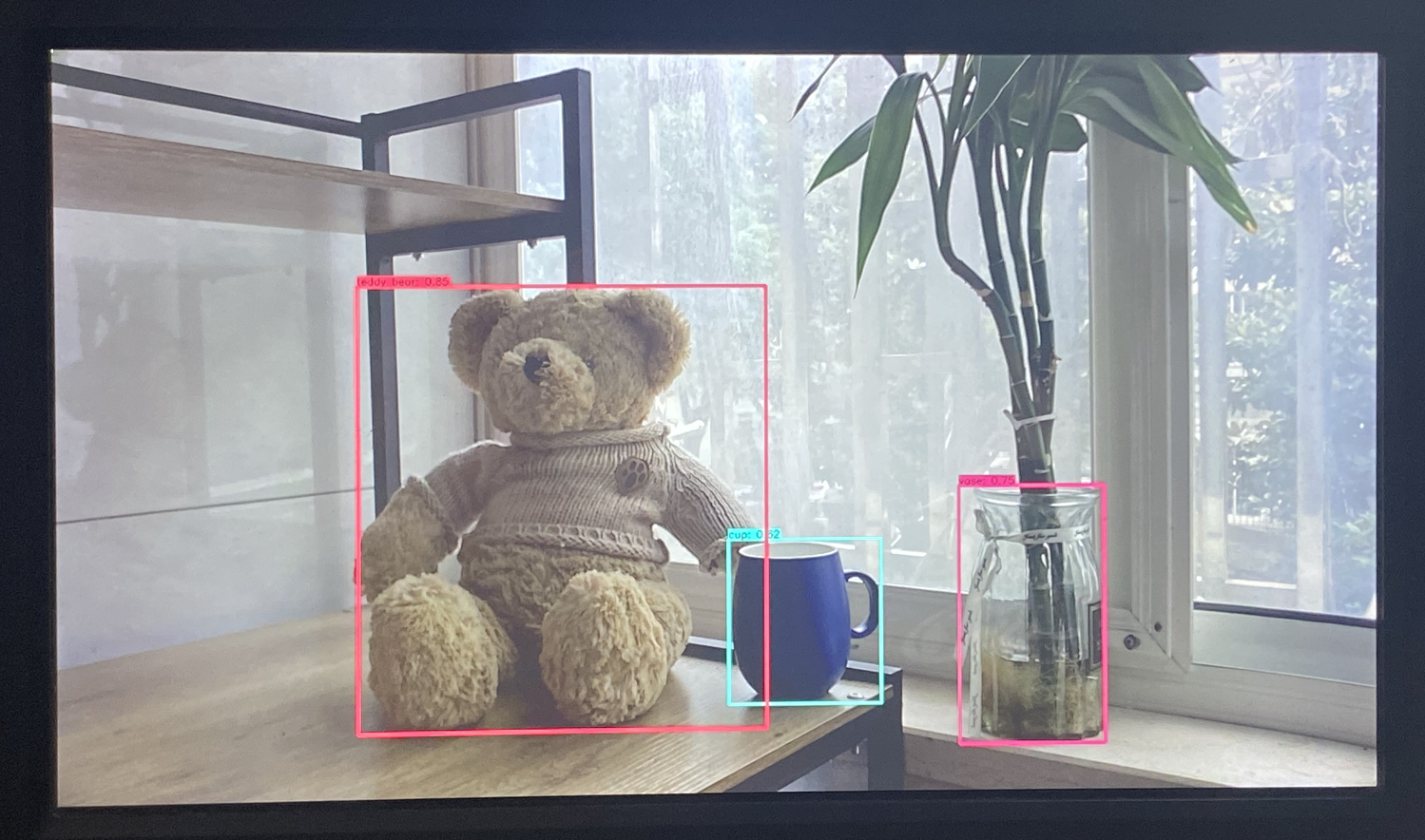
-
Check I2C with
i2cdetect:MIPI cameras are configured over I2C. Scan the bus with
i2cdetect. On RDK S100, MIPI cameras often usei2c-1ori2c-2(see board documentation for details):sudo i2cdetect -y -r 1 # Scan i2c-1 bus
# Or: sudo i2cdetect -y -r 2 # Scan i2c-2 busExpected output example:
- IMX219 (address usually 0x10):
    0  1  2  3  4  5  6  7  8  9  a  b  c  d  e  f
00:                         -- -- -- -- -- -- -- --
10: 10 -- -- -- -- -- -- -- -- -- -- -- -- -- -- --  (0x10 is IMX219 address)
20: -- -- -- -- -- -- -- -- -- -- -- -- -- -- -- --
30: -- -- -- -- -- -- -- -- -- -- -- UU -- -- -- --  (UU may mean kernel driver claimed the address)
...
If
i2cdetectshows the camera I2C address, the camera is recognized at least at the I2C layer.
Q30: Docker fails to start after installation on RDK S100
Docker requires iptables legacy mode. Use the following commands to fix Docker:
sudo update-alternatives --set iptables /usr/sbin/iptables-legacy
sudo update-alternatives --set ip6tables /usr/sbin/ip6tables-legacy
sudo systemctl restart docker
Q31: RDK S100 time zone settings
RDK S100 defaults to Shanghai time (UTC+8) via this setting in /etc/systemd/system.conf:
DefaultEnvironment="TZ=CST-08:00"
To configure manually, comment out DefaultEnvironment="TZ=CST-08:00" and reboot the device.
Q32: RDK S100 desktop Power Statistics app shows incomplete device nodes
RDK S100 does not ship with drivers for full power statistics. Contact your PMIC vendor for adapter and battery drivers if needed.
Brief overview: Power Statistics reads nodes under /sys/class/power_supply/:
- sys/class/power_supply/ac — external AC charger
- sys/class/power_supply/usb — USB charging
- sys/class/power_supply/battery — battery status
The kernel test driver test_power.c illustrates the mechanism:
- Driver location:
kernel/drivers/power/supply
    kernel/drivers/power/supply/
        ├── 88pm860x_battery.c
        ├── 88pm860x_charger.c
        ├── ab8500_bmdata.c
        ├── test_power.c       # Kernel test driver
        ├── Kconfig            # Kernel build options
        ├── Makefile           # Builds test_power.c into the kernel
- Kconfig file
    config TEST_POWER
    tristate "Test power driver"
    help
    This driver is used for testing. It's safe to say M here.
- Makefile file
obj-$(CONFIG_TEST_POWER) += test_power.o
- test_power.c Main API:
    power_supply_register() overview

    Purpose: Register a power supply device (AC, battery, USB, etc.) for unified kernel and userspace access.

    Function prototype:
    struct power_supply *power_supply_register(
        struct device *parent,
        const struct power_supply_desc *desc,
        const struct power_supply_config *cfg
    );

    Parameters:
    parent: Parent device pointer; usually NULL
    desc: Pointer to struct power_supply_desc (properties, type, callbacks)
    cfg: power_supply_config (of_node, supplied_to, num_supplicants, etc.)
Key excerpts (see test_power.c for full source):
    #include <linux/kernel.h>
    #include <linux/module.h>
    #include <linux/power_supply.h>
    #include <linux/errno.h>
    #include <linux/delay.h>
    #include <generated/utsrelease.h>

    enum test_power_id {
        TEST_AC,
        TEST_BATTERY,
        TEST_USB,
        TEST_POWER_NUM,
    };

    static int ac_online            = 1;
    static int usb_online           = 1;
    static int battery_status       = POWER_SUPPLY_STATUS_DISCHARGING;
    static int battery_health       = POWER_SUPPLY_HEALTH_GOOD;
    static int battery_present      = 1; /* true */
    static int battery_technology       = POWER_SUPPLY_TECHNOLOGY_LION;
    static int battery_capacity     = 50;
    static int battery_voltage      = 3300;
    static int battery_charge_counter   = -1000;
    static int battery_current      = -1600;

    static bool module_initialized;

    /* -------------------------
    * AC property getter
    * ------------------------- */

    static int test_power_get_ac_property(struct power_supply *psy,
                        enum power_supply_property psp,
                        union power_supply_propval *val)
    {
        switch (psp) {
        case POWER_SUPPLY_PROP_ONLINE:
            val->intval = ac_online;
            break;
        default:
            return -EINVAL;
        }
        return 0;
    }

    /* -------------------------
    * USB property getter
    * ------------------------- */

    static int test_power_get_usb_property(struct power_supply *psy,
                        enum power_supply_property psp,
                        union power_supply_propval *val)
    {
        switch (psp) {
        case POWER_SUPPLY_PROP_ONLINE:
            val->intval = usb_online;
            break;
        default:
            return -EINVAL;
        }
        return 0;
    }

    /* -------------------------
    * Battery property getter
    * ------------------------- */

    static int test_power_get_battery_property(struct power_supply *psy,
                        enum power_supply_property psp,
                        union power_supply_propval *val)
    {
        switch (psp) {
        case POWER_SUPPLY_PROP_MODEL_NAME:
            val->strval = "Test battery";
            break;
        case POWER_SUPPLY_PROP_MANUFACTURER:
            val->strval = "Linux";
            break;
             .
             .
             .
        default:
            pr_info("%s: some properties deliberately report errors.\n",
                __func__);
            return -EINVAL;
        }
        return 0;
    }
            .
            .
            .
    static int __init test_power_init(void)
    {
        int i;
        int ret;

        BUILD_BUG_ON(TEST_POWER_NUM != ARRAY_SIZE(test_power_supplies));
        BUILD_BUG_ON(TEST_POWER_NUM != ARRAY_SIZE(test_power_configs));

        for (i = 0; i < ARRAY_SIZE(test_power_supplies); i++) {
            test_power_supplies[i] = power_supply_register(NULL,
                            &test_power_desc[i],
                            &test_power_configs[i]);
            if (IS_ERR(test_power_supplies[i])) {
                pr_err("%s: failed to register %s\n", __func__,
                    test_power_desc[i].name);
                ret = PTR_ERR(test_power_supplies[i]);
                goto failed;
            }
        }

        module_initialized = true;
        return 0;
    failed:
        while (--i >= 0)
            power_supply_unregister(test_power_supplies[i]);
        return ret;
    }
    module_init(test_power_init);                                          // Module init

    static void __exit test_power_exit(void)
    {
        int i;

        /* Let's see how we handle changes... */
        ac_online = 0;
        usb_online = 0;
        battery_status = POWER_SUPPLY_STATUS_DISCHARGING;
        for (i = 0; i < ARRAY_SIZE(test_power_supplies); i++)
            power_supply_changed(test_power_supplies[i]);
        pr_info("%s: 'changed' event sent, sleeping for 10 seconds...\n",
            __func__);
        ssleep(10);

        for (i = 0; i < ARRAY_SIZE(test_power_supplies); i++)
            power_supply_unregister(test_power_supplies[i]);

        module_initialized = false;
    }
    module_exit(test_power_exit);                                           // Module exit