PTQ Principles and Step-by-Step Guide
Introduction
Model conversion refers to the process of converting an original floating-point model into a D-Robotics hybrid heterogeneous model. The original floating-point model (also referred to as a floating-point model in some places in this document) is a usable model you obtain by training with DL frameworks such as TensorFlow/PyTorch, with float32 computation precision. A hybrid heterogeneous model is a model format suitable for running on D-Robotics processors. This chapter will repeatedly use these two model terms. To avoid ambiguity, please understand these concepts before reading further.
The complete model development process with the D-Robotics algorithm toolchain requires five important stages: Floating-Point Model Preparation, Model Verification, Model Conversion, Performance Evaluation, and Accuracy Evaluation, as shown below:
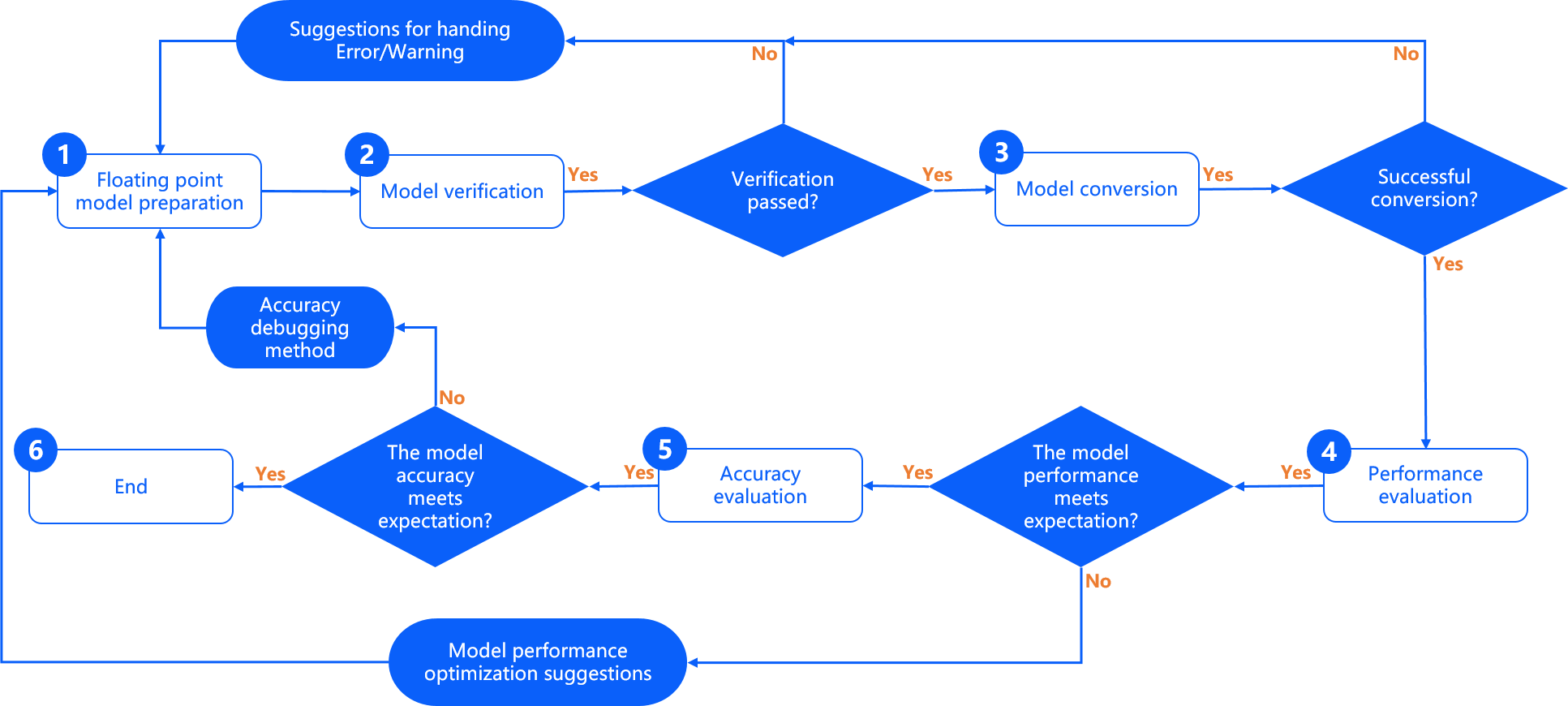
Floating-Point Model Preparation This stage ensures that the original floating-point model format is supported by the D-Robotics model conversion tool. The original floating-point model comes from a usable model you train with DL frameworks such as TensorFlow/PyTorch. For specific floating-point model requirements and recommendations, please read the Floating-Point Model Preparation section.
Model Verification This stage verifies whether the original floating-point model meets the requirements of the D-Robotics algorithm toolchain. D-Robotics provides the hb_mapper checker tool to check floating-point models. For detailed usage, please read the Model Verification section.
Model Conversion This stage completes the conversion from a floating-point model to a D-Robotics hybrid heterogeneous model. After this stage, you will obtain a model that can run on D-Robotics processors. D-Robotics provides the hb_mapper makertbin conversion tool to complete key steps such as model optimization, quantization, and compilation. For detailed usage, please read the Model Conversion section.
Performance Evaluation This stage mainly evaluates the inference performance of D-Robotics hybrid heterogeneous models. D-Robotics provides model performance evaluation tools. You can use these tools to verify whether model performance meets application requirements. For detailed instructions, please read the Model Performance Analysis and Tuning section.
Accuracy Evaluation This stage mainly evaluates the inference accuracy of D-Robotics hybrid heterogeneous models. D-Robotics provides model accuracy evaluation tools. For detailed instructions, please read the Model Accuracy Analysis and Tuning section.
Floating-Point Model Preparation
Floating-point models trained with public DL frameworks are the input to the D-Robotics model conversion tool. The DL frameworks currently supported by the conversion tool are as follows:
| Framework | Caffe | PyTorch | TensorFlow | MXNet | PaddlePaddle |
|---|---|---|---|---|---|
| D-Robotics Toolchain | Supported | Supported (convert to ONNX) | Supported (convert to ONNX) | Supported (convert to ONNX) | Supported (convert to ONNX) |
Among the frameworks above, caffemodel exported from the Caffe framework is directly supported. DL frameworks such as PyTorch, TensorFlow, and MXNet are indirectly supported by converting to ONNX format.
Standardized solutions are available for converting different frameworks to ONNX. Refer to the following:
-
Pytorch2Onnx: The PyTorch official API supports exporting models directly to ONNX. Reference link: https://pytorch.org/tutorials/advanced/super_resolution_with_onnxruntime.html
-
Tensorflow2Onnx: Convert using onnx/tensorflow-onnx from the ONNX community. Reference link: https://github.com/onnx/tensorflow-onnx
-
MXNet2Onnx: The MXNet official API supports exporting models directly to ONNX. Reference link: https://github.com/dotnet/machinelearning/blob/main/test/Microsoft.ML.Tests/OnnxConversionTest.cs
-
For ONNX conversion support for more frameworks, reference link: https://github.com/onnx/tutorials#converting-to-onnx-format
For models from PyTorch, PaddlePaddle, and TensorFlow2 frameworks, we also provide tutorials on exporting ONNX and model visualization. Please refer to:
-
Operators used in the floating-point model must comply with the operator constraints of the D-Robotics algorithm toolchain. Please refer to the Model Operator Support List section for details.
-
Currently, the conversion tool only supports models with 32 or fewer outputs.
-
Supports quantizing Caffe floating-point models of
caffe 1.0and ONNX floating-point models withir_version≤7,opset=10, andopset=11into fixed-point models supported by D-Robotics. For the correspondence between ONNX model ir_version and ONNX version, please refer to the ONNX official documentation ; -
Model input dimensions only support
fixed 4-dimensionalNCHW or NHWC input (N dimension must be 1), for example: 1x3x224x224 or 1x224x224x3. Dynamic dimensions and non-4-dimensional inputs are not supported; -
Do not include
post-processing operatorsin the floating-point model, such as the NMS operator.
Model Verification
Before formal model conversion, please use the hb_mapper checker tool for model verification to ensure it meets the support constraints of D-Robotics processors.
It is recommended to refer to the script methods for Caffe, ONNX, and other example models in the D-Robotics model conversion horizon_model_convert_sample sample package: 01_check_X3.sh.
Using the hb_mapper checker Tool to Verify Models
The usage of the hb_mapper checker tool is as follows:
  hb_mapper checker --model-type ${model_type} \
                    --march ${march} \
                    --proto ${proto} \
                    --model ${caffe_model/onnx_model} \
                    --input-shape ${input_node} ${input_shape} \
                    --output ${output}
hb_mapper checker parameter descriptions:
--model-type
Used to specify the type of model to check. Currently only caffe or onnx is supported.
--march
Used to specify the D-Robotics processor type to adapt to. Valid values are bernoulli2 and bayes; set to bernoulli2 for RDK X3 and bayes-e for RDK X5.
--proto
This parameter is only valid when model-type is set to caffe. The value is the prototxt file name of the Caffe model.
--model
When model-type is set to caffe, the value is the caffemodel file name of the Caffe model.
When model-type is set to onnx, the value is the ONNX model file name.
--input-shape
Optional parameter to explicitly specify the input shape of the model.
The value is {input_name} {NxHxWxC/NxCxHxW}, with a space between input_name and shape.
For example, if the model input name is data1 and the input shape is [1,224,224,3],
the configuration should be --input-shape data1 1x224x224x3.
If the shape configured here differs from the shape in the model, the configuration here takes precedence.
Note that one --input-shape accepts only one name and shape combination. If your model has multiple input nodes,
configure the --input-shape parameter multiple times in the command.
The --output parameter has been deprecated. Log information is stored in hb_mapper_checker.log by default.
Handling Check Exceptions
If the model check step terminates abnormally or error messages appear, model verification has failed. Please check the error messages and modification suggestions in the terminal output or in the hb_mapper_checker.log log file generated in the current directory.
For example, the following configuration contains an unrecognized operator type Accuracy:
  layer {
    name: "data"
    type: "Input"
    top: "data"
    input_param { shape: { dim: 1 dim: 3 dim: 224 dim: 224 } }
  }
  layer {
    name: "Convolution1"
    type: "Convolution"
    bottom: "data"
    top: "Convolution1"
    convolution_param {
      num_output: 128
      bias_term: false
      pad: 0
      kernel_size: 1
      group: 1
      stride: 1
      weight_filler {
        type: "msra"
      }
    }
  }
  layer {
    name: "accuracy"
    type: "Accuracy"
    bottom: "Convolution3"
    top: "accuracy"
    include {
      phase: TEST
    }
  }
When you use hb_mapper checker to check this model, you will get the following information in hb_mapper_checker.log:
ValueError: Not support layer name=accuracy type=Accuracy
- If the model check step terminates abnormally or error messages appear, model verification has failed. Please check the error messages and modification suggestions in the terminal output or in the
hb_mapper_checker.loglog file generated in the current directory. You can look up solutions in the Model Quantization Errors and Solutions section. If the issue persists, please contact the D-Robotics technical support team or post your question on the D-Robotics Official Technical Community. We will provide support within 24 hours.
Interpreting Check Results
If there are no ERROR messages, verification passes successfully. The hb_mapper checker tool will directly output the following information:
  ==============================================
  Node         ON   Subgraph  Type
  ----------
  conv1        BPU  id(0)     HzSQuantizedConv
  conv2_1/dw   BPU  id(0)     HzSQuantizedConv
  conv2_1/sep  BPU  id(0)     HzSQuantizedConv
  conv2_2/dw   BPU  id(0)     HzSQuantizedConv
  conv2_2/sep  BPU  id(0)     HzSQuantizedConv
  conv3_1/dw   BPU  id(0)     HzSQuantizedConv
  conv3_1/sep  BPU  id(0)     HzSQuantizedConv
  ...
Each line in the result represents the check status of a model node. Each line contains four columns: Node, ON, Subgraph, and Type, representing the node name, the hardware executing the node computation, the subgraph the node belongs to, and the D-Robotics operator name mapped to the node. If CPU-computed operators appear in the model network structure, the hb_mapper checker tool will split the consecutive BPU-computed parts before and after such operators into two Subgraphs.
Tuning Guidance Based on Check Results
In the ideal case, all operators in the model network structure should run on the BPU, meaning there is only one subgraph. If CPU operators cause the model to be split into multiple subgraphs, the hb_mapper checker tool will provide the specific reason for the CPU operators. The following shows an example model verification case on RDK X3;
- The following Caffe model running on RDK X3 contains a Reshape + Pow + Reshape structure. From the operator constraint list for RDK X3, we can see that the Reshape operator currently runs on the CPU, and the shape of Pow is non-4-dimensional, which does not meet the X3 BPU operator constraints.
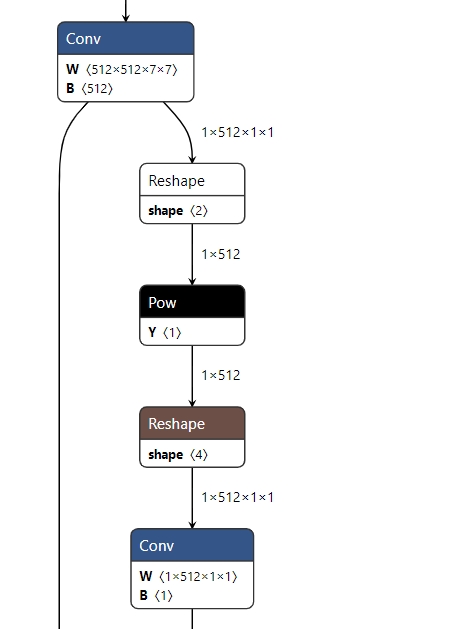
Therefore, the final check result will also show segmentation, as follows:
  2022-05-25 15:16:14,667 INFO The converted model node information:
  ====================================================================================
  Node                                    ON   Subgraph  Type
  -------------
  conv68                                  BPU  id(0)     HzSQuantizedConv
  sigmoid16                               BPU  id(0)     HzLut
  axpy_prod16                             BPU  id(0)     HzSQuantizedMul
  UNIT_CONV_FOR_eltwise_layer16_add_1     BPU  id(0)     HzSQuantizedConv
  prelu49                                 BPU  id(0)     HzPRelu
  fc1                                     BPU  id(0)     HzSQuantizedConv
  fc1_reshape_0                           CPU  --        Reshape
  fc_output/square                        CPU  --        Pow
  fc_output/sum_pre_reshape               CPU  --        Reshape
  fc_output/sum                           BPU  id(1)     HzSQuantizedConv
  fc_output/sum_reshape_0                 CPU  --        Reshape
  fc_output/sqrt                          CPU  --        Pow
  fc_output/expand_pre_reshape            CPU  --        Reshape
  fc_output/expand                        BPU  id(2)     HzSQuantizedConv
  fc1_reshape_1                           CPU  --        Reshape
  fc_output/expand_reshape_0              CPU  --        Reshape
  fc_output/op                            CPU  --        Mul
Based on the hints from hb_mapper checker, operators running on the BPU generally deliver better performance. Here, CPU operators such as Pow and Reshape can be removed from the model, and their functionality can be moved to post-processing to reduce the number of subgraphs.
Of course, multiple subgraphs will not affect the overall conversion process, but they will significantly impact model performance. It is recommended to adjust model operators to run on the BPU as much as possible. You can refer to the BPU operator support list in the D-Robotics processor operator support list to replace operators with equivalent functionality, or move CPU operators in the model to pre-processing or post-processing for CPU computation.
Model Conversion
The model conversion stage completes the conversion from a floating-point model to a D-Robotics hybrid heterogeneous model. After this stage, you will obtain a model that can run on D-Robotics processors. Before conversion, please ensure that you have successfully passed the model verification process described above.
Model conversion is performed using the hb_mapper makertbin tool. During conversion, important processes such as model optimization and calibration quantization are completed. Calibration requires preparing calibration data according to model pre-processing requirements.
To help you fully understand model conversion, this section will introduce calibration data preparation, conversion tool usage, interpretation of the internal conversion process, interpretation of conversion results, and interpretation of conversion outputs in sequence.
Preparing Calibration Data
During model conversion, the calibration stage requires approximately 100 calibration sample inputs, with each sample being an independent data file. To ensure the accuracy of the converted model, we recommend that these calibration samples come from the training set or validation set used to train your model. Do not use very rare outlier samples, such as solid-color images or images containing no detection or classification targets.
The preprocess_on parameter in the conversion configuration file corresponds to two different pre-processing sample requirements when enabled and disabled, respectively.
(For detailed parameter configuration, refer to the related descriptions in the calibration parameter group below.)
When preprocess_on is disabled, you need to apply the same pre-processing to samples taken from the training/validation set as before model inference,
so that the processed calibration samples have the same data type (input_type_train), size (input_shape), and
layout (input_layout_train) as the original model. For models with featuremap input, you can save data as float32 binary files using the numpy.tofile command,
and the toolchain will read them using the numpy.fromfile command during calibration.
For example, for an original floating-point model trained on ImageNet for classification with a single input node, the input information is as follows:
- Input type:
BGR - Input layout:
NCHW - Input size:
1x3x224x224
The data pre-processing when using the validation set for model inference is as follows:
- Scale the image proportionally, with the short side scaled to 256.
- Use the
center_cropmethod to obtain a 224x224 image. - Subtract mean per channel.
- Multiply data by the scale coefficient.
The sample processing code for the above example model is as follows:
To avoid lengthy code, implementations of various simple transformers are not included here. For specific usage, please refer to the Transformer Usage section.
It is recommended to refer to the pre-processing step methods for Caffe, ONNX, and other example models in the D-Robotics model conversion horizon_model_convert_sample sample package: 02_preprocess.sh and preprocess.py.
  # This example uses skimage; opencv would differ slightly
  # Note that subtract-mean and multiply-scale are not shown in transformers
  # mean and scale operations are fused into the model; see norm_type/mean_value/scale_value below
  def data_transformer():
    transformers = [
    # Proportional scale; short side scaled to 256
    ShortSideResizeTransformer(short_size=256),
    # CenterCrop to obtain 224x224 image
    CenterCropTransformer(crop_size=224),
    # skimage reads in NHWC layout; convert to NCHW required by the model
    HWC2CHWTransformer(),
    # skimage reads RGB channel order; convert to BGR required by the model
    RGB2BGRTransformer(),
    # skimage reads values in [0.0,1.0]; adjust to the value range required by the model
    ScaleTransformer(scale_value=255)
    ]

    return transformers

  # src_image original image from calibration set
  # dst_file file name to store final calibration sample data
  def convert_image(src_image, dst_file, transformers):
    image = skimage.img_as_float(skimage.io.imread(src_file))
    for trans in transformers:
    image = trans(image)
    # input_type_train BGR numeric type specified by the model is UINT8
    image = image.astype(np.uint8)
    # Store calibration sample as binary to data file
    image.tofile(dst_file)

  if __name__ == '__main__':
    # Original calibration image collection; pseudocode
    src_images = ['ILSVRC2012_val_00000001.JPEG',...]
    # Final calibration file names (extension not restricted); pseudocode
    # calibration_data_bgr_f32 is the cal_data_dir you specify in the config file
    dst_files = ['./calibration_data_bgr_f32/ILSVRC2012_val_00000001.bgr',...]

    transformers = data_transformer()
    for src_image, dst_file in zip(src_images, dst_files):
    convert_image(src_image, dst_file, transformers)
When preprocess_on is enabled, calibration samples can use image format files supported by skimage.
After the conversion tool reads these images, it will resize them to the size required by the model input node and use the result as calibration input.
This approach is simpler, but does not guarantee quantization accuracy. Therefore, we strongly recommend using preprocess_on in the disabled state.
Note that the input_shape parameter in the yaml file specifies the input data size of the original floating-point model. For dynamic-input models, you can use this parameter to set the input size after conversion, and the calibration data shape must be consistent with input_shape.
For example: if the original floating-point model input node shape is ?x3x224x224 ("?" represents a placeholder, meaning the first dimension is dynamic input), and input_shape: 8x3x224x224 is set in the conversion config file, then each calibration data sample prepared by the user must be 8x3x224x224.
(Please note that for models whose input shape first dimension is not equal to 1, modifying model batch information via the input_batch parameter is not supported.)
Using the hb_mapper makertbin Tool to Convert Models
hb_mapper makertbin provides two modes: with fast-perf mode enabled and without fast-perf mode enabled.
When fast-perf mode is enabled, a bin model that can run at the highest performance on the board is generated during conversion. The tool mainly performs the following operations internally:
-
Run BPU-executable operators on the BPU as much as possible (for
RDK X5, you can specify operators to run on the BPU via thenode_infoparameter in the yaml file;RDK X3uses automatic optimization and cannot specify operators via the yaml config file). -
Remove non-removable CPU operators at the beginning and end of the model, including: Quantize/Dequantize, Transpose, Cast, Reshape, etc.
-
Compile the model with the highest-performance O3 optimization level.
It is recommended to refer to the script methods for Caffe, ONNX, and other example models in the D-Robotics model conversion horizon_model_convert_sample sample package: 03_build_X3.sh.
The usage of the hb_mapper makertbin command is as follows:
Without fast-perf mode:
  hb_mapper makertbin --config ${config_file}  \
                      --model-type  ${model_type}
With fast-perf mode:
  hb_mapper makertbin --fast-perf --model ${caffe_model/onnx_model} --model-type ${model_type} \
                      --proto ${caffe_proto} \
                      --march ${march}
hb_mapper makertbin parameter descriptions:
--help
Display help information and exit.
-c, --config
Model compilation configuration file in yaml format with a .yaml suffix. For a complete configuration file template, refer to the section below.
--model-type
Used to specify the type of model to convert. Currently caffe or onnx is supported.
--fast-perf
Enable fast-perf mode. When enabled, a bin model that can run at the highest performance on the board is generated during conversion for subsequent model performance evaluation.
If you enable fast-perf mode, you also need the following configuration:
--model
Caffe or ONNX floating-point model file.
--proto
Used to specify the Caffe model prototxt file.
--march
BPU micro-architecture. Set to bernoulli2 for RDK X3 and bayes-e for RDK X5.
-
For
RDK X3 yaml configuration files, you can directly use the RDK X3 Caffe Model Quantization yaml Template and RDK X3 ONNX Model Quantization yaml Template template files for filling in. -
For
RDK X5 yaml configuration files, you can directly use the RDK X5 Caffe Model Quantization yaml Template and RDK X5 ONNX Model Quantization yaml Template template files for filling in. -
If the hb_mapper makertbin step terminates abnormally or error messages appear, model conversion has failed. Please check the error messages and modification suggestions in the terminal output or in the
hb_mapper_makertbin.loglog file generated in the current directory. You can look up solutions in the Model Quantization Errors and Solutions section. If the issue persists, please contact the D-Robotics technical support team or post your question on the D-Robotics Official Technical Community. We will provide support within 24 hours.
Model Conversion yaml Configuration Parameters
Either a Caffe model or an ONNX model. That is, choose one of caffe_model + prototxt or onnx_model.
In other words, either a Caffe model or an ONNX model.
  # Model parameter group
  model_parameters:
    # Original Caffe floating-point model description file
    prototxt: '***.prototxt'

    # Original Caffe floating-point model data file
    caffe_model: '****.caffemodel'

    # Original ONNX floating-point model file
    onnx_model: '****.onnx'

    # Target processor architecture for conversion; keep default. D-Robotics RDK X3 uses bernoulli2 architecture, RDK X5 uses bayes-e architecture. march: 'bayes-e'
    march: 'bernoulli2'

    # Name prefix for the model file output for on-board execution after model conversion
    output_model_file_prefix: 'mobilenetv1'

    # Directory for model conversion output results
    working_dir: './model_output_dir'

    # Whether the converted hybrid heterogeneous model retains intermediate results of each output layer; keep default
    layer_out_dump: False

    # Specify model output nodes
    output_nodes: {OP_name}

    # Batch delete nodes of a certain type
    remove_node_type: Dequantize

    # Delete nodes with specified names
    remove_node_name: {OP_name}

  # Input information parameter group
  input_parameters:
    # Input node name of the original floating-point model
    input_name: "data"

    # Input data format of the original floating-point model (count/order consistent with input_name)
    input_type_train: 'bgr'

    # Input data layout of the original floating-point model (count/order consistent with input_name)
    input_layout_train: 'NCHW'

    # Input data size of the original floating-point model
    input_shape: '1x3x224x224'

    # batch_size fed to the network during actual execution; default is 1
    input_batch: 1

    # Input data pre-processing method added to the model
    norm_type: 'data_mean_and_scale'

    # Mean subtracted from images in the pre-processing method; if channel means, values must be separated by spaces
    mean_value: '103.94 116.78 123.68'

    # Image scale factor in the pre-processing method; if per-channel scale, values must be separated by spaces
    scale_value: '0.017'

    # Input data format the converted hybrid heterogeneous model needs to adapt to (count/order consistent with input_name)
    input_type_rt: 'yuv444'

    # Special format of input data
    input_space_and_range: 'regular'

    # Input data layout the converted hybrid heterogeneous model needs to adapt to (count/order consistent with input_name); if input_type_rt is nv12, this parameter does not need to be configured
    input_layout_rt: 'NHWC'

  # Calibration parameter group
  calibration_parameters:
    # Directory storing calibration samples used for model calibration
    cal_data_dir: './calibration_data'

    # Data storage type of calibration data binary files.
    cal_data_type: 'float32'

    # Enable automatic processing of image calibration samples (skimage read; resize to input node size)
    #preprocess_on: False

    # Calibration algorithm type; default calibration algorithm is preferred
    calibration_type: 'default'

    # Parameters for max calibration method
    # max_percentile: 1.0

    # Force specified OP to run on CPU; generally not needed; can be enabled during accuracy tuning to try accuracy optimization
    #run_on_cpu:  {OP_name}

    # Force specified OP to run on BPU; generally not needed; can be enabled during performance tuning to try performance optimization
    # run_on_bpu:  {OP_name}

    # Specify whether to calibrate per channel
    #per_channel: False

    # Specify output node data precision
    #optimization: set_model_output_int8

  # Compiler parameter group
  compiler_parameters:
    # Compilation strategy selection
    compile_mode: 'latency'

    # Whether to enable compilation debug information; keep default False
    debug: False

    # Number of model execution cores
    core_num: 1

    # Model compilation optimization level; keep default O3
    optimize_level: 'O3'

    # Specify input data source for input named data
    #input_source: {"data": "pyramid"}

    # Specify maximum continuous execution time per function call of the model
    #max_time_per_fc: 1000

    # Specify number of processes when compiling the model
    #jobs: 8

  # This parameter group does not need configuration; only enable when using custom CPU operators
  #custom_op:
    # Custom op calibration method; register method is recommended
    #custom_op_method: register

    # Custom OP implementation file; multiple files can be separated by ";"; can be generated from template; see custom OP documentation
    #op_register_files: sample_custom.py

    # Directory containing custom OP implementation files; use relative path
    #custom_op_dir: ./custom_op
The configuration file mainly contains the model parameter group, input information parameter group, calibration parameter group, and compiler parameter group. In your configuration file, all four parameter groups must be present. Specific parameters are optional or required; optional parameters may be omitted.
The setting format for specific parameters is: param_name: 'param_value' ;
When a parameter has multiple values, separate each value with ';': param_name: 'param_value1; param_value2; param_value3' ; for example: run_on_cpu: 'conv_0; conv_1; conv12' .
-
For multi-input models, it is recommended to explicitly specify optional parameters (
input_name,input_shape, etc.) to avoid errors in parameter order correspondence. -
When configuring march as bayes-e, i.e., during RDK X5 model conversion, if you set optimize_level to O3, hb_mapper makertbin provides caching by default. That is, the first time you use hb_mapper makertbin to compile a model, a cache file is created automatically. On subsequent repeated compilations with the same working_dir, this file is called automatically to reduce compilation time.
- Note that if
input_type_rtis set tonv12oryuv444, odd numbers must not appear in the model input dimensions. - Note that RDK X3 currently does not support the combination of
input_type_rtasyuv444andinput_layout_rtasNCHW. - After successful model conversion, if an OP that meets D-Robotics BPU operator constraints still runs on the CPU, the main reason is that the OP is a passively quantized OP. For passive quantization, please read the Active and Passive Quantization Logic in the Algorithm Toolchain section.
The following lists specific parameter information. There are many parameters; we introduce them in the order of the parameter groups above.
-
Model Parameter Group
| Parameter Name | Parameter Description | Value Range | Optional/Required |
|---|---|---|---|
prototxt | Purpose: Specify the prototxt file name of the Caffe floating-point model. Description: Must be configured when hb_mapper makertbin model-type is caffe. | Value Range: None. Default: None. | Optional |
caffe_model | Purpose: Specify the caffemodel file name of the Caffe floating-point model. Description: Must be configured when hb_mapper makertbin model-type is caffe. | Value Range: None. Default: None. | Optional |
onnx_model | Purpose: Specify the onnx file name of the ONNX floating-point model. Description: Must be configured when hb_mapper makertbin model-type is onnx. | Value Range: None. Default: None. | Optional |
march | Purpose: Specify the platform architecture the output hybrid heterogeneous model needs to support. Description: The two optional values correspond to the BPU micro-architectures of RDK X3 and RDK Ultra, respectively. Select according to your platform. | Value Range: bernoulli2 or bayes.Default: None. | Required |
output_model_file_prefix | Purpose: Specify the name prefix of the output hybrid heterogeneous model after conversion. Description: Name prefix of the output fixed-point model file. | Value Range: None. Default: None. | Required |
working_dir | Purpose: Specify the directory for model conversion output results. Description: If the directory does not exist, the tool creates it automatically. | Value Range: None. Default: model_output. | Optional |
layer_out_dump | Purpose: Specify whether the hybrid heterogeneous model retains intermediate layer output values. Description: Outputting intermediate layer values is a debugging technique; do not enable it under normal circumstances. | Value Range: True, False.Default: False. | Optional |
output_nodes | Purpose: Specify model output nodes. Description: In general, the conversion tool automatically identifies model output nodes. This parameter supports specifying intermediate layers as outputs. Set the value to specific node names in the model. For multiple values, refer to the param_value configuration description above. Note that once this parameter is set, the tool no longer automatically identifies output nodes; the nodes you specify via this parameter are all outputs. | Value Range: None. Default: None. | Optional |
remove_node_type | Purpose: Set the type of nodes to delete. Description: This is a hidden parameter; not setting it or setting it empty does not affect model conversion. This parameter supports setting the type information of nodes to delete. Deleted nodes must be at the beginning or end of the model, connected to model input or output. Note: Nodes to delete are deleted sequentially in order, dynamically updating the model structure; before deletion, it is also checked whether the node is at model input/output. Therefore, node deletion order matters. | Value Range: "Quantize", "Transpose", "Dequantize", "Cast", "Reshape". Separate different types with ";". Default: None. | Optional |
remove_node_name | Purpose: Set the name of nodes to delete. Description: This is a hidden parameter; not setting it or setting it empty does not affect model conversion. This parameter supports setting the names of nodes to delete. Deleted nodes must be at the beginning or end of the model, connected to model input or output. Note: Nodes to delete are deleted sequentially in order, dynamically updating the model structure; before deletion, it is also checked whether the node is at model input/output. Therefore, node deletion order matters. | Value Range: None. Separate different types with ";". Default: None. | Optional |
set_node_data_type | Purpose: Configure the output data type of specified ops as int16. This parameter only supports RDK Ultra and RDK X5 configuration! Description: During model conversion, the default input/output data type of most ops is int8. This parameter can specify the output data type of specific ops as int16 (under certain constraints). For int16 details, see the int16 Configuration Description section. Note: The functionality of this parameter has been merged into the node_info parameter and is planned to be deprecated in future versions. | Value Range: For operators supporting int16 configuration, refer to the RDK Ultra and RDK X5 operator constraint lists in the Model Operator Support List. Default: None. | Optional |
debug_mode | Purpose: Save calibration data for accuracy debug analysis. Description: Saves calibration data for accuracy debug analysis in .npy format. This data can be loaded with np.load() and fed directly into the model for inference. If this parameter is not set, you can also save data yourself and use accuracy debug tools for analysis. | Value Range: "dump_calibration_data"Default: None. | Optional |
node_info | Purpose: Supports configuring specified OP input/output data types as int16 and forcing specified operators to run on CPU or BPU. This parameter only supports RDK Ultra and RDK X5 configuration! Description: Based on the principle of reducing parameters in yaml, we merged the capabilities of set_node_data_type, run_on_cpu, and run_on_bpu into this parameter, and extended support for configuring specified op input data types as int16.node_info parameter usage: - Specify OP to run on BPU/CPU only (BPU example below; CPU method is the same): node_info: { "node_name" { 'ON': 'BPU',} } - Specify OP to run on BPU and configure OP input/output data types: node_info: { "node_name": { 'ON': 'BPU', 'InputType': 'int16', 'OutputType': 'int16'}} - Specify multiple operators: node_info: {"/model.0/conv/Conv": {"ON": "BPU","InputType": "int16","OutputType": "int16"},"/model.0/act/Mul": {"ON": "BPU","InputType": "int16","OutputType": "int16"},"/model.2/Concat": {"ON": "BPU","InputType": "int16","OutputType": "int16"}} | ||
| 'InputType': 'int16' means all input data types of the specified operator are int16. To specify InputType for a specific input of an operator, configure a number after InputType. For example: 'InputType0': 'int16' means the first input data type of the specified operator is int16, 'InputType1': 'int16' means the second input data type of the specified operator is int16, and so on. Note: 'OutputType' does not support specifying OutputType for specific outputs of an operator. Once configured, it applies to all outputs of the operator. 'OutputType0', 'OutputType1', etc. are not supported. | Value Range: For operators supporting int16 configuration, refer to the RDK Ultra and RDK X5 operator constraint lists in the Model Operator Support List. Operators that can be specified to run on CPU or BPU must be operators contained in the model. Default: None. | Optional |
-
Input Information Parameter Group
| Parameter Name | Parameter Description | Value Range | Optional/Required |
|---|---|---|---|
input_name | Purpose: Specify input node names of the original floating-point model. Description: Not required when the floating-point model has a single input node. Required when there are multiple input nodes to ensure correct order of subsequent types and calibration data input. For multiple values, refer to the param_value configuration description above. | Value Range: None. Default: None. | Optional |
input_type_train | Purpose: Specify input data types of the original floating-point model. Description: Each input node requires a definite input data type. When multiple input nodes exist, the order must strictly match that in input_name. For multiple values, refer to the param_value configuration description above. For data type selection, refer to the Model Conversion Internal Process Interpretation section. | Value Range: rgb, bgr, yuv444, gray, featuremap.Default: None. | Required |
input_layout_train | Purpose: Specify input data layout of the original floating-point model. Description: Each input node requires a definite input data layout that must match the layout used by the original floating-point model. When multiple input nodes exist, the order must strictly match that in input_name. For multiple values, refer to the param_value configuration description above. For data layout, refer to the Model Conversion Internal Process Interpretation section. | Value Range: NHWC, NCHW. Default: None. | Required |
input_type_rt | Purpose: Input data format the converted hybrid heterogeneous model needs to adapt to. Description: This specifies the data format you need to use; it does not need to match the original model data format, but note that data fed to the model on the platform uses this format. Each input node requires a definite input data type. When multiple input nodes exist, the order must strictly match that in input_name. For multiple values, refer to the param_value configuration description above. For data type selection, refer to the Model Conversion Internal Process Interpretation section. | Value Range: rgb, bgr, yuv444, nv12, gray, featuremap.Default: None. | Required |
input_layout_rt | Purpose: Input data layout the converted hybrid heterogeneous model needs to adapt to. Description: Each input node requires a definite input data layout that you want to assign to the hybrid heterogeneous model. Inappropriate input data layout settings will affect performance; on X3 platform, NHWC format input is recommended. If input_type_rt is nv12, this parameter does not need to be configured. When multiple input nodes exist, the order must strictly match that in input_name. For multiple values, refer to the param_value configuration description above. For data layout, refer to the Model Conversion Internal Process Interpretation section. | Value Range: NCHW, NHWC.Default: None. | Optional |
input_space_and_range | Purpose: Specify special format of input data. Description: This parameter adapts to yuv420 formats output by different ISPs and is only effective when the corresponding input_type_rt is nv12. regular is the common yuv420 format with value range [0,255]; bt601_video is another video yuv420 format with value range [16,235]. More information about bt601 can be found online. Do not configure this parameter unless explicitly required. | Value Range: regular, bt601_video.Default: regular. | Optional |
input_shape | Purpose: Specify input data size of the original floating-point model. Description: Shape dimensions are connected with x, for example 1x3x224x224. When the original floating-point model has a single input node, this may be omitted and the tool reads size from the model file automatically. When configuring multiple input nodes, the order must strictly match that in input_name. For multiple values, refer to the param_value configuration description above. | Value Range: None. Default: None. | Optional |
input_batch | Purpose: Specify input batch count the converted hybrid heterogeneous model needs to adapt to. Description: input_batch here is the input batch count of the converted hybrid heterogeneous bin model, but does not affect the input batch count of the converted onnx model. Default is 1 when not configured. This parameter only applies to single-input models, and the first dimension of input_shape must be 1. | Value Range: 1-128.Default: 1. | Optional |
norm_type | Purpose: Input data pre-processing method added to the model. Description: no_preprocess means no data pre-processing is added; data_mean provides subtract-mean pre-processing; data_scale provides multiply-scale pre-processing; data_mean_and_scale provides subtract-mean then multiply-scale pre-processing. When there are multiple input nodes, the order must strictly match that in input_name. For multiple values, refer to the param_value configuration description above. For the impact of this parameter, refer to the Model Conversion Internal Process Interpretation section. | Value Range: data_mean_and_scale, data_mean, data_scale, no_preprocess.Default: None. | Required |
mean_value | Purpose: Specify mean subtracted from images in the pre-processing method. Description: Required when norm_type includes data_mean_and_scale or data_mean. For each input node, there are two configuration methods. The first is a single value meaning all channels subtract this mean; the second provides values equal to the number of channels (separated by spaces), meaning each channel subtracts a different mean. The number of configured input nodes must match the number of nodes in norm_type. If a node does not need mean processing, configure 'None' for that node. For multiple values, refer to the param_value configuration description above. | Value Range: None. Default: None. | Optional |
scale_value | Purpose: Specify scale coefficient in the pre-processing method. Description: Required when norm_type includes data_mean_and_scale or data_scale. For each input node, there are two configuration methods. The first is a single value meaning all channels multiply by this coefficient; the second provides values equal to the number of channels (separated by spaces), meaning each channel multiplies by a different coefficient. The number of configured input nodes must match the number of nodes in norm_type. If a node does not need scale processing, configure 'None' for that node. For multiple values, refer to the param_value configuration description above. | Value Range: None. Default: None. | Optional |
input_type_rt/input_type_train Supplementary Description
The RDK X5 compute platform architecture makes two assumptions for performance:
-
Assume input data is int8 quantized data.
-
Data captured by the camera is nv12.
Therefore, if you use rgb(NCHW) input format during model training but want this model to efficiently process nv12 data, configure as follows during model conversion:
  input_parameters:
      input_type_rt: 'nv12'
      input_type_train: 'rgb'
      input_layout_train: 'NCHW'
Tip:
-
If you use gray format during model training but nv12 format in actual use, you can configure both
input_type_rtandinput_type_trainasgrayduring model conversion, and use only the y channel address of nv12 as input in embedded application development. -
Calibration Parameter Group
| Parameter Name | Parameter Description | Value Range | Optional/Required |
|---|---|---|---|
cal_data_dir | Purpose: Specify the directory storing calibration samples used for model calibration. Description: Calibration data in the directory must meet input configuration requirements. Refer to the Preparing Calibration Data section. When configuring multiple input nodes, the order must strictly match that in input_name. For multiple values, refer to the param_value configuration description above. When calibration_type is load or skip, cal_data_dir is not required. Note: For convenience, if cal_data_type is not configured, we infer data type from folder suffix. If the folder suffix ends with _f32, data type is float32; otherwise uint8. We strongly recommend constraining data type via the cal_data_type parameter. | Value Range: None. Default: None. | Optional |
cal_data_type | Purpose: Specify data storage type of calibration data binary files. Description: Specifies data storage type of binary files used during model calibration. If not specified, folder name suffix is used for inference. | Value Range: float32, uint8.Default: None. | Optional |
preprocess_on | Purpose: Enable automatic processing of image calibration samples. Description: This option only applies to models with 4-dimensional image input; do not enable for non-4-dimensional models. When enabled, cal_data_dir contains jpg/bmp/png and other image data; the tool reads images with skimage and resizes to the size required by input nodes. To ensure calibration quality, keep this parameter disabled. For impact, refer to the Preparing Calibration Data section. | Value Range: True, False.Default: False. | Optional |
calibration_type | Purpose: Calibration algorithm type. Description: Both kl and max are public calibration quantization algorithms; their basic principles can be found online. When using load calibration, the QAT model must be exported via plugin. mix is a search strategy integrating multiple calibration methods that automatically identifies quantization-sensitive nodes and selects the best method at node granularity from different calibration methods, ultimately building a combined calibration approach that fuses advantages of multiple methods. default is an automatic search strategy that tries to obtain a relatively good combination from a series of calibration quantization parameters. Try default first; if final accuracy does not meet expectations, configure different calibration parameters according to the Accuracy Tuning section. If you only want to verify model performance without accuracy requirements, try "skip" calibration, which uses random numbers and does not require calibration data, suitable for initial model structure validation. Note: With skip, because random numbers are used for calibration, the resulting model cannot be used for accuracy verification. | Value Range: default, mix, kl, max, load, and skip.Default: default. | Required |
max_percentile | Purpose: Parameter for the max calibration method to adjust the truncation point of max calibration.Description: Only effective when calibration_type is max. Common options: 0.99999/0.99995/0.99990/0.99950/0.99900. Try calibration_type default first; if final accuracy does not meet expectations, adjust this parameter according to the Accuracy Tuning section. | Value Range: 0.0~1.0.Default: 1.0. | Optional |
per_channel | Purpose: Control whether to calibrate per channel of featuremap. Description: Effective when calibration_type is not default. Try default first; if final accuracy does not meet expectations, adjust this parameter according to the Accuracy Tuning section. | Value Range: True, False.Default: False. | Optional |
run_on_cpu | Purpose: Force specified operators to run on CPU. Description: Although CPU performance is inferior to BPU, it provides float-precision computation. If you determine certain operators must run on CPU, specify them via this parameter. Set the value to specific node names in the model. For multiple values, refer to the param_value configuration description above.Note: In RDK Ultra and RDK X5, functionality of this parameter has been merged into node_info and is planned to be deprecated in future versions. RDK X3 continues to use it. | Value Range: None. Default: None. | Optional |
run_on_bpu | Purpose: Force specified OP to run on BPU. Description: To ensure accuracy of the final quantized model, in some cases the conversion tool places operators that meet BPU computation conditions on CPU. If you have high performance requirements and accept more quantization loss, specify operators to run on BPU via this parameter. Set the value to specific node names in the model. For multiple values, refer to the param_value configuration description above.Note: In RDK Ultra and RDK X5, functionality of this parameter has been merged into node_info and is planned to be deprecated in future versions. RDK X3 continues to use it. | Value Range: None. Default: None. | Optional |
optimization | Purpose: Make the model output in int8/int16 format. Description: When set to set_model_output_int8, sets the model to int8 low-precision output; when set to set_model_output_int16, sets the model to int16 low-precision output. Note: RDK X3 only supports set_model_output_int8. RDK Ultra and RDK X5 can set set_model_output_int8 or set_model_output_int16. | Value Range: set_model_output_int8 or set_model_output_int16.Default: None. | Optional |
-
Compiler Parameter Group
| Parameter Name | Parameter Description | Value Range | Optional/Required |
|---|---|---|---|
compile_mode | Purpose: Compilation strategy selection. Description: latency optimizes for inference time; bandwidth optimizes for DDR access bandwidth. If the model does not significantly exceed expected bandwidth usage, use the latency strategy. | Value Range: latency, bandwidth.Default: latency. | Required |
debug | Purpose: Whether to enable compilation debug information. Description: When enabled, static analysis performance results of the model are saved in the model. After successful conversion, you can view per-layer BPU operator performance information (including computation amount, computation time, and data transfer time) in the Layer Details tab of the static performance evaluation HTML page and the HTML page generated by hb_perf. By default, keep this parameter disabled. | Value Range: True, False.Default: False. | Optional |
core_num | Purpose: Number of model execution cores. Description: The D-Robotics platform supports using multiple AI accelerator cores simultaneously for one inference task. Multi-core is suitable for larger input sizes; ideally dual-core speed can reach about 1.5x single-core. If your model input size is large and you have extreme speed requirements, configure core_num=2.Note: RDK Ultra and RDK X5 do not support this option yet; default is 1, do not configure! | Value Range: 1, 2.Default: 1. | Optional |
optimize_level | Purpose: Model compilation optimization level selection. Description: Optimization levels range from O0 to O3. O0 applies no optimization, fastest compilation, lowest optimization. O1-O3 increase optimization level; compiled model execution speed is expected to improve, but compilation time increases. Models for performance generation and verification must use O3 to ensure optimal performance. For process verification or accuracy debugging, lower optimization levels can speed up the process. | Value Range: O0, O1, O2, O3.Default: None. | Required |
input_source | Purpose: Set input data source for on-board bin model. Description: This parameter adapts to engineering environments; configure after completing all model verification. ddr means data comes from memory; pyramid and resizer mean data comes from fixed hardware on the processor. Note: if set to resizer, model h*w must be less than 18432. For adapting pyramid and resizer data sources in engineering environments, this parameter is configured specially; for example, if model input name is data and data source is memory (ddr), configure {"data": "ddr"}. | Value Range: ddr, pyramid, resizerDefault: None; automatically selected from options based on input_type_rt by default. | Optional |
max_time_per_fc | Purpose: Specify maximum continuous execution time per function-call of the model (unit: us). Description: When the compiled data-instruction model performs inference on the BPU, it appears as one or more function-call (BPU execution granularity) invocations. Value 0 means no limit. This parameter limits maximum execution time per function-call; the model can only be preempted when a single function-call completes. See Model Priority Control section for details. - This parameter is only for model preemption; ignore if preemption is not needed. - Model preemption is only supported on the development board, not on the PC simulator. | Value Range: 0 or 1000-4294967295.Default: 0. | Optional |
jobs | Purpose: Set number of processes when compiling bin model. Description: Sets number of processes when compiling bin model; can improve compilation speed to some extent. | Value Range: Within maximum cores supported by the machine. Default: None. | Optional |
-
Custom Operator Parameter Group
| Parameter Name | Parameter Description | Value Range | Optional/Required |
|---|---|---|---|
custom_op_method | Purpose: Custom operator strategy selection. Description: Currently only register strategy is supported. | Value Range: register.Default: None. | Optional |
op_register_files | Purpose: Python implementation file names of custom operators. Description: Multiple files can be separated by ; | Value Range: None. Default: None. | Optional |
custom_op_dir | Purpose: Path storing Python implementation files of custom operators. Description: Use relative path when setting path. | Value Range: None. Default: None. | Optional |
RDK Ultra and RDK X5 int16 Configuration Description
During model conversion, most operators in the model are quantized to int8 for computation. By configuring the node_info parameter,
you can specify input/output data types of certain ops as int16 (for supported operator range, refer to RDK Ultra and RDK X5 operator support lists in the Model Operator Support List section.
The basic principle is as follows:
After you configure an op's input/output data types as int16, model conversion internally automatically updates and checks int16 configuration of op input/output context. For example, when configuring op_1 input/output as int16, it potentially specifies that op_1's upstream/downstream ops must support int16 computation. For unsupported scenarios, the model conversion tool prints a log indicating the int16 configuration combination is temporarily unsupported and falls back to int8 computation.
Pre-processing HzPreprocess Operator Description
The pre-processing HzPreprocess operator is a pre-processing operator node inserted after the model input node, generated by the D-Robotics model conversion tool during model conversion according to the yaml configuration file, used to normalize model input data. This section mainly describes the relationship between norm_type, mean_value, scale_value parameters and generation of the model pre-processing HzPreprocess operator node.
norm_type Parameter Description
-
Purpose: Input data pre-processing method added to the model.
-
Value range and description:
no_preprocessmeans no data pre-processing is added.data_meanprovides subtract-mean pre-processing.data_scaleprovides multiply-scale pre-processing.data_mean_and_scaleprovides subtract-mean then multiply-scale pre-processing.
When there is more than one input node, the order must strictly match that in input_name.
mean_value Parameter Description
-
Purpose: This parameter specifies the mean value subtracted from the image in the specified preprocessing method.
-
Usage: Configure this parameter when
norm_typeis set todata_mean_and_scaleordata_mean. -
Description:
- When there is only one input node, configure a single value, meaning all channels subtract this mean.
- When there are multiple nodes, provide values equal in number to the channels (separated by spaces), meaning each channel subtracts a different mean.
- The number of configured input nodes must match the number of nodes configured in
norm_type. - If a node does not require
meanprocessing, configure'None'for that node.
scale_value Parameter Description
-
Purpose: This parameter specifies the scale coefficient for the specified preprocessing method.
-
Usage: Configure this parameter when
norm_typeis set todata_mean_and_scaleordata_scale. -
Description:
- When there is only one input node, configure a single value, meaning all channels are multiplied by this coefficient.
- When there are multiple nodes, provide values equal in number to the channels (separated by spaces), meaning each channel is multiplied by a different coefficient.
- The number of configured input nodes must match the number of nodes configured in
norm_type. - If a node does not require
scaleprocessing, configure'None'for that node.
Calculation Formulas and Example Description
- Data standardization calculation formula during model training
The mean and scale parameters in the yaml file need to be converted from the mean and std used during training.
The data standardization operation in the preprocessing node (i.e., the calculation formula in the HzPreprocess node) is norm\_data = ( data − mean ) * scale.
Taking yolov3 as an example, its preprocessing code during training is:
def base_transform(image, size, mean, std):
    x = cv2.resize(image, (size, size).astype(np.float32))
    x /= 255
    x -= mean
    x /= std
    return x

class BaseTransform:
    def __init__(self, size, mean=(0.406, 0.456, 0.485), std=(0.225, 0.224, 0.229)):
        self.size = size
        self.mean = np.array(mean, dtype=np.float32)
        self.std = np.array(std, dtype=np.float32)
The calculation formula is: norm\_data= (\frac{data}{255} −𝑚𝑒𝑎𝑛) * \frac{1}{𝑠𝑡𝑑},
Rewritten in the HzPreprocess node calculation form: norm\_data= (\frac{data}{255} −𝑚𝑒𝑎𝑛) * \frac{1}{𝑠𝑡𝑑} =(data−255𝑚𝑒𝑎𝑛) * \frac{1}{255𝑠𝑡𝑑} ,
Therefore: mean\_yaml = 255 mean、𝑠𝑐𝑎𝑙𝑒\_𝑦𝑎𝑚𝑙= \frac{1}{255 𝑠𝑡𝑑} .
- Calculation formula during model inference
Based on the configuration parameters in the yaml configuration file, the tool decides whether to add an HzPreprocess node. When mean/scale is configured, an HzPreprocess node is added at the input during model conversion. The HzPreprocess node can be understood as performing a conv operation on the input data.
The calculation formula inside HzPreprocess is: ((input(value range [-128,127])+ 128) - mean) * scale, where weight=scale and bias=(128-mean) * scale .
- After adding mean/scale in the yaml, you do not need to add MeanTransformer and ScaleTransformer in the preprocessing pipeline.
- Adding mean/scale in the yaml places the parameters inside the HzPreprocess node, which is a BPU node.
Conversion Internal Process Interpretation
The model conversion stage completes the conversion from a floating-point model to a D-Robotics hybrid heterogeneous model. To enable this heterogeneous model to run quickly and efficiently on embedded devices, model conversion focuses on solving two key problems: input data processing and model optimization and compilation. This section covers these two key topics in order.
Input Data Processing The D-Robotics X3 processor provides hardware-level support for certain types of model input paths. For example, in the video pipeline, the video processing subsystem provides image cropping, scaling, and other image quality optimization functions for image acquisition. The output of these subsystems is YUV420 NV12 format images, while algorithm models are often trained based on common image formats such as bgr/rgb.
The solution D-Robotics provides for this situation is:
-
- Each converted model provides two descriptions: one describes the input data of the original floating-point model (
input_type_trainandinput_layout_train), and the other describes the input data we need to interface with the processor (input_type_rtandinput_layout_rt).
- Each converted model provides two descriptions: one describes the input data of the original floating-point model (
-
- mean/scale operations on image data are also common, but processor-supported data formats such as YUV420 NV12 are not suitable for such operations. Therefore, we also embed these common image preprocessing operations into the model.
After the above two processing methods, the input part of the ***.bin heterogeneous model produced during model conversion will be in the state shown in the figure below.

The data layouts in the figure above are only NCHW and NHWC. N represents batch size, C represents channel, H represents height, and W represents width.
The two different layouts reflect different memory access characteristics. NHWC is more commonly used in TensorFlow models, while Caffe uses NCHW throughout,
The D-Robotics processor does not restrict the data layout used, but has two requirements: first, input_layout_train must be consistent with the data layout of the original model; second, prepare data on the processor with a layout consistent with input_layout_rt. Correct data layout is the foundation for successful data parsing.
The model conversion tool automatically adds data conversion nodes based on the data formats specified by input_type_rt and input_type_train. Based on D-Robotics practical experience,
not every type combination is needed. To avoid misuse, we only expose some fixed type combinations, as shown in the table below:
input_type_train \ input_type_rt | nv12 | yuv444 | rgb | bgr | gray | featuremap |
|---|---|---|---|---|---|---|
| yuv444 | Y | Y | N | N | N | N |
| rgb | Y | Y | Y | Y | N | N |
| bgr | Y | Y | Y | Y | N | N |
| gray | N | N | N | N | Y | N |
| featuremap | N | N | N | N | N | Y |
The first row in the table lists the types supported in input_type_rt, and the first column lists the types supported in input_type_train.
Y/N indicates whether the corresponding conversion from input_type_rt to input_type_train is supported.
In the final bin model produced by model conversion, the conversion from input_type_rt to input_type_train is an internal process.
You only need to focus on the data format of input_type_rt.
Correctly understanding the requirements of each input_type_rt format is important for preparing inference data in embedded applications. The following describes each
input_type_rt format:
- rgb, bgr, and gray are common image formats. Note that each value is represented as UINT8.
- yuv444 is a common image format. Note that each value is represented as UINT8.
- nv12 is a common yuv420 image format. Each value is represented as UINT8.
- A special case for nv12 is when
input_space_and_rangeis set tobt601_video(refer to the earlier introduction of theinput_space_and_rangeparameter). Compared with the regular nv12 case, its value range changes from [0,255] to [16,235], while each value is still represented as UINT8. - For featuremap input models, the data type only requires your data to be four-dimensional, with each value represented as float32. For example, radar and speech models commonly use this format.
Calibration data only needs to be processed to input_type_train. Also note do not perform duplicate norm operations.
The above input_type_rt and input_type_train are embedded in the algorithm toolchain processing flow. If you are certain that conversion is not needed,
you can set both input_type configurations to the same value, so input_type will be passed through directly without affecting the actual execution performance of the model.
Similarly, data preprocessing is also embedded in the flow. If you do not need any preprocessing, disable this function through norm_type configuration without affecting the actual execution performance of the model.
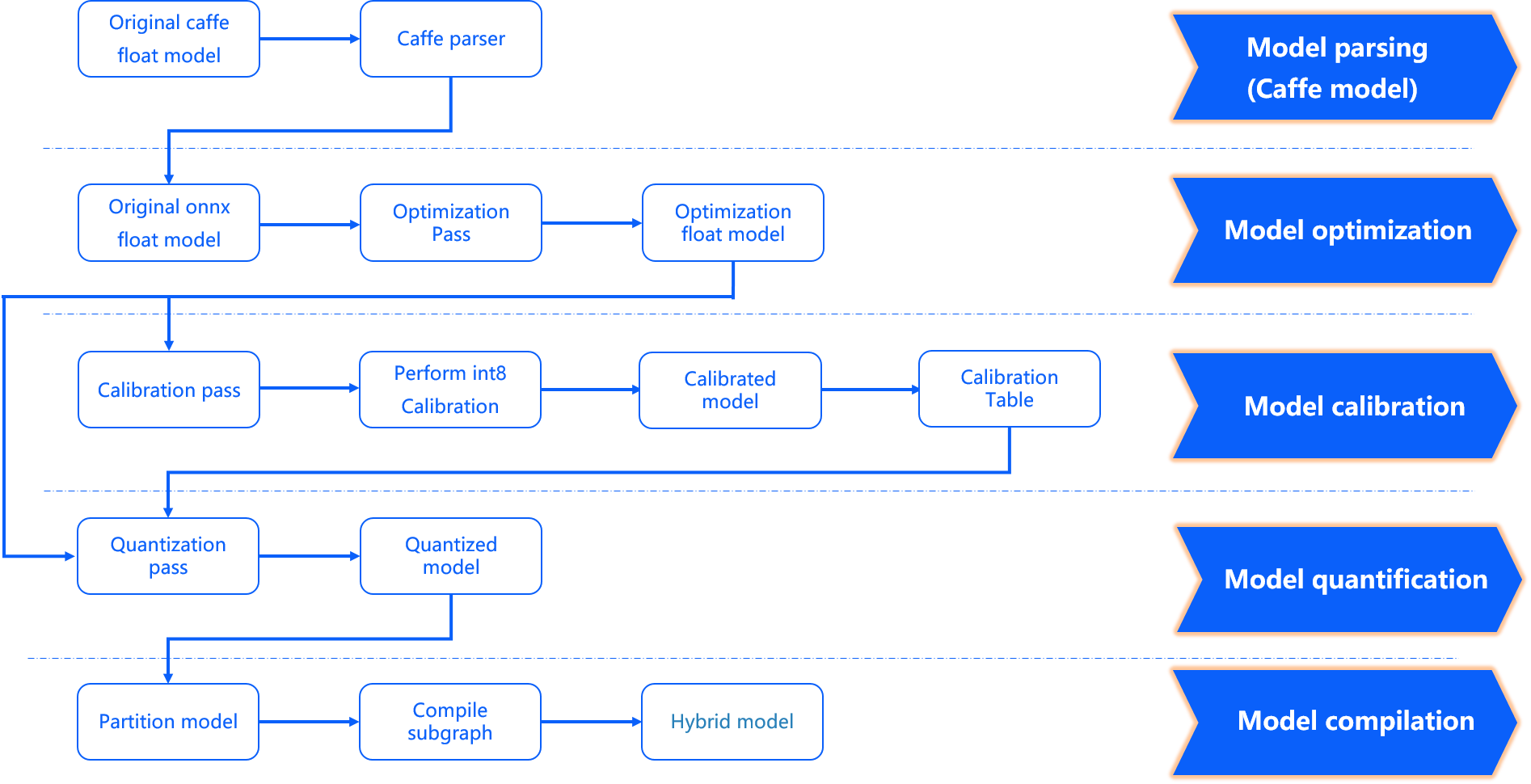
Model Optimization and Compilation completes several important stages: model parsing, model optimization, model calibration and quantization, and model compilation. The internal workflow is shown in the figure below.
-
input_type_rt*represents the intermediate format of input_type_rt. -
The X3 processor architecture only supports inference with
NHWCdata. Use the visualization tool Netron to check the data layout of the input nodes inquantized_model.onnxand decide whether to addlayout conversionin preprocessing.
Model Parsing Stage For Caffe floating-point models, conversion to ONNX floating-point models is completed. Based on the configuration parameters in the conversion yaml file, the tool decides whether to add data preprocessing nodes to the original floating-point model. This stage produces an original_float_model.onnx. This ONNX model still has float32 computation precision, but a data preprocessing node has been added at the input.
Ideally, this preprocessing node should complete the full conversion from input_type_rt to input_type_train.
In practice, the entire type conversion process is completed in cooperation with D-Robotics processor hardware, and the ONNX model does not include the hardware conversion part.
Therefore, the actual input type of the ONNX model uses an intermediate type, which is the result type after hardware processing of input_type_rt,
and the data layout (NCHW/NHWC) remains consistent with the input layout of the original floating-point model.
Each input_type_rt has a specific corresponding intermediate type, as shown in the table below:
| nv12 | yuv444 | rgb | bgr | gray | featuremap |
|---|---|---|---|---|---|
| yuv444_128 | yuv444_128 | RGB_128 | BGR_128 | GRAY_128 | featuremap |
The bold part in the first row of the table is the data type specified by input_type_rt. The second row is the intermediate type corresponding to the specific input_type_rt,
which is the input type of original_float_model.onnx. Each type is explained as follows:
- yuv444_128 is yuv444 data minus 128, with each value represented as int8.
- RGB_128 is RGB data minus 128, with each value represented as int8.
- BGR_128 is BGR data minus 128, with each value represented as int8.
- GRAY_128 is gray data minus 128, with each value represented as int8.
- featuremap is a four-dimensional tensor, with each value represented as float32.
Model Optimization Stage implements operator optimization strategies applicable to the D-Robotics platform, such as fusing BN into Conv. The output of this stage is an optimized_float_model.onnx. This ONNX model still has float32 computation precision, and optimization does not affect the model computation results. The input data requirements of the model remain the same as the previous original_float_model.
Model Calibration Stage uses the calibration data you provide to calculate the necessary quantization threshold parameters. These parameters are fed directly into the quantization stage and do not produce a new model state.
Model Quantization Stage completes model quantization using the parameters obtained from calibration. The output of this stage is a quantized_model.onnx.
This model already has int8 computation precision. Using this model, you can evaluate the accuracy loss caused by model quantization.
This model requires the basic data format and layout of the input to remain the same as original_float_model, but the layout and numeric representation have changed.
The overall input changes compared with original_float_model are described as follows:
- Data layout on
RDK X3uses NHWC. - When
input_type_rtis notfeaturemap, the input data type uses INT8. Conversely, wheninput_type_rtisfeaturemap, the input data type is float32.
The layout correspondence is as follows:
- Original model input layout: NCHW.
- input_layout_train: NCHW.
- origin.onnx input layout: NCHW.
- calibrated_model.onnx input layout: NCHW.
- quanti.onnx input layout: NHWC.
That is: the input layout of input_layout_train, origin.onnx, and calibrated_model.onnx is consistent with the original model input layout.
Please note that when input_type_rt is nv12, the input layout of the corresponding quanti.onnx is NHWC.
Model Compilation Stage uses the D-Robotics model compiler to convert the quantized model into computation instructions and data supported by the D-Robotics platform.
The output of this stage is a ***.bin model, which is the model that can run on D-Robotics embedded platforms and is the final output of model conversion.
Conversion Result Interpretation
This section introduces how to interpret a successful model conversion and how to analyze an unsuccessful conversion.
To confirm successful model conversion, you need to verify three aspects: makertbin status information, similarity information, and working_dir output.
For makertbin status information, a successful conversion will give a clear message at the end of the console output as follows:
  2021-04-21 11:13:08,337 INFO Convert to runtime bin file successfully!
  2021-04-21 11:13:08,337 INFO End Model Convert
Similarity information is also in the makertbin console output, before the makertbin status information, in the following form:
  ======================================================================
  Node    ON   Subgraph  Type     Cosine Similarity  Threshold
  ```bash
  ...    ...     ...     ...       0.999936           127.000000
  ...    ...     ...     ...       0.999868           2.557209
  ...    ...     ...     ...       0.999268           2.133924
  ...    ...     ...     ...       0.996023           3.251645
  ...    ...     ...     ...       0.996656           4.495638
In the output listed above, Node, ON, Subgraph, and Type are interpreted the same way as the hb_mapper checker tool.
Please refer to the earlier Check Result Interpretation section;
Threshold is the calibration threshold for each layer, used for feedback to D-Robotics technical support in abnormal situations. Under normal circumstances, it does not need attention;
The Cosine Similarity column reflects the cosine similarity between the outputs of the original floating-point model and the quantized model for the operator corresponding to the Node column.
In general, if the Cosine Similarity of the model output nodes is >= 0.99, the model quantization can be considered normal. If the similarity of output nodes is below 0.8, there is noticeable accuracy loss. Of course, Cosine Similarity only indicates one reference for data stability after quantization and does not have an obvious direct correlation with model accuracy impact. For fully accurate accuracy assessment, please read the content in Model Accuracy Analysis and Tuning.
Conversion output is stored in the path specified by the working_dir conversion configuration parameter. After successful model conversion,
you can obtain the following files in that directory (the *** part is what you specify through the output_model_file_prefix conversion configuration parameter):
- ***_original_float_model.onnx
- ***_optimized_float_model.onnx
- ***_calibrated_model.onnx
- ***_quantized_model.onnx
- ***.bin
Conversion Output Interpretation introduces the purpose of each output.
Before on-board deployment, we recommend completing the model performance and accuracy evaluation process introduced in Model Performance Analysis and Tuning to avoid extending model conversion issues to the subsequent embedded stage.
If any of the three aspects for verifying successful model conversion is missing, it indicates that model conversion encountered an error.
In general, the makertbin tool outputs error information to the console when an error occurs.
For example, if we do not configure the prototxt and caffe_model parameters in the yaml file during Caffe model conversion, the model conversion tool gives the following message.
2021-04-21 14:45:34,085 ERROR Key 'model_parameters' error:
Missing keys: 'caffe_model', 'prototxt'
2021-04-21 14:45:34,085 ERROR yaml file parse failed. Please double check your input
2021-04-21 14:45:34,085 ERROR exception in command: makertbin
If the console log information cannot help you identify the problem, please refer to the Model Quantization Errors and Solutions section. If the above steps still cannot resolve the issue, contact the D-Robotics technical support team or post your question on the D-Robotics Official Technical Community. We will provide support within 24 hours.
Conversion Output Interpretation
As mentioned above, the outputs of a successful model conversion include the following four parts. This section introduces the purpose of each output:
- ***_original_float_model.onnx
- ***_optimized_float_model.onnx
- ***_calibrated_model.onnx
- ***_quantized_model.onnx
- ***.bin
The production process of ***_original_float_model.onnx can be found in the introduction in Conversion Internal Process Interpretation.
The computation precision of this model is exactly the same as the original floating-point model used as conversion input. An important change is that some data preprocessing computation has been added to adapt to the D-Robotics platform (a preprocessing operator node HzPreprocess has been added. You can open the onnx model with the netron tool to view it. For details about this operator, see Preprocessing HzPreprocess Operator Description).
In general, you do not need to use this model. If the conversion result is abnormal and the troubleshooting methods introduced above still cannot solve your problem, providing this model to the D-Robotics technical support team or posting your question on the D-Robotics Official Technical Community will help you resolve the issue quickly.
The production process of ***_calibrated_model.onnx can be found in the introduction in Conversion Internal Process Interpretation. This model is an intermediate product obtained after the model conversion toolchain optimizes the floating-point model structure, calculates the quantization parameters corresponding to each node using calibration data, and saves them in calibration nodes.
The production process of ***_optimized_float_model.onnx can be found in the introduction in Conversion Internal Process Interpretation. This model undergoes some operator-level optimization operations, commonly operator fusion. Through visual comparison with the original_float model, you can clearly see some operator structure-level changes, but these do not affect the model computation precision. In general, you do not need to use this model. If the conversion result is abnormal and the troubleshooting methods introduced above still cannot solve your problem, providing this model to the D-Robotics technical support team or posting your question on the D-Robotics Official Technical Community will help you resolve the issue quickly.
The production process of ***_quantized_model.onnx can be found in the introduction in Conversion Internal Process Interpretation. This model has completed the calibration and quantization process. To evaluate the accuracy loss of the quantized model, read the model accuracy analysis and tuning content below. This model must be used during accuracy verification. For specific usage, please refer to the introduction in Model Accuracy Analysis and Tuning.
***.bin is the model that can be loaded and run on D-Robotics processors. Together with the content introduced in the on-board runtime application development guide section, you can quickly deploy and run the model on D-Robotics processors. However, to ensure that the model performance and accuracy meet your expectations, we recommend completing the performance and accuracy analysis processes introduced in Model Conversion and Model Accuracy Analysis and Tuning before proceeding to application development and deployment.
Usually, after the model conversion stage is completed, you can obtain a model that runs on D-Robotics processors. However, to ensure that the model performance and accuracy meet application requirements, D-Robotics recommends completing the subsequent performance evaluation and accuracy evaluation steps after each conversion.
The model conversion process generates onnx models. These models are intermediate products intended to help users verify model accuracy, so compatibility across versions is not guaranteed. When using the evaluation scripts in the examples to evaluate onnx models on a single image or on a test set, please use onnx models regenerated with the current version of the tools.
Model Performance Analysis
This section introduces how to use the tools provided by D-Robotics to evaluate model performance. Using these tools, you can obtain performance results that are largely consistent with actual on-board execution. If the evaluation results do not meet expectations, we recommend resolving performance issues according to the optimization suggestions provided by D-Robotics, and not extending model performance issues to the application development stage.
Performance Evaluation on Development Machine
Use the hb_perf tool to evaluate model performance as follows:
hb_perf ***.bin
If analyzing a model after pack, add a -p parameter. The command is hb_perf -p ***.bin.
For model pack, please refer to the introduction in the Other Model Tools (Optional) section.
The ***.bin in the command is the fixed-point model generated in the model conversion step. After the command completes, an hb_perf_result folder is generated in the current directory containing the specific model analysis results.
The following is the evaluation result of the example model MobileNetv1:
  hb_perf_result/
  └── mobilenetv1_224x224_nv12
      ├── MOBILENET_subgraph_0.html
      ├── MOBILENET_subgraph_0.json
      ├── mobilenetv1_224x224_nv12
      ├── mobilenetv1_224x224_nv12.html
      ├── mobilenetv1_224x224_nv12.png
      └── temp.hbm
Open the mobilenetv1_224x224_nv12.html main page in a browser. Its content is shown in the figure below:
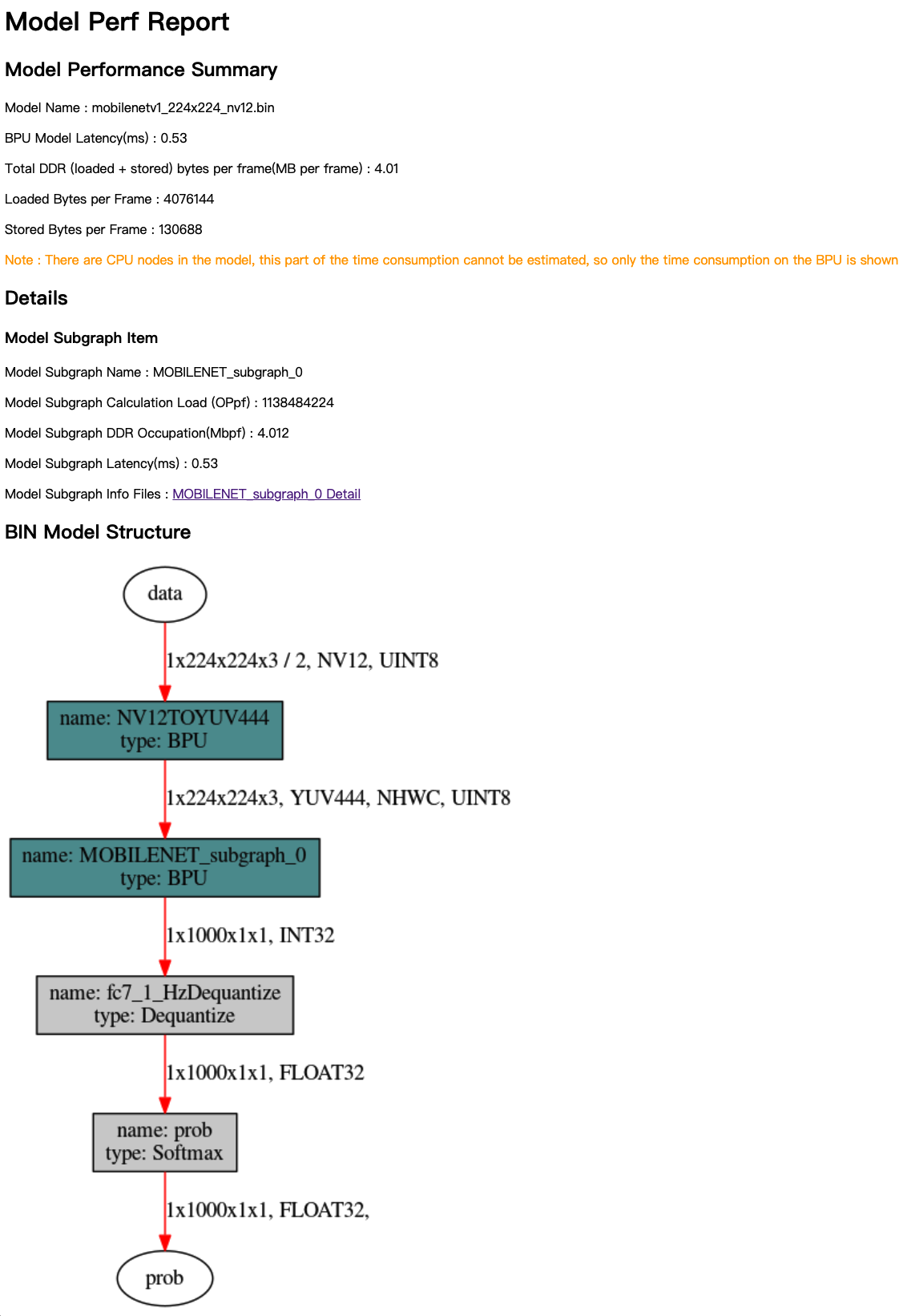
The analysis results mainly consist of three parts: Model Performance Summary, Details, and BIN Model Structure. Model Performance Summary is the overall performance evaluation result of the bin model. The metrics are:
- Model Name——Model name.
- Model Latency(ms)——Overall single-frame computation latency of the model (in ms).
- Total DDR (loaded+stored) bytes per frame(MB per frame)——Total DDR usage for data loading and storage in the BPU part of the model (in MB/frame).
- Loaded Bytes per Frame——Data read per frame during model execution.
- Stored Bytes per Frame——Data stored per frame during model execution.
The BIN Model Structure section provides subgraph-level visualization of the bin model. Dark cyan nodes in the figure represent nodes running on the BPU, and gray nodes represent nodes computed on the CPU.
When viewing Details and BIN Model Structure, you need to understand the concept of subgraph. If CPU-computed operators appear in the model network structure, the model conversion tool splits the consecutive BPU computation parts before and after the CPU operator into two independent subgraphs. For details, refer to the introduction in the Model Verification section.
Details provides specific information for each BPU subgraph of the model. In the mobilenetv1_224x224_nv12.html main page, the subgraph metrics are:
- Model Subgraph Name——Subgraph name.
- Model Subgraph Calculation Load (OPpf)——Single-frame computation load of the subgraph.
- Model Subgraph DDR Occupation(Mbpf)——Single-frame read/write data volume of the subgraph (in MB).
- Model Subgraph Latency(ms)——Single-frame computation latency of the subgraph (in ms).
Each subgraph result provides detailed reference information.
The reference information page differs depending on whether debug configuration is enabled.
The Layer Details in the figure below can only be obtained when the debug parameter is set to True in the yaml configuration file.
For how to configure this debug parameter, please refer to the introduction in the Using the hb_mapper makertbin Tool to Convert Models section.
Layer Details provides operator-level analysis and can be used as a reference during model debugging and analysis. For example, if certain BPU operators cause low model performance, the analysis results help you locate the specific operators.
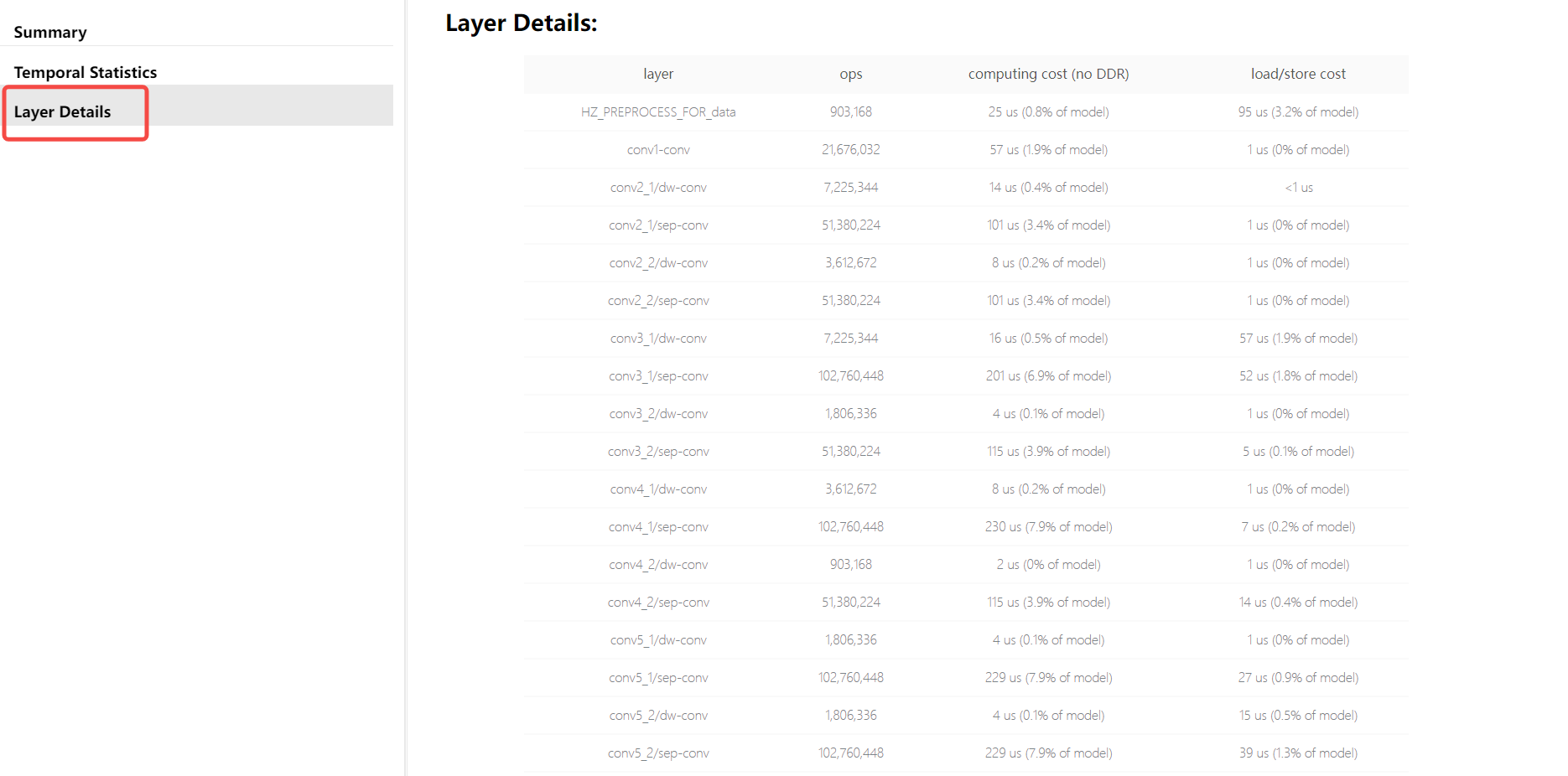
The analysis results of the hb_perf tool help you understand the subgraph structure of the bin model and the static analysis metrics of the BPU computation part in the model. Note that the analysis results do not include CPU computation evaluation. If you need CPU computation performance, please measure model performance on the development board.
On-Board Performance Measurement
To quickly evaluate model performance on the development board, use the hrt_model_exec perf tool, which can directly evaluate model inference performance and obtain model information on the development board.
Before using the hrt_model_exec perf tool, please prepare:
-
Ensure you have completed development board system updates by referring to the system update section.
-
Copy the bin model obtained on the Ubuntu development machine to the development board (recommended in the /userdata directory). The development board runs a Linux system. You can use common Linux methods such as
scpto complete this copy process.
The hrt_model_exec perf tool command is as follows (note: execute on the development board):
./hrt_model_exec perf --model_file mobilenetv1_224x224_nv12.bin \
                      --model_name="" \
                      --core_id=0 \
                      --frame_count=200 \
                      --perf_time=0 \
                      --thread_num=1 \
                      --profile_path="."
hrt_model_exec perf parameter description:
model_file:
Name of the bin model whose performance needs to be analyzed.
model_name:
Name of the bin model whose performance needs to be analyzed. If model_file contains only one model, this can be omitted.
core_id:
Default 0. Core id used to run the model. 0 represents any core, 1 represents core 0, 2 represents core 1. To analyze the dual-core maximum frame rate, set this to 0.
frame_count:
Default 200. Sets the number of inference frames. The tool executes the specified number of times before analyzing average latency. Takes effect when perf_time is 0.
perf_time:
Default 0, in minutes. Sets the inference duration. The tool executes for the specified time before analyzing average latency.
thread_num:
Default 1. Sets the number of running threads. Value range [1,8]. To analyze the maximum frame rate, increase the thread count.
profile_path:
Disabled by default. Path where statistical tool logs are generated. Analysis results introduced by this parameter are stored in profiler.log and profiler.csv files in the specified directory.
The following example shows on-board measurement results on the RDK X3 development board. After the command completes, you will get the following log on the console:
Running condition:
  Thread number is: 1
  Frame count   is: 200
  core number   is: 1
  Program run time: 818.985000 ms
Perf result:
  Frame totally latency is: 800.621155 ms
  Average    latency    is: 4.003106 ms
  Frame      rate       is: 244.204717 FPS
In the evaluation results, Average latency and Frame rate represent average single-frame inference latency and maximum model frame rate, respectively.
To obtain the maximum frame rate of the model running on the board, try adjusting the value of thread_num and find the optimal thread count. Different values produce different performance results.
The information on the console only shows the overall situation. The node_profiler.log file generated by setting the profile_path parameter records richer model performance information:
{
  "perf_result": {
    "FPS": 244.20471681410527,
    "average_latency": 4.003105640411377
  },
  "running_condition": {
    "core_id": 0,
    "frame_count": 200,
    "model_name": "mobilenetv1_224x224_nv12",
    "run_time": 818.985,
    "thread_num": 1
  }
}
***
{
  "chip_latency": {
    "BPU_inference_time_cost": {
      "avg_time": 3.42556,

  "model_latency": {
    "BPU_MOBILENET_subgraph_0": {
      "avg_time": 3.42556,
      "max_time": 3.823,
      "min_time": 3.057
    },
    "Dequantize_fc7_1_HzDequantize": {
      "avg_time": 0.12307,
      "max_time": 0.274,
      "min_time": 0.044
    },
    "MOBILENET_subgraph_0_output_layout_convert": {
      "avg_time": 0.025945,
      "max_time": 0.069,
      "min_time": 0.012
    },
    "Preprocess": {
      "avg_time": 0.009245,
      "max_time": 0.027,
      "min_time": 0.003
    },
    "Softmax_prob": {
      "avg_time": 0.13366999999999998,
      "max_time": 0.338,
      "min_time": 0.042
    }
  },
  "task_latency": {
    "TaskPendingTime": {
      "avg_time": 0.04952,
      "max_time": 0.12,
      "min_time": 0.009
    },
    "TaskRunningTime": {
      "avg_time": 3.870965,
      "max_time": 4.48,
      "min_time": 3.219
    }
  }
}  "max_time": 3.823,
      "min_time": 3.057
    },
    "CPU_inference_time_cost": {
      "avg_time": 0.29193,
      "max_time": 0.708,
      "min_time": 0.101
    }
  },
  "model_latency": {
    "BPU_MOBILENET_subgraph_0": {
      "avg_time": 3.42556,
      "max_time": 3.823,
      "min_time": 3.057
    },
    "Dequantize_fc7_1_HzDequantize": {
      "avg_time": 0.12307,
      "max_time": 0.274,
      "min_time": 0.044
    },
    "MOBILENET_subgraph_0_output_layout_convert": {
      "avg_time": 0.025945,
      "max_time": 0.069,
      "min_time": 0.012
    },
    "Preprocess": {
      "avg_time": 0.009245,
      "max_time": 0.027,
      "min_time": 0.003
    },
    "Softmax_prob": {
      "avg_time": 0.13366999999999998,
      "max_time": 0.338,
      "min_time": 0.042
    }
  },
  "task_latency": {
    "TaskPendingTime": {
      "avg_time": 0.04952,
      "max_time": 0.12,
      "min_time": 0.009
    },
    "TaskRunningTime": {
      "avg_time": 3.870965,
      "max_time": 4.48,
      "min_time": 3.219
    }
  }
}
The log content above corresponds to the bin visualization diagram introduced in the BIN Model Structure section in Using the hb_perf Tool to Estimate Performance.
Each node in the diagram has a corresponding node in the profiler.log file, which can be matched by name. In addition, profiler.log records the execution time of each node, providing a reference for optimizing model operators. Because BPU nodes in the model have special requirements for input and output, such as special layout and padding alignment requirements, input and output data of BPU nodes need to be processed.
Preprocess: Represents padding and layout conversion operations on model input data. The latency is counted in Preprocess.xxxx_input_layout_convert: Represents padding and layout conversion operations on BPU node input data. The latency is counted in xxxx_input_layout_convert.xxxx_output_layout_convert: Represents removing padding and layout conversion operations on BPU node output data. The latency is counted in xxxx_output_layout_convert.profileranalysis is a common operation in model performance tuning. The earlier Check Result Interpretation section mentioned that CPU operators do not need much attention during the check stage. At this stage, you can see the specific latency of CPU operators and perform model performance tuning based on the latency of the corresponding operators.
If model latency is severe, you can also try the following methods for performance optimization:
- Single-frame single-core: One frame of data comes in, and the model is run for inference on one core;
- Single-frame dual-core: The model is specified as a dual-core model at compile time (core_num: 2 in the yaml configuration file). After running, it automatically occupies resources on both cores. One frame of data comes in, is split into two parts for separate computation, and then combined. This mode shows noticeable optimization effects mainly on some large models, reducing latency to some extent. Small models may actually become slower due to dual-core scheduling;
- Dual-frame dual-core: Each core runs one model independently, processing its own data frames. Latency will not decrease, but the frame rate can reach approximately 2x
Model Performance Optimization
Based on the performance analysis results above, you may find that model performance does not meet expectations. This section introduces D-Robotics recommendations and measures for improving model performance, including checking yaml configuration parameters, handling CPU operators, high-performance model design recommendations, and using D-Robotics platform-friendly structures and models.
Some modification suggestions in this section may affect the parameter space of the original floating-point model, so you need to retrain the model. To avoid repeatedly adjusting and training the model during performance tuning, we recommend using randomly initialized parameters to export a model to verify performance before achieving satisfactory model performance.
Check yaml Parameters That Affect Model Performance
In the yaml configuration file for model conversion, some parameters actually affect the final model performance. First check whether they are configured correctly according to model expectations. For the specific meaning and purpose of each parameter, please refer to the Compiler Parameter Group section.
layer_out_dump: Specifies whether to output intermediate results of the model during model conversion. Generally used only for debugging. If configured asTrue, a dequantization output node is added for each convolution operator, which significantly reduces on-board model performance. Therefore, when evaluating performance, be sure to configure this parameter asFalse.compile_mode: Selects whether the optimization direction during model compilation is bandwidth or latency. When focusing on performance, configure it aslatency.optimize_level: Selects the compiler optimization level. In actual use, configure it asO3for best performance.core_num:Note: This parameter applies only to RDK X3. When configured as2, both cores can be invoked simultaneously to run the model, reducing single-frame inference latency, but it also affects overall throughput.debug: Configuring asTrueenables the compiler debug mode, which can output performance simulation-related information such as frame rate and DDR bandwidth usage. Generally used during the performance evaluation stage. For product delivery, this parameter can be disabled to reduce model size and improve model execution efficiency.max_time_per_fc: Controls the execution duration of function-call data instructions in the compiled model, enabling model priority preemption. Changing the function-call execution duration of the preempted model with this parameter affects the on-board performance of that model.
Handle CPU Operators
Based on evaluation with the hrt_model_exec perf tool, if you can confirm that the model performance bottleneck is caused by CPU operators, we recommend checking the content in Model Operator Support List to confirm whether the operators currently running on the CPU have BPU support capability.
If the operator has BPU support capability in the model operator support list, the operator parameters likely exceed the BPU-supported parameter constraint range. We recommend adjusting the corresponding original floating-point model computation parameters to within the constraint range. To quickly identify the specific parameters that exceed the constraints, we recommend using the method introduced in the Model Verification section to perform another check. The tool will directly provide prompts for parameters exceeding the BPU support range.
You need to control the impact of modifying original floating-point model parameters on model computation accuracy. For example, when Convolution input_channel or output_channel exceeds the range, it is a typical case. Reducing channels enables BPU support for that operator, but this single modification may also affect model accuracy.
If the operator does not have BPU support capability, you need to perform corresponding optimization operations according to the following situations:
-
CPU operator in the middle of the model
For CPU operators in the middle of the model, we recommend first trying parameter adjustment, operator replacement, or model modification.
-
CPU operator at the beginning or end of the model
For CPU operators at the beginning or end of the model, please refer to the following examples. Quantize/dequantize nodes are used as an example below:
-
For nodes connected to model inputs and outputs, you can add the
remove_node_typeparameter in the model_parameters configuration group (model parameter group) in the yaml file and recompile the model.
remove_node_type: "Quantize; Dequantize"Or use the hb_model_modifier tool to modify the bin model:
hb_model_modifier x.bin -a Quantize -a Dequantize -
For models like the one in the figure below that do not have nodes connected to input and output nodes, use the hb_model_modifier tool to determine whether connected nodes support deletion, then delete them one by one in order.
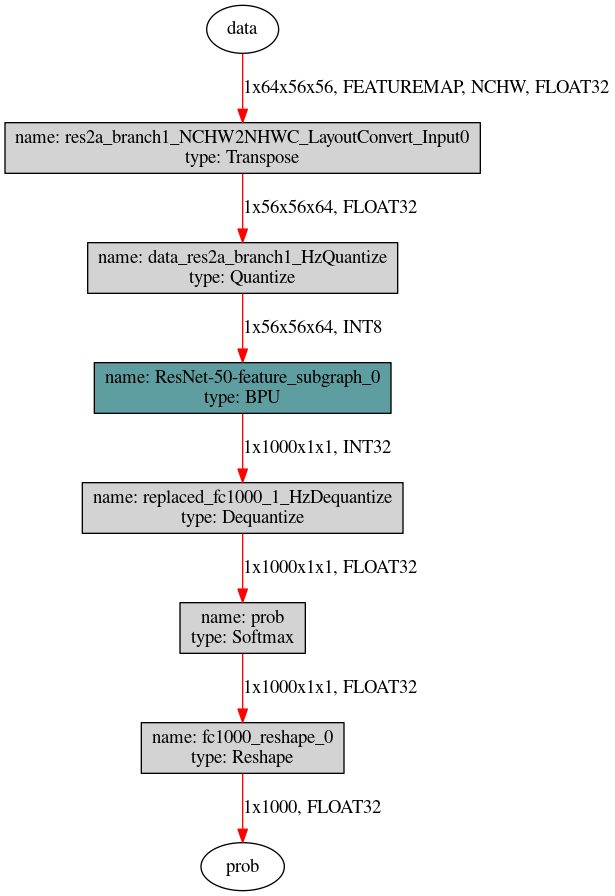
First use the hb_perf tool to obtain the model structure diagram, then use the following two commands to remove Quantize nodes from top to bottom. For Dequantize nodes, remove them one by one from bottom to top. The name of each node that can be deleted at each step can be viewed with
hb_model_modifier x.bin.
  hb_model_modifier x.bin -r res2a_branch1_NCHW2NHWC_LayoutConvert_Input0
  hb_model_modifier x_modified.bin -r data_res2a_branch1_HzQuantize
-
High-Performance Model Design Recommendations
Based on performance evaluation results, the CPU latency proportion may be very small. In that case, the model performance bottleneck is long BPU inference time. When this occurs, it indicates that the model is already using all BPU computation resources. The next step is to improve computation resource utilization for performance optimization. Because each processor has its own hardware characteristics, whether the computation parameters of an algorithm model align well with the corresponding hardware characteristics directly determines the model computation resource utilization. The higher the alignment, the higher the utilization, and vice versa.
This section focuses on the hardware characteristics of D-Robotics processors: D-Robotics provides processors designed to accelerate CNNs (convolutional neural networks). Most computation resources are concentrated on processing various convolution computations. We recommend that your model be convolution-dominant, because operators other than convolution reduce computation resource utilization, with different OPs causing varying degrees of performance impact.
-
Other Recommendations
The computation efficiency of
depthwise convolutionon D-Robotics processors is close to 100%, so forMobileNet-classmodels, the BPU has an efficiency advantage.When designing your model, try to reduce the input and output dimensions of the BPU segment of the model to reduce the latency of quantize and dequantize nodes and hardware bandwidth pressure. Taking a typical segmentation model as an example, we recommend integrating the Argmax operator directly into the model itself. Note that Argmax supports BPU acceleration only when the following conditions are met:
- In Caffe, the Softmax layer defaults to axis=1, while the ArgMax layer defaults to axis=0. Keep axis consistent when replacing operators.
- The Channel of Argmax must be less than or equal to 64; otherwise it can only be computed on the CPU.
-
BPU-Oriented High-Efficiency Model Optimization
The BPU of D-Robotics processors has targeted optimizations for
Depthwise ConvolutionandGroup Convolution. Therefore, we recommend using MobileNetv2 and EfficientNet_lite with Depthwise+Pointwise structure, as well as VarGNet manually designed by D-Robotics based on GroupConv, as model backbones to achieve higher performance gains.More model structures and business models are under continuous exploration. We will provide more models as direct references, and these outputs will be updated periodically at https://github.com/D-Robotics/rdk_model_zoo . If the above still cannot meet your needs, feel free to post on the D-Robotics Official Technical Community to contact us. We will provide more targeted guidance based on your specific problem.
Model Accuracy Analysis
The PTQ post-training quantization approach that converts floating-point models to fixed-point models based on dozens or hundreds of calibration images inevitably incurs some accuracy loss.
The D-Robotics PTQ conversion tool, validated through extensive practical experience, can keep model accuracy loss within 1% in most cases when selecting the optimal quantization parameter combination.
This section first introduces how to perform model accuracy analysis correctly. If evaluation shows results below expectations, refer to the Accuracy Tuning subsection for model accuracy tuning.
Accuracy Analysis
As mentioned earlier, the outputs of a successful model conversion include the following four parts:
- ***_original_float_model.onnx
- ***_optimized_float_model.onnx
- ***_quantized_model.onnx
- ***.bin
Although the final bin model is the one deployed on D-Robotics processors, for convenience in quickly obtaining model accuracy on Ubuntu/CentOS development machines, we also support using ***_quantized_model.onnx to complete model accuracy testing. The ***_quantized_model.onnx quantized model and the bin model running on X3 have consistent accuracy effects.
We recommend using the D-Robotics development library to load the ONNX model for inference. The basic flow is shown below:
-
The example code applies not only to quantized models, but also to original and optimized models. Prepare data according to the input type and layout requirements of different models for model inference.
-
We recommend referring to the accuracy verification methods for caffe, onnx, and other example models in the D-Robotics model conversion
horizon_model_convert_sampleexample package:04_inference.shandpostprocess.py.
# Load D-Robotics dependency libraries
from horizon_tc_ui import HB_ONNXRuntime

# Prepare feed_dict for model inference
def prepare_input_dict(input_names):
  feed_dict = dict()
  for input_name in input_names:
      # your_custom_data_prepare represents your custom data
      # Prepare data according to the input node type and layout requirements
      feed_dict[input_name] = your_custom_data_prepare(input_name)
  return feed_dict

if __name__ == '__main__':
  # Create inference Session
  sess = HB_ONNXRuntime(model_file='***_quantized_model.onnx')

  # Get input node names
  input_names = [input.name for input in sess.get_inputs()]
  # or
  input_names = sess.input_names

  # Get output node names
  output_names = [output.name for output in sess.get_outputs()]
  # or
  output_names = sess.output_names

  # Prepare model input data
  feed_dict = prepare_input_dict(input_names)
  # Start model inference; the return value is a list that corresponds one-to-one with output_names in order
  # Input image types: (RGB/BGR/NV12/YUV444/GRAY)
  outputs = sess.run(output_names, feed_dict, input_offset=128)
  # Input data types: (FEATURE)
  outputs = sess.run_feature(output_names, feed_dict, input_offset=0)
In the code above, the default value of the input_offset parameter is 128. For models with preprocessing nodes, a -128 operation is required here. If no preprocessing node is added before the model input, input_offset should be set to 0.
For multi-input models:
-
If all input
input_type_rtvalues belong to (RGB/BGR/NV12/YUV444/GRAY), you can use thesess.runmethod for inference. -
If all input
input_type_rtvalues belong to (FEATUREMAP), you can use thesess.run_featuremethod for inference. -
Please note that mixed input types where some
input_type_rtvalues are FEATUREMAP and others are not FEATUREMAP are currently not supported for inference usingsess.*methods.
In addition, the input data preparation process represented by the your_custom_data_prepare function is the part most prone to errors.
Compared with your original floating-point model design and training accuracy verification process, we recommend adjusting the inference input data after data preprocessing: mainly the data format (RGB, NV12, etc.), data precision (int8, float32, etc.), and data layout (NCHW or NHWC).
The adjustment method is jointly determined by the four parameters input_type_train, input_layout_train, input_type_rt, and input_layout_rt set in the yaml configuration file during model conversion. For detailed rules, please refer to the Conversion Internal Process Interpretation section.
For example: an original floating-point model trained on ImageNet for classification has only one input node. This node accepts three-channel images in BGR order, with input data layout NCHW. Then, during the original floating-point model design and training stage, the data preprocessing before validation set inference is as follows:
- Scale the image proportionally, resizing the shorter side to 256.
- Use the
center_cropmethod to obtain a 224x224 image. - Subtract mean per channel.
- Multiply data by the scale coefficient.
When D-Robotics converts this original floating-point model,
input_type_train is set to bgr, input_layout_train is set to NCHW, input_type_rt is set to bgr,
and input_layout_rt is set to NHWC.
According to the rules introduced in the Conversion Internal Process Interpretation section, the input accepted by ***_quantized_model.onnx should be bgr_128 with NHWC layout.
Corresponding to the sample code above, the data processing provided by the your_custom_data_prepare section is as follows:
# This example uses skimage; if using opencv there will be differences
# Please note that subtract-mean and multiply-scale processing is not shown in transformers
# mean and scale operations have been fused into the model; refer to norm_type/mean_value/scale_value configuration above
def your_custom_data_prepare_sample(image_file):
  # skimage reads images, already in NHWC layout
  image = skimage.img_as_float(skimage.io.imread(image_file))
  # Proportional scale, resize shorter side to 256
  image = ShortSideResize(image, short_size=256)
  # CenterCrop to obtain 224x224 image
  image = CenterCrop(image, crop_size=224)
  # skimage read result channel order is RGB; convert to BGR order required by bgr_128
  image = RGB2BGR(image)
  # If the original model is NCHW input (except when input_type_rt is nv12)
  if layout == "NCHW":
    image = HWC2CHW(image)
  # skimage read value range is [0.0, 1.0]; adjust to value range required by bgr
  image = image * 255
  # bgr_128 is bgr minus 128
  image = image - 128
  # bgr_128 uses int8
  image = image.astype(np.int8)

  return image
Accuracy Tuning
Based on the accuracy analysis work above, if you determine that the model's quantization accuracy does not meet expectations, the main solutions can be divided into the following situations:
-
- Significant accuracy loss (loss greater than 4%). This type of problem is often caused by improper yaml configuration, imbalanced calibration datasets, etc. We recommend troubleshooting one by one according to the suggestions provided by D-Robotics below.
-
- Minor accuracy loss (1.5%~3%). After ruling out accuracy issues caused by item 1, if there is still a small accuracy loss, it is often due to the model's own sensitivity. We recommend using the accuracy tuning tools provided by D-Robotics.
-
- After trying items 1 and 2, if accuracy still cannot meet expectations, you can try using our accuracy debug tools for further attempts.
The overall accuracy problem resolution flow is illustrated below:
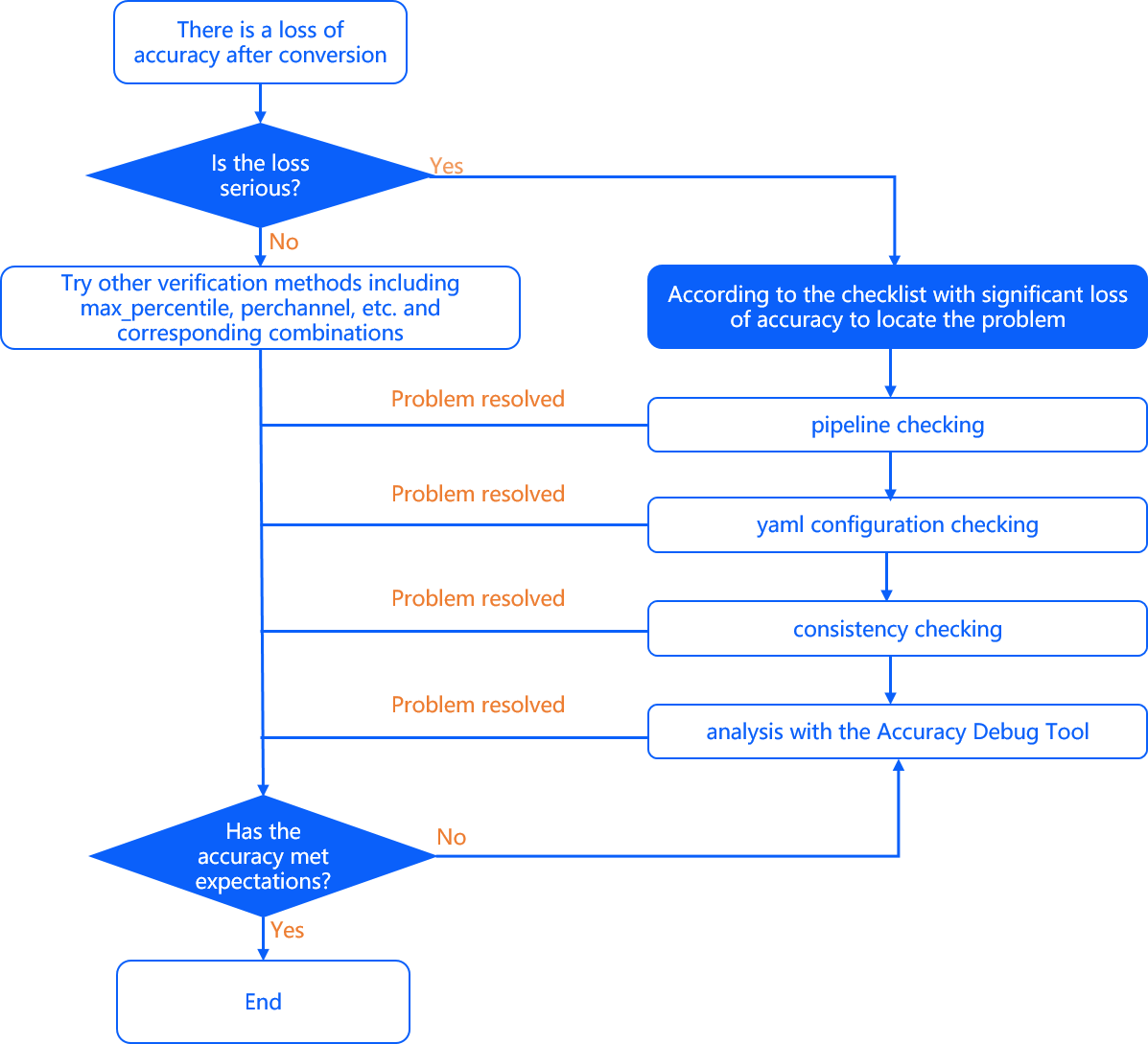
Significant Accuracy Loss (Above 4%)
If model accuracy loss is greater than 4%, it is usually caused by improper yaml configuration, imbalanced calibration datasets, etc. We recommend troubleshooting sequentially from pipeline, model conversion configuration, and consistency checks.
Pipeline Check
Pipeline refers to the entire process of data preprocessing, model conversion, model inference, post-processing, and accuracy evaluation. Please check these steps according to the corresponding sections above. From past practical problem follow-up experience, we found that in most cases, changes were made during the original floating-point model training stage but were not updated in time to the model conversion step, causing anomalies during accuracy verification.
Model Conversion Configuration Check
-
input_type_rtandinput_type_trainare used to distinguish the data formats required by the converted hybrid heterogeneous model and the original floating-point model. Check carefully whether they meet expectations, especially whether the BGR and RGB channel order is correct. -
Whether parameters such as
norm_type,mean_value, andscale_valueare configured correctly. Through conversion configuration, mean and scale operation nodes can be inserted directly into the model. Confirm whether duplicate mean and scale operations were performed on calibration/test images. Duplicate preprocessing is a common error-prone area.
Data Processing Consistency Check
This check mainly targets users who prepare calibration data and evaluation code based on the reference algorithm toolchain development package examples. Common errors include:
-
read_modenot specified correctly: In 02_preprocess.sh, you can specify the image reading method via the --read_mode parameter, supportingopencvandskimage. In addition, preprocess.py also sets the image reading method via the imread_mode parameter, which also needs to be modified. Using skimage for image reading yieldsRGBchannel order, value range0~1, and numeric typefloat; while using opencv yieldsBGRchannel order, value range0~255, and data typeuint8. -
Incorrect calibration dataset storage format: D-Robotics currently uses
numpy.tofileto save calibration data. This method does not save shape and type information. If input_type_train is innon-featuremapformat, the data dtype is determined by whether the calibration data storage path contains "f32". If it contains the f32 keyword, data is parsed as float32; otherwise it is parsed as uint8. In addition, to facilitate users in setting calibration data parsing methods, after algorithm toolchain v2.2.3a, a new parametercal_data_typewas added to the yaml to set the data storage type of binary files. -
Inconsistent transformer implementation: D-Robotics provides a series of common preprocessing functions stored in the
/horizon_model_convert_sample/01_common/python/data/transformer.pyfile. The implementation of some preprocessing operations may differ. For example, ResizeTransformer uses opencv's default interpolation method (linear). If other interpolation methods are needed, you can directly modify the transformer.py source code to ensure consistency with the preprocessing code during training. For specific usage, please refer to the transformer Usage section. -
We recommend that during D-Robotics algorithm toolchain usage, you continue to use the data processing libraries relied upon during the original floating-point model training and verification stage. For models with poor robustness, typical functions such as resize and crop implemented by different libraries may cause perturbations, thereby affecting model accuracy.
-
Whether the calibration image set is reasonably configured. The calibration image set quantity should be around
one hundred, and it is best to cover various scenarios in the data distribution. For example, in multi-task or multi-classification scenarios, the calibration image set can cover each prediction branch or each category. Also avoid abnormal images that deviate from the data distribution (over-exposure, etc.). -
Use
***_original_float_model.onnxto verify accuracy again. Under normal circumstances, this model's accuracy should align with the original floating-point model accuracy tothree to five decimal places. If verification shows this alignment is not met, your data processing needs to be checked more carefully.
Improving Minor Accuracy Loss
In general, to reduce the difficulty of model accuracy tuning, we recommend first trying to configure calibration_type as default. default is an automatic search function that selects the optimal scheme from max, max-Percentile 0.99995, KL, and other calibration methods based on the cosine similarity of the first calibration data output node.
The finally selected calibration method can be found in conversion logs with prompts similar to "Select kl method.". If the automatic search accuracy result still differs from expectations, you can try the following suggestions for tuning:
Adjust Calibration Method
-
Manually specify calibration_type; you can choose
kl/max; -
Configure calibration_type as max and configure max_percentile to different quantiles (value range is 0-1). We recommend first trying 0.99999, 0.99995, 0.9999, 0.9995, and 0.999. Observe the model accuracy change trend through these five configurations and finally find the optimal quantile;
-
Try enabling
per_channel; it can be used together with any previous calibration method.
Tune Calibration Dataset
-
You can try appropriately
increasing or decreasingthe data quantity (generally detection scenarios require less calibration data than classification scenarios; additionally, observe missed detections in model output and appropriately increase calibration data for corresponding scenarios); -
Do not use abnormal data such as pure black or pure white images. Minimize using background images without targets as calibration data. Cover typical task scenarios as comprehensively as possible so that the calibration dataset distribution approximates the training set.
Revert Some Tail Operators to CPU High-Precision Computation
-
Generally we only try reverting
1~2operators in the model output layer toCPU. Too many operators will significantly affect final model performance. The judgment basis can be obtained by observing the model'scosine similarity; -
To specify operators running on CPU, use the
run_on_cpuparameter in the yaml file. Specify node names to run corresponding operators on CPU (example: run_on_cpu: conv_0). -
If the model compilation reports an error after run_on_cpu, please contact the D-Robotics technical support team.
Accuracy Debug Tools
After trying the two accuracy tuning methods above, if your accuracy still cannot meet expectations, to help you locate problems, we provide accuracy debug tools to assist in problem localization. These tools can help you perform node-level quantization error analysis on the calibrated model and quickly locate nodes with accuracy anomalies.
If you are using RDK Ultra and RDK X5 products, you can also try accuracy tuning by configuring some ops to compute in int16 (RDK X3 does not support int16 operator computation):
During model conversion, most ops compute with int8 data by default. In some scenarios, int8 computation for some ops causes significant accuracy loss. For RDK Ultra and RDK X5 products, the algorithm toolchain currently provides the ability to specify certain ops to compute in int16 bit. For details, refer to the int16 Configuration parameter configuration description. By configuring quantization accuracy loss-sensitive ops (using cosine similarity as reference) to compute in int16 bit, accuracy loss problems can be resolved in some scenarios.
During model conversion, accuracy loss is inevitably introduced due to the floating-point to fixed-point quantization process. The main causes of accuracy loss are usually the following:
-
Some nodes in the model are sensitive to quantization and introduce significant errors, i.e., sensitive node quantization problems.
-
Error accumulation across nodes in the model causes significant overall calibration error in the model, mainly including: error accumulation from weight quantization, error accumulation from activation quantization, and error accumulation from full quantization.
For this situation, D-Robotics provides accuracy debug tools to help you independently locate accuracy problems generated during model quantization. These tools can help you perform node-level quantization error analysis on the calibrated model and ultimately help you quickly locate nodes with accuracy anomalies.
The accuracy debug tools provide various analysis functions for your use, such as:
-
Obtain node quantization sensitivity.
-
Obtain model cumulative error curves.
-
Obtain data distribution of specified nodes.
-
Obtain box plots of inter-channel data distribution for specified node input data, etc.
Usage Instructions
Using the accuracy debug tools mainly involves the following steps:
-
Configure parameter
debug_mode="dump_calibration_data"in the Model Parameters (model_parameters) group in yaml to save calibration data. -
Import the debug module and load the calibrated model and data.
-
Analyze models with significant accuracy loss through the APIs or command line provided by the accuracy debug tools.
For the current version of the accuracy debug tools: RDK Ultra corresponding bayes architecture models support command-line and API methods, RDK X5 corresponding bayes-e architecture models support command-line and API methods, and RDK X3 corresponding bernoulli2 architecture models only support API method for debug.
The overall flow is shown in the figure below:
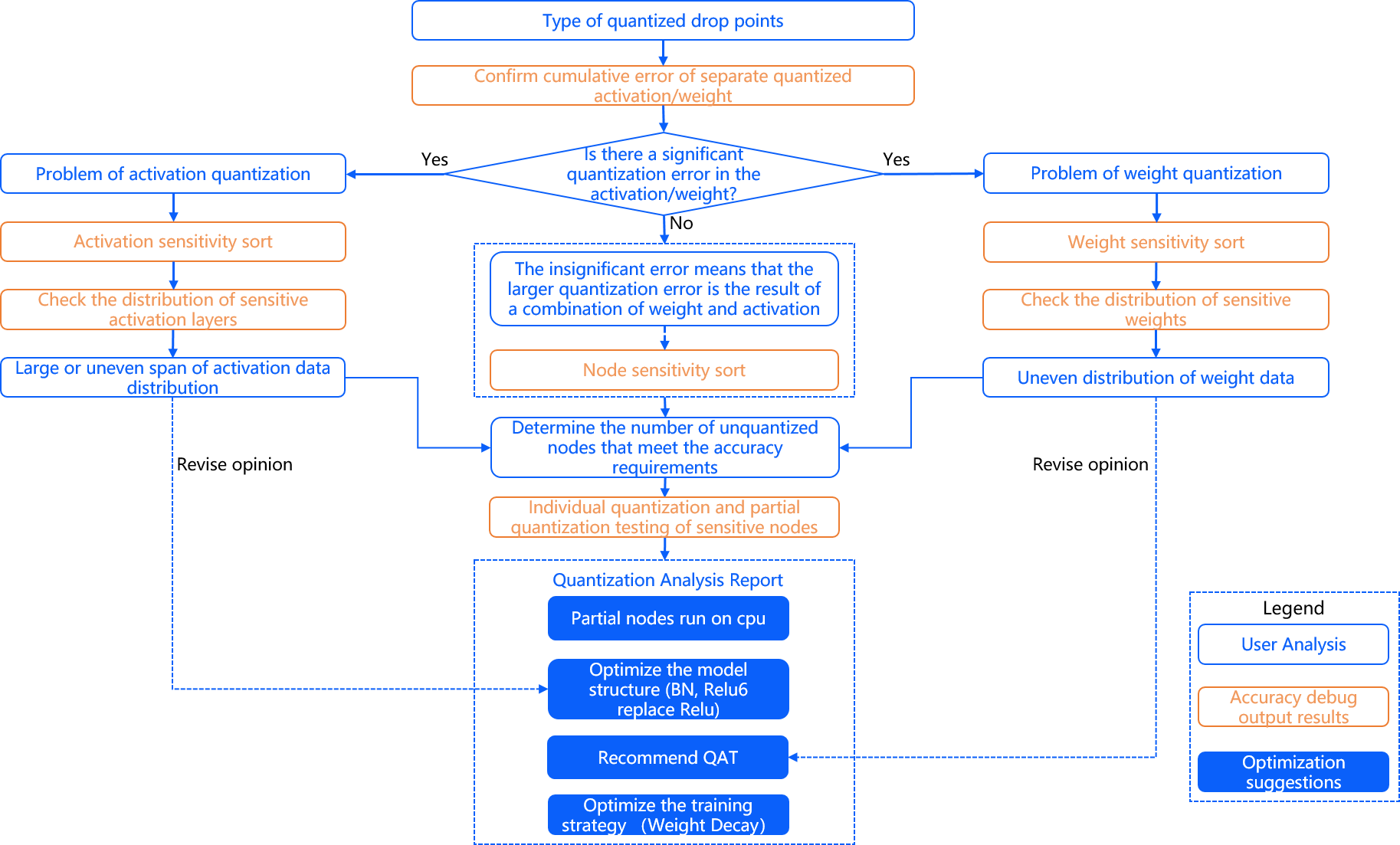
- Saving Calibrated Model and Data
First, you need to configure debug_mode="dump_calibration_data" in the yaml file to enable the accuracy debug function,
and save calibration data (calibration_data). The corresponding calibrated model (calibrated_model.onnx) is saved by default. Among them:
-
Calibration data (calibration_data): During the calibration stage, the model performs forward inference on this data to obtain quantization parameters for each quantized node, including: scale factor (scale) and threshold.
-
Calibrated model (calibrated_model.onnx): Saves the quantization parameters calculated for each quantized node during the calibration stage in calibration nodes, thereby obtaining the calibrated model.
What is the difference between calibration data saved here and calibration data generated by 02_preprocess.sh?
Calibration data obtained from 02_preprocess.sh is in BGR color space. Inside the toolchain, data is converted from BGR to the actual model input format such as yuv444/gray.
Calibration data saved here is in .npy format after color space conversion and preprocessing. This data can be loaded with np.load() and fed directly into the model for inference.
Calibrated Model (calibrated_model.onnx) Interpretation
The calibrated model is an intermediate product obtained after the model conversion toolchain optimizes the floating-point model structure, calculates quantization parameters for each node through calibration data, and saves them in calibration nodes. The main characteristic of the calibrated model is that it contains calibration nodes. The node type of calibration nodes is HzCalibration. These calibration nodes are mainly divided into two categories: activation calibration nodes and weight calibration nodes.
The input of activation calibration nodes is the output of the previous node of the current node. Based on the quantization parameters (scales and thresholds) saved in the current activation calibration node, the input data is quantized and dequantized before output.
The input of weight calibration nodes is the original floating-point weights of the model. Based on the quantization parameters (scales and thresholds) saved in the current weight calibration node, the original floating-point weights are quantized and dequantized before output.
Aside from the calibration nodes above, other nodes in the calibrated model are called regular nodes (node) by the accuracy debug tools. Regular nodes include types such as: Conv, Mul, Add, etc.
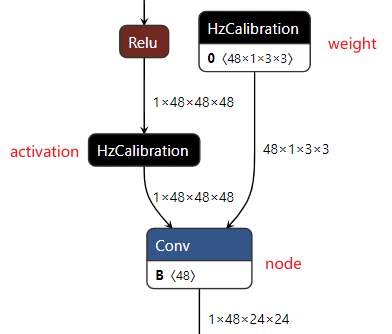
The folder structure of calibration_data is as follows:
  |--calibration_data : calibration data
  |----input.1 : folder name is the model input node and saves corresponding input data
  |--------0.npy
  |--------1.npy
  |-------- ...
  |----input.2 : for multi-input models, multiple folders will be saved
  |--------0.npy
  |--------1.npy
  |-------- ...
- Accuracy Debug Module Import and Usage
Next, you need to import the debug module in code and obtain node quantization sensitivity through the get_sensitivity_of_nodes interface (cosine similarity of model output is used by default).
For detailed parameter description of get_sensitivity_of_nodes, see the get_sensitivity_of_nodes section.
  # Import debug module
  import horizon_nn.debug as dbg
  # Import log module
  import logging

  # When verbose=True, set log level to INFO first
  logging.getLogger().setLevel(logging.INFO)
  # Obtain node quantization sensitivity
  node_message = dbg.get_sensitivity_of_nodes(
          model_or_file='./calibrated_model.onnx',
          metrics=['cosine-similarity', 'mse'],
          calibrated_data='./calibration_data/',
          output_node=None,
          node_type='node',
          data_num=None,
          verbose=True,
          interested_nodes=None)
- Analysis Result Display
The print result when verbose=True is shown below:
  ==========================node==========================
  Node        cosine-similarity   mse
  --------------------------------------------------------
  Conv_3      0.999009567957658   0.027825591154396534
  MaxPool_2   0.9993462241612948  0.017706592209064044
  Conv_6      0.9998359175828787  0.004541242333988731
  MaxPool_5   0.9998616805443397  0.0038416787014844325
  Conv_0      0.9999297948984     0.0019312848587735342
  Gemm_19     0.9999609772975628  0.0010773885699633795
  Conv_8      0.9999629625907311  0.0010301886404004807
  Gemm_15     0.9999847687207736  0.00041888411550854263
  MaxPool_12  0.9999853235024673  0.0004039733791544747
  Conv_10     0.999985763659844   0.0004040437432614943
  Gemm_17     0.9999913985912616  0.0002379088904350423
In addition, this API returns node quantization sensitivity information to you in dictionary (Dict) format for subsequent analysis.
  Out:
  {'Conv_3': {'cosine-similarity': '0.999009567957658', 'mse': '0.027825591154396534'},
   'MaxPool_2': {'cosine-similarity': '0.9993462241612948', 'mse': '0.017706592209064044'},
   'Conv_6': {'cosine-similarity': '0.9998359175828787', 'mse': '0.004541242333988731'},
   'MaxPool_5': {'cosine-similarity': '0.9998616805443397', 'mse': '0.0038416787014844325'},
   'Conv_0': {'cosine-similarity': '0.9999297948984', 'mse': '0.0019312848587735342'},
   'Gemm_19': {'cosine-similarity': '0.9999609772975628', 'mse': '0.0010773885699633795'},
   'Conv_8': {'cosine-similarity': '0.9999629625907311', 'mse': '0.0010301886404004807'},
   'Gemm_15': {'cosine-similarity': '0.9999847687207736', 'mse': '0.00041888411550854263'},
   'MaxPool_12': {'cosine-similarity': '0.9999853235024673', 'mse': '0.0004039733791544747'},
   'Conv_10': {'cosine-similarity': '0.999985763659844', 'mse': '0.0004040437432614943'},
   'Gemm_17': {'cosine-similarity': '0.9999913985912616', 'mse': '0.0002379088904350423'}}
For more functions, please refer to the Function Description section.
The accuracy debug tools can also use the command line hmct-debugger -h/--help to view subcommands corresponding to each function.
Detailed parameters and usage of each subcommand are described in the Function Description section.
Function Description
- get_sensitivity_of_nodes
Functionality: Obtain node quantization sensitivity.
Command-line Format:
hmct-debugger get-sensitivity-of-nodes MODEL_OR_FILE CALIBRATION_DATA --other options
Use hmct-debugger get-sensitivity-of-nodes -h/--help to view related parameters.
Parameter Group:
| Parameter Name | Parameter Description | Value Range | Optional/Required |
|---|---|---|---|
model_or_file | Purpose: Specify the calibrated model. Description: Required. Specifies the calibrated model to be analyzed. | Value Range: None. Default: None. | Required |
metrics or - m | Purpose: Metric for node quantization sensitivity. Description: Specifies the calculation method for node quantization sensitivity. This parameter can be a list, i.e., calculate quantization sensitivity in multiple ways, but the output results are sorted only by the first method in the list. Higher ranking indicates greater error introduced by quantizing that node. | Value Range: 'cosine-similarity' , 'mse' , 'mre' , 'sqnr' , 'chebyshev'.Default: 'cosine-similarity'. | Optional |
calibrated_data | Purpose: Specify calibration data. Description: Required. Specifies the calibration data needed for analysis. | Value Range: None. Default: None. | Required |
output_node or -o | Purpose: Specify output node. Description: This parameter supports specifying intermediate nodes as output and calculating node quantization sensitivity. If the default parameter None is kept, the accuracy debug tool obtains the final output of the model and calculates node quantization sensitivity based on it. | Value Range: Regular nodes in the calibrated model that have corresponding calibration nodes. Default: None. | Optional |
node_type or -n | Purpose: Node type. Description: Node type for which quantization sensitivity needs to be calculated, including: node (regular node), weight (weight calibration node), activation (activation calibration node). | Value Range: 'node' , 'weight' , 'activation'.Default: 'node'. | Optional |
data_num or -d | Purpose: Number of data samples needed to calculate quantization sensitivity. Description: Sets the number of data samples needed when calculating node quantization sensitivity. Default is None, in which case all data in calibration_data is used. Minimum is 1, maximum is the total number of data in calibration_data. | Value Range: Greater than 0, less than or equal to the total number of data in calibration_data. Default: None | Optional |
verbose or -v | Purpose: Choose whether to print information to the terminal. Description: If True, quantization sensitivity information is printed to the terminal. If metrics contains multiple measurement methods, sorting is based on the first one. | Value Range: True , False.Default: False. | Optional |
interested_nodes or -i | Purpose: Set nodes of interest. Description: If specified, only the quantization sensitivity of that node is obtained; other nodes are not obtained. Also, if this parameter is specified, the node type specified by node_type is ignored, meaning this parameter has higher priority than node_type. If the default parameter None is kept, quantization sensitivity is calculated for all quantizable nodes in the model. | Value Range: All nodes in the calibrated model. Default: None. | Optional |
Function usage:
  # Import debug module
  import horizon_nn.debug as dbg
  # Import log module
  import logging

  # When verbose=True, set log level to INFO first
  logging.getLogger().setLevel(logging.INFO)
  # Obtain node quantization sensitivity
  node_message = dbg.get_sensitivity_of_nodes(
          model_or_file='./calibrated_model.onnx',
          metrics=['cosine-similarity', 'mse'],
          calibrated_data='./calibration_data/',
          output_node=None,
          node_type='node',
          data_num=None,
          verbose=True,
          interested_nodes=None)
Command-line usage:
hmct-debugger get-sensitivity-of-nodes calibrated_model.onnx calibration_data -m ['cosine-similarity','mse'] -v True
Analysis Result Display:
Description: First set the node type for which sensitivity needs to be calculated via node_type. Then the tool obtains all nodes in the calibrated model that match node_type and obtains their quantization sensitivity. When verbose is set to True, the tool sorts and prints node quantization sensitivity to the terminal. Higher ranking indicates greater quantization error introduced by quantizing that node.
Print result when verbose=True:
  ==========================node==========================
  Node        cosine-similarity   mse
  --------------------------------------------------------
  Conv_3      0.999009567957658   0.027825591154396534
  MaxPool_2   0.9993462241612948  0.017706592209064044
  Conv_6      0.9998359175828787  0.004541242333988731
  MaxPool_5   0.9998616805443397  0.0038416787014844325
  Conv_0      0.9999297948984     0.0019312848587735342
  Gemm_19     0.9999609772975628  0.0010773885699633795
  Conv_8      0.9999629625907311  0.0010301886404004807
  Gemm_15     0.9999847687207736  0.00041888411550854263
  MaxPool_12  0.9999853235024673  0.0004039733791544747
  Conv_10     0.999985763659844   0.0004040437432614943
  Gemm_17     0.9999913985912616  0.0002379088904350423
Function return value:
The function return value is quantization sensitivity saved in dictionary format (Key is node name, Value is node quantization sensitivity information), in the following format:
  Out:
  {'Conv_3': {'cosine-similarity': '0.999009567957658', 'mse': '0.027825591154396534'},
   'MaxPool_2': {'cosine-similarity': '0.9993462241612948', 'mse': '0.017706592209064044'},
   'Conv_6': {'cosine-similarity': '0.9998359175828787', 'mse': '0.004541242333988731'},
   'MaxPool_5': {'cosine-similarity': '0.9998616805443397', 'mse': '0.0038416787014844325'},
   'Conv_0': {'cosine-similarity': '0.9999297948984', 'mse': '0.0019312848587735342'},
   'Gemm_19': {'cosine-similarity': '0.9999609772975628', 'mse': '0.0010773885699633795'},
   'Conv_8': {'cosine-similarity': '0.9999629625907311', 'mse': '0.0010301886404004807'},
   'Gemm_15': {'cosine-similarity': '0.9999847687207736', 'mse': '0.00041888411550854263'},
   'MaxPool_12': {'cosine-similarity': '0.9999853235024673', 'mse': '0.0004039733791544747'},
   'Conv_10': {'cosine-similarity': '0.999985763659844', 'mse': '0.0004040437432614943'},
   'Gemm_17': {'cosine-similarity': '0.9999913985912616', 'mse': '0.0002379088904350423'}} ...}
- plot_acc_error
Functionality: Quantize only one node in the floating-point model, and sequentially calculate the error between that model and the floating-point model node outputs to obtain cumulative error curves.
Command-line Format:
hmct-debugger plot-acc-error MODEL_OR_FILE CALIBRATION_DATA --other options
Use hmct-debugger plot-acc-error -h/--help to view related parameters.
Parameter Group:
| Parameter Name | Parameter Description | Value Range | Optional/Required |
|---|---|---|---|
save_dir or -s | Purpose: Save path. Description: Optional. Specifies the save path for analysis results. | Value Range: None. Default: None. | Optional |
calibrated_data | Purpose: Specify calibration data. Description: Required. Specifies the calibration data to be analyzed. | Value Range: None. Default: None. | Required |
model_or_file | Purpose: Specify the calibrated model. Description: Required. Specifies the calibrated model to be analyzed. | Value Range: None. Default: None. | Required |
quantize_node or -q | Purpose: Quantize only specified nodes in the model and view error accumulation curves. Description: Optional parameter. Specifies nodes in the model that need to be quantized while ensuring all other nodes are not quantized. Determines single-node quantization or partial quantization by checking whether this parameter is a nested list. For example: - quantize_node=['Conv_2','Conv_9']: Quantize Conv_2 and Conv_9 separately while ensuring other nodes are not quantized. - quantize_node=[['Conv_2'],['Conv_9','Conv_2']]: Quantize only Conv_2 and quantize Conv_2 and Conv_9 simultaneously, respectively testing model cumulative error. - quantize_node contains two special parameters: 'weight' and 'activation'. When: - quantize_node = ['weight']: Quantize weights only, do not quantize activations. - quantize_node = ['activation']: Quantize activations only, do not quantize weights. - quantize_node = ['weight','activation']: Quantize weights and activations separately. Note: quantize_node and non_quantize_node cannot both be None; one must be specified. | Value Range: All nodes in the calibrated model. Default: None. | Optional |
non_quantize_node or -nq | Purpose: Specify cumulative error type. Description: Optional parameter. Specifies nodes in the model that are not quantized while ensuring all other nodes are quantized. Determines single-node non-quantization or partial non-quantization by checking whether this parameter is a nested list. For example: - non_quantize_node=['Conv_2','Conv_9']: De-quantize Conv_2 and Conv_9 separately while ensuring all other nodes are fully quantized. - non_quantize_node=[['Conv_2'],['Conv_9','Conv_2']]: De-quantize only Conv_2 and de-quantize Conv_2 and Conv_9 simultaneously, respectively testing model cumulative error. Note: quantize_node and non_quantize_node cannot both be None; one must be specified. | Value Range: All nodes in the calibrated model. Default: None. | Optional |
metric or -m | Purpose: Error metric. Description: Sets the calculation method for model error. | Value Range: 'cosine-similarity' , 'mse' , 'mre' , 'sqnr' , 'chebyshev'Default: 'cosine-similarity'. | Optional |
average_mode or -a | Purpose: Specify cumulative error curve output mode. Description: Default is False. If True, the average of cumulative errors is obtained as the result. | Value Range: True , False.Default: False. | Optional |
  # Import debug module
  import horizon_nn.debug as dbg

  dbg.plot_acc_error(
          save_dir: str,
          calibrated_data: str or CalibrationDataSet,
          model_or_file: ModelProto or str,
          quantize_node: List or str,
          non_quantize_node: List or str,
          metric: str = 'cosine-similarity',
          average_mode: bool = False)
Analysis Result Display
1. Specified Node Quantization Cumulative Error Test
- Specify single node quantization
Configuration: quantize_node=['Conv_2', 'Conv_90'], quantize_node is a single list.
API function usage:
  # Import debug module
  import horizon_nn.debug as dbg

  dbg.plot_acc_error(
          save_dir='./',
          calibrated_data='./calibration_data/',
          model_or_file='./calibrated_model.onnx',
          quantize_node=['Conv_2', 'Conv_90'],
          metric='cosine-similarity',
          average_mode=False)
Command-line usage:
hmct-debugger plot-acc-error calibrated_model.onnx calibration_data -q ['Conv_2','Conv_90']
Description: When quantize_node is a single list, for the quantize_node you set, each node in quantize_node is quantized separately while other nodes in the model are kept unquantized. After obtaining the corresponding model, the error between each node's output in that model and the corresponding node output in the floating-point model is calculated, and the corresponding cumulative error curve is obtained.
When average_mode = False:
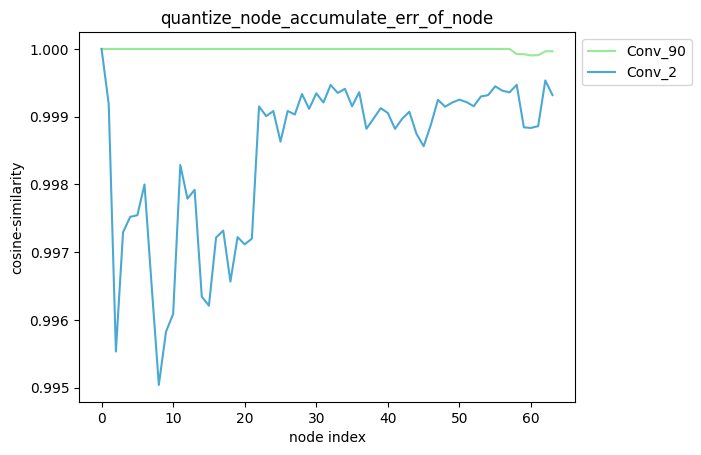
When average_mode = True:
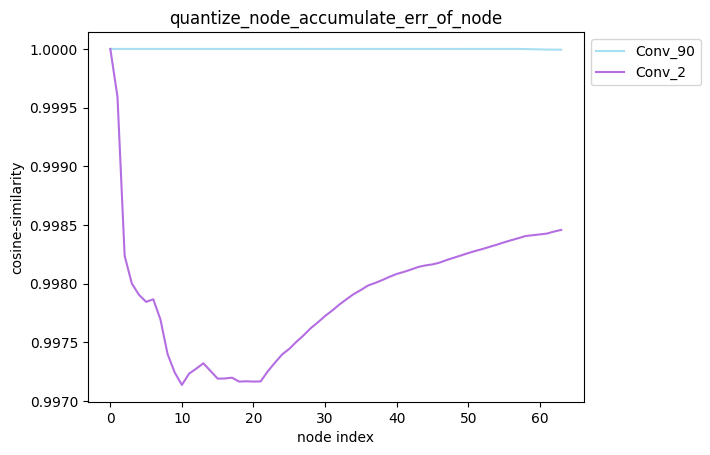
average_mode
average_mode defaults to False. For some models, the cumulative error curve cannot be used to determine which quantization strategy is more effective at this time. Therefore, average_mode needs to be set to True. At this time, the average of cumulative errors of the first n nodes is used as the cumulative error of the nth node.
The specific calculation method is as follows, for example:
When average_mode=False, accumulate_error=[1.0, 0.9, 0.9, 0.8].
When average_mode=True, accumulate_error=[1.0, 0.95, 0.933, 0.9].
- Specify multiple node quantization
Configuration: quantize_node=[['Conv_2'], ['Conv_2', 'Conv_90']], quantize_node is a nested list
API usage:
  # Import debug module
  import horizon_nn.debug as dbg

  dbg.plot_acc_error(
          save_dir='./',
          calibrated_data='./calibration_data/',
          model_or_file='./calibrated_model.onnx',
          quantize_node=[['Conv_2'], ['Conv_2', 'Conv_90']],
          metric='cosine-similarity',
          average_mode=False)
Command-line usage:
hmct-debugger plot-acc-error calibrated_model.onnx calibration_data -q [['Conv_2'],['Conv_2','Conv_90']]
Description: When quantize_node is a nested list, for the quantize_node you set, each single list specified in quantize_node is quantized separately while other nodes in the model are kept unquantized. After obtaining the corresponding model, the error between each node's output and the corresponding node output in the floating-point model is calculated, and the corresponding cumulative error curve is obtained.
-
partial_qmodel_0: Quantize only Conv_2 node, other nodes not quantized;
-
partial_qmodel_1: Quantize only Conv_2 and Conv_90 nodes, other nodes not quantized.
When average_mode=False:
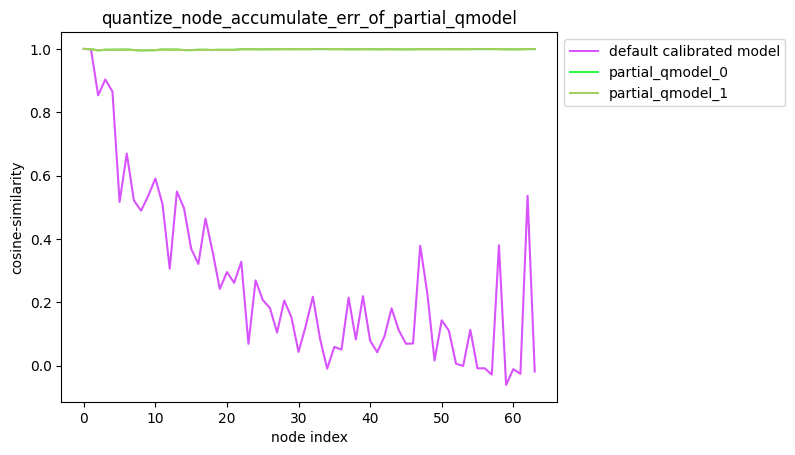
When average_mode=True:
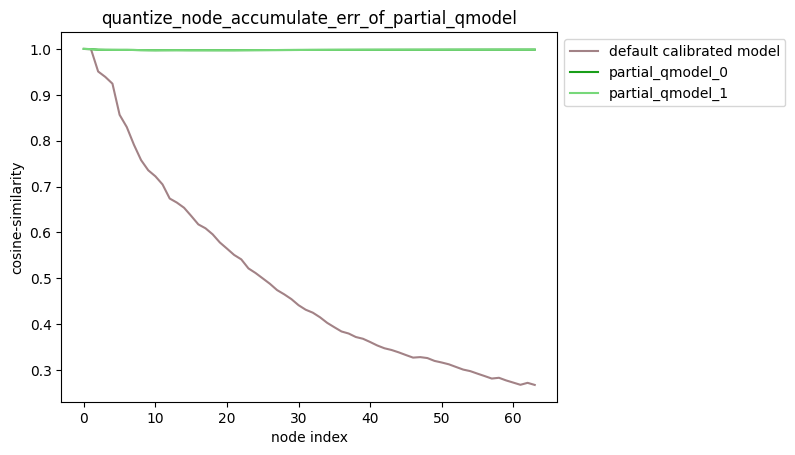
2. Cumulative Error Test After De-quantizing Partial Model Nodes
- Specify single node non-quantization
Configuration: non_quantize_node=['Conv_2', 'Conv_90'], non_quantize_node is a single list.
API usage:
  # Import debug module
  import horizon_nn.debug as dbg

  dbg.plot_acc_error(
          save_dir='./',
          calibrated_data='./calibration_data/',
          model_or_file='./calibrated_model.onnx',
          non_quantize_node=['Conv_2', 'Conv_90'],
          metric='cosine-similarity',
          average_mode=True)
Command-line usage:
hmct-debugger plot-acc-error calibrated_model.onnx calibration_data -nq ['Conv_2','Conv_90'] -a True
Description: When non_quantize_node is a single list, for the non_quantize_node you set, quantization of each node in non_quantize_node is removed separately while all other nodes remain fully quantized. After obtaining the corresponding model, the error between each node's output and the corresponding node output in the floating-point model is calculated, and the corresponding cumulative error curve is obtained.
When average_mode = False:
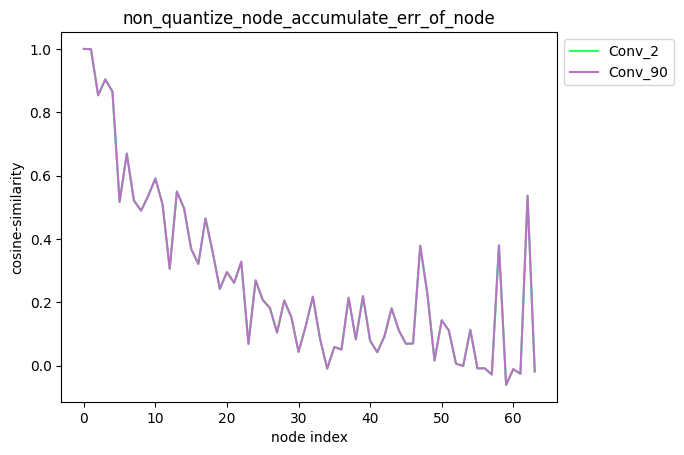
When average_mode = True:
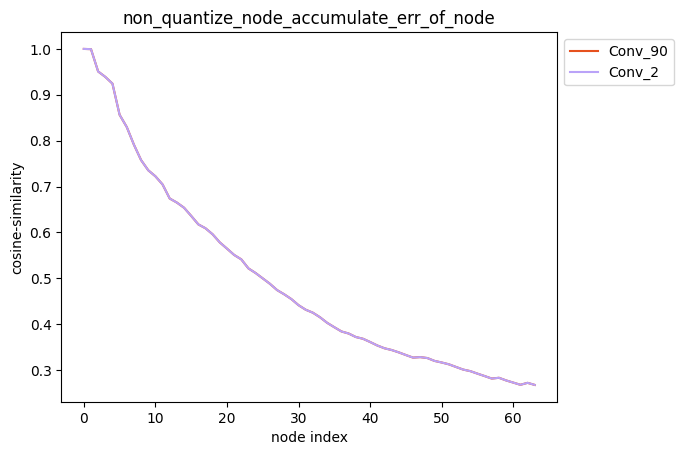
- Specify multiple node non-quantization
Configuration: non_quantize_node=[['Conv_2'], ['Conv_2', 'Conv_90']], non_quantize_node is a nested list.
API usage:
  # Import debug module
  import horizon_nn.debug as dbg

  dbg.plot_acc_error(
          save_dir='./',
          calibrated_data='./calibration_data/',
          model_or_file='./calibrated_model.onnx',
          non_quantize_node=[['Conv_2'], ['Conv_2', 'Conv_90']],
          metric='cosine-similarity',
          average_mode=False)
Command-line usage:
hmct-debugger plot-acc-error calibrated_model.onnx calibration_data -nq [['Conv_2'],['Conv_2','Conv_90']]
Description: When non_quantize_node is a nested list, for the non_quantize_node you set, each single list specified in non_quantize_node is kept unquantized while all other nodes in the model are quantized. After obtaining the corresponding model, the error between each node's output and the corresponding node output in the floating-point model is calculated, and the corresponding cumulative error curve is obtained.
-
partial_qmodel_0: Do not quantize Conv_2 node, quantize all other nodes;
-
partial_qmodel_1: Do not quantize Conv_2 and Conv_90 nodes, quantize all other nodes.
When average_mode = False:
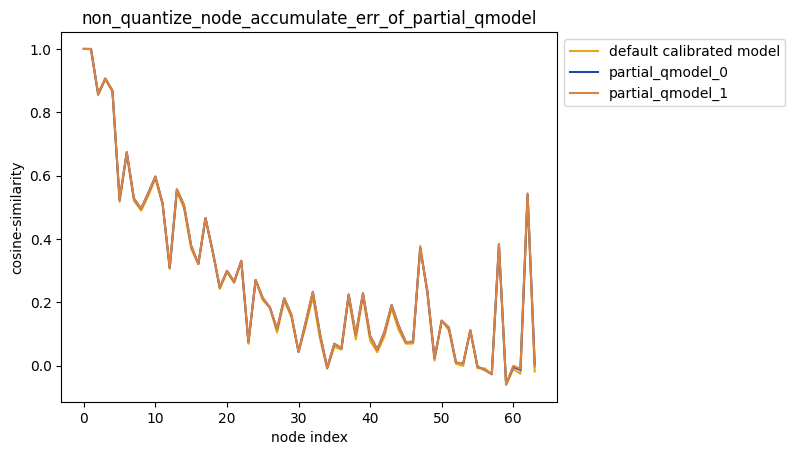
When average_mode = True:
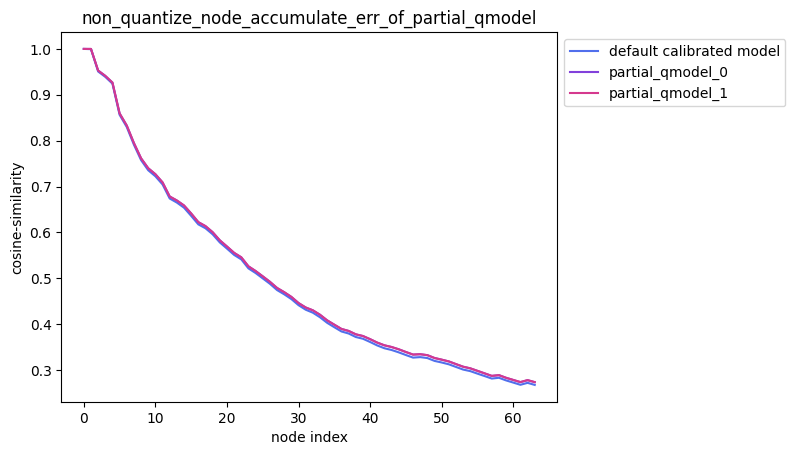
Testing Tips:
When testing partial quantization accuracy, you may compare accuracy across multiple quantization strategies sorted by quantization sensitivity. In this case, you can refer to the following usage:
  # Import debug module
  import horizon_nn.debug as dbg

  # First use the quantization sensitivity sorting function to obtain node quantization sensitivity ranking in the model
  node_message = dbg.get_sensitivity_of_nodes(
          model_or_file='./calibrated_model.onnx',
          metrics='cosine-similarity',
          calibrated_data='./calibration_data/',
          output_node=None,
          node_type='node',
          verbose=False,
          interested_nodes=None)

  # node_message is a dictionary type with node names as keys
  nodes = list(node_message.keys())
  # Use nodes to specify non-quantized nodes for convenient usage
  dbg.plot_acc_error(
          save_dir='./',
          calibrated_data='./calibration_data/',
          model_or_file='./calibrated_model.onnx',
          non_quantize_node=[nodes[:1],nodes[:2]],
          metric='cosine-similarity',
          average_mode=True)
3. Separate Quantization of Weights and Activations
Configuration: quantize_node=['weight','activation'].
API Usage:
  import horizon_nn.debug as dbg

  dbg.plot_acc_error(
          save_dir='./',
          calibrated_data='./calibration_data/',
          model_or_file='./calibrated_model.onnx',
          quantize_node=['weight','activation'],
          metric='cosine-similarity',
          average_mode=False)
Command-line Usage:
hmct-debugger plot_acc_error calibrated_model.onnx calibration_data -q ['weight','activation']
Description: quantize_node can also be set directly to 'weight' or 'activation'. When:
-
quantize_node = ['weight']: Only quantize weights, do not quantize activations.
-
quantize_node = ['activation']: Only quantize activations, do not quantize weights.
-
quantize_node = ['weight', 'activation']: Quantize weights and activations separately.
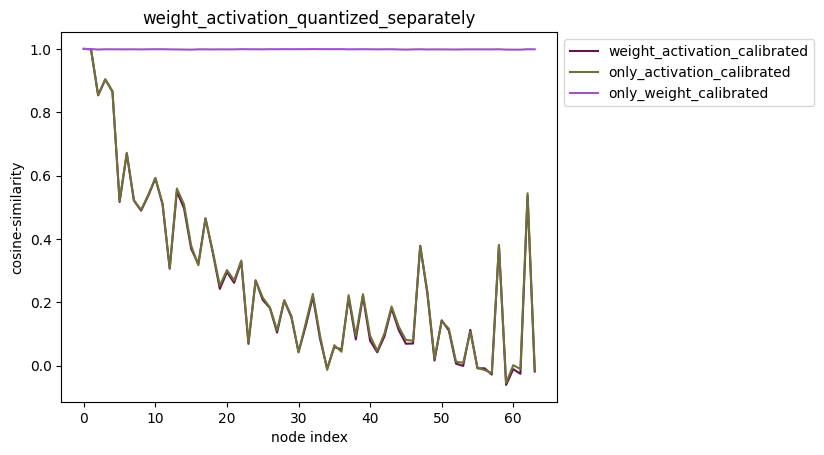
- plot_distribution
Functionality: Select nodes and obtain the outputs of each node from the floating-point model and the calibrated model respectively to get the output data distribution. In addition, subtract the two outputs to obtain the error distribution between them.
Command-line Format:
hmct-debugger plot-distribution MODEL_OR_FILE CALIBRATION_DATA --other options
Use hmct-debugger plot-distribution -h/--help to view related parameters.
Parameter Group:
| Parameter Name | Parameter Description | Value Range | Optional/Required |
|---|---|---|---|
save_dir or -s | Purpose: Save path. Description: Optional. Specifies the save path for analysis results. | Value Range: None. Default: None. | Optional |
model_or_file | Purpose: Specify the calibrated model. Description: Required. Specifies the calibrated model to be analyzed. | Value Range: None. Default: None. | Required |
calibrated_data | Purpose: Specify calibration data. Description: Required. Specifies the calibration data needed for analysis. | Value Range: None. Default: None. | Required |
nodes_list or -n | Purpose: Specify nodes to be analyzed. Description: Required. Specifies the nodes to be analyzed. If the node type in nodes_list is: - Weight calibration node: Plot the data distribution of the original weights and the weights after calibration. - Activation calibration node: Plot the input data distribution of the activation calibration node. - Regular node: Plot the output data distribution of the node before and after quantization, and plot the error distribution between them. Note: nodes_list is of list type. You can specify a series of nodes, and the above three types of nodes can be specified at the same time. | Value Range: All nodes in the calibrated model. Default: None. | Required |
  # Import debug module
  import horizon_nn.debug as dbg

  dbg.plot_distribution(
          save_dir: str,
          model_or_file: ModelProto or str,
          calibrated_data: str or CalibrationDataSet,
          nodes_list: List[str] or str)
Analysis Result Display:
API Usage:
  # Import debug module
  import horizon_nn.debug as dbg

  dbg.plot_distribution(
          save_dir='./',
          model_or_file='./calibrated_model.onnx',
          calibrated_data='./calibration_data',
          nodes_list=['317_HzCalibration', # Activation node
                      '471_HzCalibration', # Weight node
                      'Conv_2']) # Regular node
Command-line Usage:
hmct-debugger plot-distribution calibrated_model.onnx calibration_data -n ['317_HzCalibration','471_HzCalibration','Conv_2']
node_output:
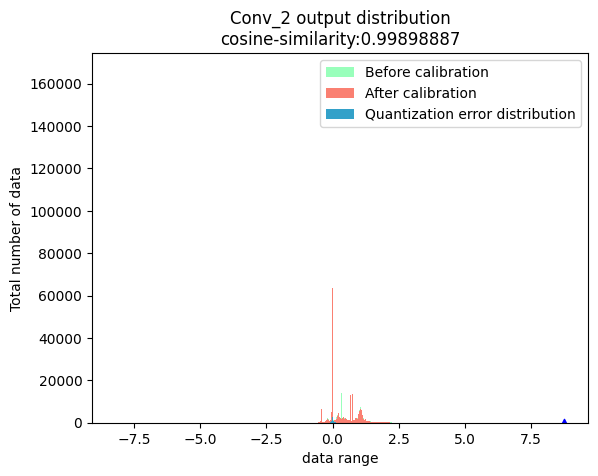
weight:
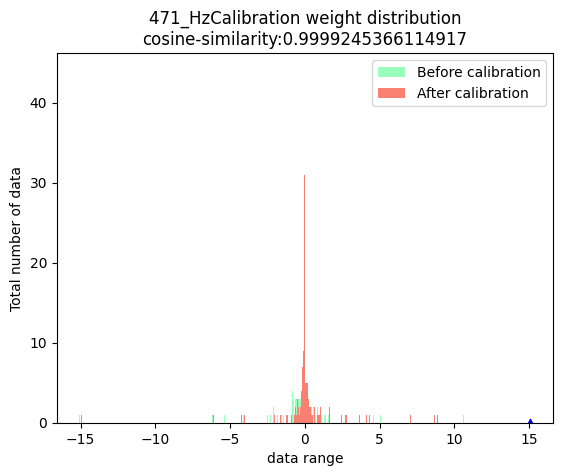
activation:
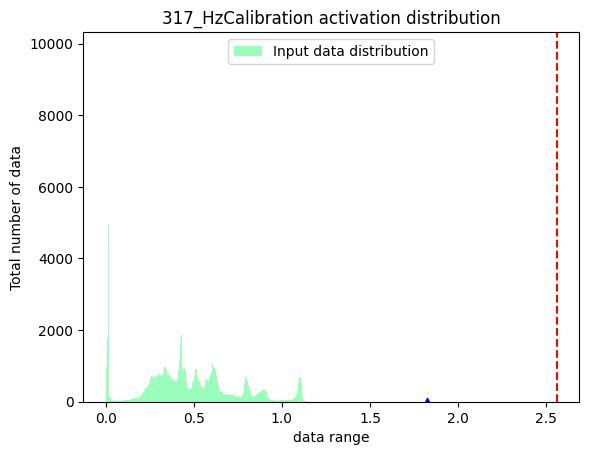
In the three figures above, the blue triangle indicates the maximum absolute value of the data. The red dashed line indicates the minimum calibration threshold.
- get_channelwise_data_distribution
Functionality: Plot box plots of the inter-channel data distribution of input data for specified calibration nodes.
Command-line Format:
hmct-debugger get-channelwise-data-distribution MODEL_OR_FILE CALIBRATION_DATA --other options
Use hmct-debugger get-channelwise-data-distribution -h/--help to view related parameters.
Parameter Group:
| Parameter Name | Parameter Description | Value Range | Optional/Required |
|---|---|---|---|
save_dir or -s | Purpose: Save path. Description: Optional. Specifies the save path for analysis results. | Value Range: None. Default: None. | Optional |
model_or_file | Purpose: Specify the calibrated model. Description: Required. Specifies the calibrated model to be analyzed. | Value Range: None. Default: None. | Required |
calibrated_data | Purpose: Specify calibration data. Description: Required. Specifies the calibration data needed for analysis. | Value Range: None. Default: None. | Required |
nodes_list or -n | Purpose: Specify calibration nodes. Description: Required. Specifies calibration nodes. | Value Range: All weight calibration nodes and activation calibration nodes in the calibrated model. Default: None. | Required |
axis or -a | Purpose: Specify the dimension where channel is located. Description: The position of channel information in the shape. The parameter defaults to None. In this case, for activation calibration nodes, the second dimension of the node input data is considered to represent channel information by default, i.e., axis=1; for weight calibration nodes, the axis parameter in the node attributes is read as channel information. | Value Range: Less than the dimension of the node input data. Default: None. | Optional |
  # Import debug module
  import horizon_nn.debug as dbg

  dbg.get_channelwise_data_distribution(
          save_dir: str,
          model_or_file: ModelProto or str,
          calibrated_data: str or CalibrationDataSet,
          nodes_list: List[str],
          axis: int = None)
Analysis Result Display:
Description: For the calibration node list node_list set by the user, obtain the dimension where channel is located from the axis parameter, and obtain the inter-channel data distribution of the node input data. When axis defaults to None, if the node is a weight calibration node, the dimension where channel is located defaults to 0; if the node is an activation calibration node, the dimension where channel is located defaults to 1.
Weight calibration node:
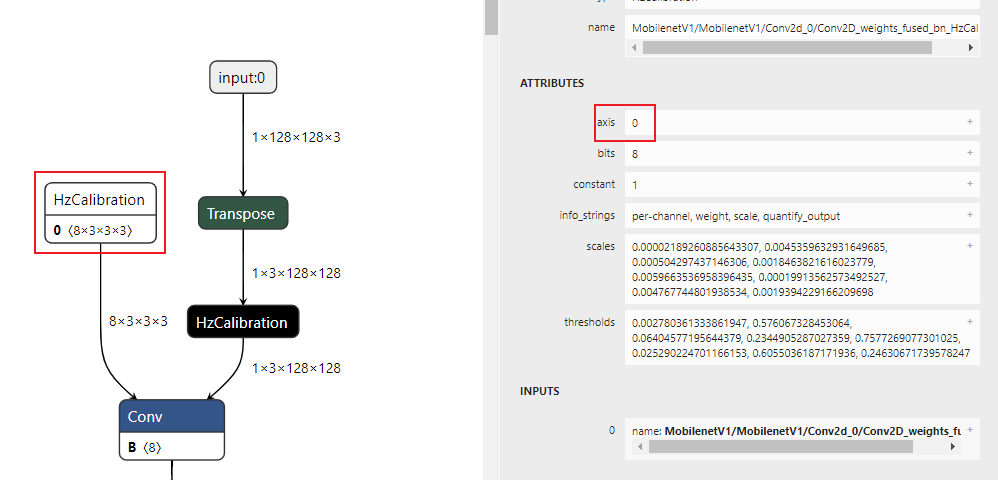
Activation calibration node:
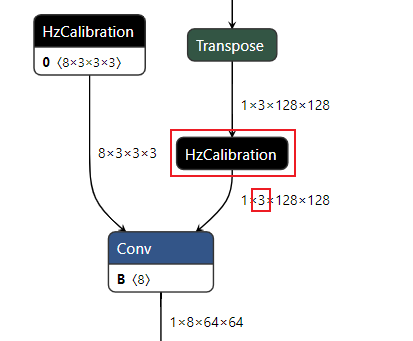
The output is shown below:

In the figure:
-
The horizontal axis represents the number of channels in the node input data. In the legend, the input data has 96 channels.
-
The vertical axis represents the data distribution range of each channel. The red solid line represents the median of the channel data, and the blue dashed line represents the mean.
-
runall
In the current version, the runall feature is only applicable to RDK Ultra and RDK X5 products.
Functionality: Run all functions of the original debug tool with one click.
Command-line Format:
hmct-debugger runall MODEL_OR_FILE CALIBRATION_DATA --other options
Use hmct-debugger runall -h/--help to view related parameters.
Parameter Group:
| Parameter Name | Parameter Description | Value Range | Optional/Required |
|---|---|---|---|
model_or_file | Purpose: Specify the calibrated model. Description: Required. Specifies the calibrated model to be analyzed. | Value Range: None. Default: None. | Required |
calibrated_data | Purpose: Specify calibration data. Description: Required. Specifies the calibration data needed for analysis. | Value Range: None. Default: None. | Required |
save_dir or -s | Purpose: Save path. Description: Specifies the save path for analysis results. | Value Range: None. Default: None. | Optional |
ns_metrics or -nm | Purpose: Metric for node quantization sensitivity. Description: Specifies the calculation method for node quantization sensitivity. This parameter can be a list, meaning quantization sensitivity is calculated in multiple ways, but the output results are sorted only by the first method in the list. A higher ranking indicates that quantizing the node introduces greater error. | Value Range: 'cosine-similarity' , 'mse' , 'mre' , 'sqnr' , 'chebyshev' .Default: 'cosine-similarity'. | Optional |
output_node or -o | Purpose: Specify the output node. Description: This parameter allows you to specify an intermediate node as the output and calculate node quantization sensitivity. If the default parameter None is kept, the accuracy debug tool obtains the final output of the model and calculates node quantization sensitivity based on it. | Value Range: Regular nodes in the calibrated model that have corresponding calibration nodes. Default: None. | Optional |
node_type or -nt | Purpose: Node type. Description: Node types for which quantization sensitivity needs to be calculated, including: node (regular node), weight (weight calibration node), activation (activation calibration node). | Value Range: 'node' , 'weight' , 'activation'.Default: 'node'. | Optional |
data_num or -dn | Purpose: Number of data samples required to calculate quantization sensitivity. Description: Sets the number of data samples required when calculating node quantization sensitivity. Defaults to None, in which case all data in calibration_data is used for calculation. The minimum setting is 1, and the maximum is the number of data samples in calibration_data. | Value Range: Greater than 0 and less than or equal to the total number of data samples in calibration_data. Default: None. | Optional |
verbose or -v | Purpose: Choose whether to print information to the terminal. Description: If True, quantization sensitivity information is printed to the terminal. If metrics contains multiple measurement methods, sorting is performed according to the first one. | Value Range: True , False.Default: False. | Optional |
interested_nodes or -i | Purpose: Set nodes of interest. Description: If specified, only the quantization sensitivity of that node is obtained, and other nodes are not obtained. At the same time, if this parameter is specified, the node type specified by node_type is ignored, meaning this parameter has higher priority than node_type. If the default parameter None is kept, the quantization sensitivity of all quantizable nodes in the model is calculated. | Value Range: All nodes in the calibrated model. Default: None. | Optional |
dis_nodes_list or -dnl | Purpose: Specify nodes to be analyzed. Description: Specify nodes to be analyzed. If the node type in nodes_list is: - Weight calibration node: Plot the data distribution of the original weights and the weights after calibration. - Activation calibration node: Plot the input data distribution of the activation calibration node. - Regular node: Plot the output data distribution of the node before and after quantization, and plot the error distribution between them. Note: nodes_list is of list type. You can specify a series of nodes, and the above three types of nodes can be specified at the same time. | Value Range: All nodes in the calibrated model. Default: None. | Optional |
cw_nodes_list or -cn | Purpose: Specify calibration nodes. Description: Specify calibration nodes. | Value Range: All weight calibration nodes and activation calibration nodes in the calibrated model. Default: None. | Optional |
axis or -a | Purpose: Specify the dimension where channel is located. Description: The position of channel information in the shape. The parameter defaults to None. In this case, for activation calibration nodes, the second dimension of the node input data is considered to represent channel information by default, i.e., axis=1; for weight calibration nodes, the axis parameter in the node attributes is read as channel information. | Value Range: Less than the dimension of the node input data. Default: None. | Optional |
quantize_node or -qn | Purpose: Quantize only specified nodes in the model and view the error accumulation curve. Description: Optional parameter. Specifies nodes in the model that need to be quantized, while ensuring that all other nodes are not quantized. Determines whether it is single-node quantization or partial quantization by checking whether this parameter is a nested list. For example: - quantize_node=['Conv_2','Conv_9']: Quantize only Conv_2 and Conv_9 separately, while ensuring that other nodes are not quantized. - quantize_node=[['Conv_2'],['Conv_9','Conv_2']]: Quantize only Conv_2, and quantize Conv_2 and Conv_9 together, to test model cumulative error separately. - quantize_node contains two special parameters: 'weight' and 'activation'. When: - quantize_node = ['weight']: Only quantize weights, do not quantize activations. - quantize_node = ['activation']: Only quantize activations, do not quantize weights. - quantize_node = ['weight','activation']: Quantize weights and activations separately. Note: quantize_node and non_quantize_node cannot both be None; one of them must be specified. | Value Range: All nodes in the calibrated model. Default: None. | Optional |
non_quantize_node or -nqn | Purpose: Specify the type of cumulative error. Description: Optional parameter. Specifies nodes in the model that are not quantized, while ensuring that all other nodes are quantized. Determines whether it is single-node non-quantization or partial non-quantization by checking whether this parameter is a nested list. For example: - non_quantize_node=['Conv_2','Conv_9']: Disable quantization for Conv_2 and Conv_9 separately, while ensuring that all other nodes are fully quantized. - non_quantize_node=[['Conv_2'],['Conv_9','Conv_2']]: Disable quantization for Conv_2 only, and disable quantization for Conv_2 and Conv_9 together, to test model cumulative error separately. Note: quantize_node and non_quantize_node cannot both be None; one of them must be specified. | Value Range: All nodes in the calibrated model. Default: None. | Optional |
ae_metric or -am | Purpose: Cumulative error metric. Description: Sets the calculation method for model error. | Value Range: 'cosine-similarity' , 'mse' , 'mre' , 'sqnr' , 'chebyshev' Default: 'cosine-similarity'. | Optional |
average_mode or -avm | Purpose: Specify the output mode of the cumulative error curve. Description: Defaults to False. If True, the average of the cumulative error is obtained as the result. | Value Range: True , False.Default: False. | Optional |
API Usage:
  # Import debug module
  import horizon_nn.debug as dbg

  dbg.runall(model_or_file='calibrated_model.onnx',
             calibrated_data='calibration_data')
Command-line Usage:
hmct-debugger runall calibrated_model.onnx calibration_data
runall workflow:

When all parameters remain at their defaults, the tool executes the following functions in sequence:
-
Obtain the quantization sensitivity of weight calibration nodes and activation calibration nodes separately.
-
Based on the results from step 1, take the top 5 weight calibration nodes and top 5 activation calibration nodes and plot their data distributions.
-
For the nodes obtained in step 2, plot box plots of their inter-channel data distributions separately.
-
Plot cumulative error curves for quantizing weights only and quantizing activations only separately.
When node_type='node' is specified, the tool obtains the top 5 nodes, finds the corresponding calibration node for each node, and obtains the data distribution and box plot of the calibration nodes.
Based on previous usage and tuning experience, the above strategies can already address various practical problems.
If the problem still cannot be resolved after the above attempts, please follow the steps in the Accuracy Tuning Checklist document to fill in the specific model configuration information for inspection, ensure that each troubleshooting step has been completed, and use the checklist to identify the specific step in model conversion where the exception occurs. Then submit the completed Accuracy Tuning Checklist information, the original floating-point model file, model quantization-related configuration files, and other materials to the D-Robotics technical support team, or post your question in the D-Robotics Official Technical Community. We will provide support within 24 hours.
Other Tool Usage Instructions
This section mainly introduces the usage of debug tools other than the model conversion tool. These tools can assist developers with model modification, model analysis, data preprocessing, and other operations. The tool list is as follows:
-
hb_perf
-
hb_pack
-
hb_model_info
-
hb_model_modifier
-
hb_model_verifier
-
hb_eval_preprocess
hb_perf Tool
hb_perf is an analysis tool used to analyze the performance of D-Robotics quantized hybrid models.
- Usage
hb_perf [OPTIONS] BIN_FILE
- Command-line Parameters
Command-line parameters for hb_perf:
--version
Display version and exit.
-m
Followed by the model name. When BIN_FILE is specified as a pack model, only the model compilation information of the specified model is output.
--help
Display help information.
- Output Description
Model information is output to the hb_perf_result folder in the current directory.
There will be a folder named after the model, and the model information will be displayed in an html file named after the model. The directory structure is shown in the example below:
  hb_perf_result/
  └── mobilenetv1
      ├── mobilenetv1
      ├── mobilenetv1.html
      ├── mobilenetv1.png
      ├── MOBILENET_subgraph_0.html
      ├── MOBILENET_subgraph_0.json
      └── temp.hbm
If the model was not set to debug mode during compilation (compiler_parameters.debug:True), the hb_perf tool will produce the following prompt.
This prompt only indicates that per-layer information is not included in the subgraph information and does not affect the generation of overall model information.
2021-01-12 10:41:40,000 WARNING bpu model don't have per-layer perf info.
2021-01-12 10:41:40,000 WARNING if you need per-layer perf info please enable[compiler_parameters.debug:True] when use makertbin.
hb_pack Tool
hb_pack is a tool used to pack multiple hybrid model (*.bin) files into a single model file.
- Usage
hb_pack [OPTIONS] BIN_FILE1 BIN_FILE2 BIN_FILE3 -o comb.bin
- Command-line Parameters
Command-line parameters for hb_pack:
--version
Display version and exit.
-o, --output_name
Output name of the pack model
--help
Display help information.
- Output Description
The packed model is output to the current directory folder and is named according to the name specified by output_name.
The compilation information and performance information of all sub-models in the packed model can be obtained through hb_model_info and hb_perf.
Note that hb_pack does not support packing an already packed model again. Otherwise, the workbench will produce the following prompt:
ERROR exception in command: pack
ERROR model: xxx.bin is a packed model, it can not be packed again!
hb_model_info Tool
hb_model_info is a tool used to parse the dependencies and parameter information during the compilation of hybrid models (*.bin).
- Usage
hb_model_info ${model_file}
- Command-line Parameters
Command-line parameters for hb_model_info:
--version
Display version and exit.
-m
Followed by the model name. When BIN_FILE is specified as a pack model, only the model compilation information of the specified model is output.
--help
Display help information.
- Output Description
The output section contains some input information from model compilation, as shown below:
The version information in the code block below will change with the release package version. This is for reference only.
Start hb_model_info....
hb_model_info version 1.3.35
******** efficient_det_512x512_nv12 info *********
############# model deps info #############
hb_mapper version   : 1.3.35
hbdk version        : 3.23.3
hbdk runtime version: 3.13.7
horizon_nn version  : 0.10.10
############# model_parameters info #############
onnx_model          : /release/01_common/model_zoo/mapper/detection/efficient_det/efficientdet_nhwc.onnx
BPU march           : bernoulli2
layer_out_dump      : False
working dir         : /release/04_detection/05_efficient_det/mapper/model_output
output_model_file_prefix: efficient_det_512x512_nv12
############# input_parameters info #############
------
---------input info : data ---------
input_name          : data
input_type_rt       : nv12
input_space&range   : regular
input_layout_rt     : None
input_type_train    : rgb
input_layout_train  : NCHW
norm_type           : data_mean_and_scale
input_shape         : 1x3x512x512
mean_value          : 123.68,116.779,103.939,
scale_value         : 0.017,
cal_data_dir        : /release/04_detection/05_efficient_det/mapper/calibration_data_rgb_f32
---------input info : data end -------
------
############# calibration_parameters info #############
preprocess_on       : False
calibration_type    : max
############# compiler_parameters info #############
hbdk_pass_through_params: --fast --O3
input-source        : {'data': 'pyramid', '_default_value': 'ddr'}
--------- input/output types -
model input types   : [<InputDataType.NV12: 7>]
model output types  : [<InputDataType.F32: 5>, <InputDataType.F32: 5>, <InputDataType.F32: 5>, <InputDataTye.F32: 5>, <InputDataType.F32: 5>, <InputDataType.F32: 5>, <InputDataType.F32: 5>, <InputDataType.F32: 5>, <InputDataType.F32: 5>, <InpuDataType.F32: 5>]
When deleted nodes exist in the model, the names of the deleted nodes are printed at the end of the model information output, and a deleted_nodes_info.txt file is generated. Each line in the file records the initial information of the corresponding deleted node. The printed names of deleted nodes are shown below:
--------- deleted nodes -
deleted nodes: spconvretinanethead0_conv91_fwd_chw_HzDequantize
deleted nodes: spconvretinanethead0_conv95_fwd_chw_HzDequantize
deleted nodes: spconvretinanethead0_conv99_fwd_chw_HzDequantize
deleted nodes: spconvretinanethead0_conv103_fwd_chw_HzDequantize
deleted nodes: spconvretinanethead0_conv107_fwd_chw_HzDequantize
deleted nodes: spconvretinanethead0_conv93_fwd_chw_HzDequantize
deleted nodes: spconvretinanethead0_conv97_fwd_chw_HzDequantize
deleted nodes: spconvretinanethead0_conv101_fwd_chw_HzDequantize
deleted nodes: spconvretinanethead0_conv105_fwd_chw_HzDequantize
deleted nodes: spconvretinanethead0_conv109_fwd_chw_HzDequantize
hb_model_modifier Tool
The hb_model_modifier tool is used to delete Transpose and Quantize nodes at the model input side, and Transpose, Dequanti, Cast, Reshape, and Softmax nodes at the model output side in *.bin models.
The information of deleted nodes is stored in the BIN model and can be viewed through hb_model_info.
- The hb_model_modifier tool can only delete nodes that are directly adjacent to the model input or output. If the node to be deleted is followed by other nodes, it cannot be deleted.
- Model node names should not include special characters such as ";" and ",", otherwise tool usage may be affected.
- The tool does not support processing packed models. Otherwise, it will prompt:
ERROR pack model is not supported. - Nodes to be deleted are removed sequentially in order, and the model structure is dynamically updated. Before deleting a node, the tool also checks whether the node is located at the model input or output. Therefore, the deletion order of nodes is important.
Since deleting specific nodes affects the model input configuration, the tool is only applicable when there is only one path after the model input. As shown in the figure below, the case where the same input corresponds to multiple nodes is not yet supported.
- Usage
- View deletable nodes:
hb_model_modifier model.bin
- Delete a single specified node (using node1 as an example):
hb_model_modifier model.bin -r node1
- Delete multiple specified nodes (using node1, node2, and node3 as examples):
hb_model_modifier model.bin -r node1 -r node2 -r node3
- Delete a type of node (using Dequantize as an example):
hb_model_modifier model.bin --all Dequantize
- Delete multiple types of nodes (using Reshape, Cast, and Dequantize as examples):
hb_model_modifier model.bin -a Reshape -a Cast -a Dequantize
- Combined usage:
hb_model_modifier model.bin -a Reshape -a Cast -a Dequantize -r node1 -r node2 -r node3
- Command-line Parameters
Command-line parameters for hb_model_modifier:
--model_file
Runtime model file name.
-r
Followed by the name of the node to be deleted. If multiple nodes need to be deleted, this must be specified multiple times.
-o
Followed by the output name of the modified model (only effective when the -r parameter is present).
-a --all
Followed by the node type. Supports one-click deletion of all nodes of the corresponding type. If multiple types of nodes need to be deleted, this must be specified multiple times.
- Output Description
If the tool is run without any parameters, it prints the candidate deletable nodes (i.e., all Transpose, Quantize, Dequantize, Cast, Reshape, and Softmax nodes located at the input and output positions in the model).
Quantize nodes are used to quantize model float-type input data to int8 type. The calculation formula is as follows:
qx = clamp(round(x / scale) + zero\_point, -128, 127)
round(x) implements rounding of floating-point numbers. clamp(x) clamps the data to integer values between -128 and 127. zero_point is the zero-point offset value for asymmetric quantization. For symmetric quantization, zero_point = 0.
The C++ reference implementation is as follows:
  int64_t quantized_value =
      static_cast/<int64_t/>(std::round(value / static_cast/<double/(scale)));
  quantized_value = std::min(std::max(quantized_value, min_int_value), max_int_value);
Dequantize nodes are used to dequantize model int8 or int32 type output data back to float or double type. The calculation formula is as follows:
deqx = (x - zero\_point) * scale
The C++ reference implementation is as follows:
static_cast/<float/>(value) * scale
Currently, the tool supports deleting:
- Nodes at the input side that are Quantize or Transpose nodes;
- Nodes at the output side that are Transpose, Dequanti, Cast, Reshape, or Softmax nodes.
The tool output is as follows:
hb_model_modifier resnet50_64x56x56_featuremap.bin
2022-04-21 18:22:30,207 INFO Nodes that can be deleted: ['data_res2a_branch1_HzQuantize_TransposeInput0', 'fc1000_reshape_0']
After specifying the -r option, the tool prints the node type in the model, the node information stored in the bin file, and indicates that the specified node has been deleted:
hb_model_modifier resnet50_64x56x56_featuremap.bin -r data_res2a_branch1_HzQuantize_TransposeInput0
Node 'data_res2a_branch1_HzQuantize_TransposeInput0' found, its OP type is 'Transpose'
Node 'data_res2a_branch1_HzQuantize_TransposeInput0' is removed
modified model saved as resnet50_64x56x56_featuremap_modified.bin
After that, you can use the hb_model_info tool to view deleted node information. The names of deleted nodes are printed at the end of the output information, and a deleted_nodes_info.txt file is generated. Each line in the file records the initial information of the corresponding deleted node. The printed names of deleted nodes are shown below:
hb_model_info resnet50_64x56x56_featuremap_modified.bin
Start hb_model_info....
hb_model_info version 1.7.0
********* resnet50_64x56x56_featuremap info *********
...
--------- deleted nodes -
deleted nodes: data_res2a_branch1_HzQuantize_TransposeInput0
hb_model_verifier Tool
The hb_model_verifier tool is used to verify results between a specified fixed-point model and a runtime model.
The tool uses a specified image to perform inference with the fixed-point model, runtime model on the board and x86 simulator, and runtime model inference on the board (if the given IP is reachable and hrt_tools is installed on the board; otherwise, you can use the install.sh script under package/board in the toolchain SDK package for installation), and runtime model inference on x86 (ensure hrt_tools is installed on the host;
otherwise, you can use the install.sh script under package/host in the toolchain SDK package for installation). It then performs pairwise comparison of the three results and provides a pass/fail conclusion. If no image is specified, the tool uses a default image for inference (for featuremap models, tensor data is randomly generated).
For how to obtain the package resource bundle, please refer to Deliverables Description.
- Usage
  hb_model_verifier -q ${quanti_model} \
                    -b ${bin_model} \
                    -a ${board_ip} \
                    -i ${input_img} \
                    -d ${digits}
- Command-line Parameters
Command-line parameters for hb_model_verifier:
-quanti_model, -q
Fixed-point model name.
--bin_model, -b
bin model name.
--arm-board-ip, -a
ARM board IP address used for on-board testing.
--input-img, -i
Image used for inference testing. If not specified, a default image or random tensor is used. For image files in binary form, the file extension must be .bin.
--compare_digits, -d
Compare inference result numerical precision. If not specified, five decimal places are compared by default.
- Output Description
The final comparison results are displayed in the terminal. The tool compares the ONNX model running results, simulator running results, and on-board results pairwise. If there are no issues, the output should be as follows:
Quanti onnx and Arm result Strict check PASSED
When the fixed-point model and runtime model precision are inconsistent, specific information about the inconsistent results is output.
mismatch line num is the number of results with inconsistent precision between the two models, including three types of inconsistency:
mismatch.line_miss num is the number of cases where the number of output results is inconsistent;
mismatch.line_diff num is the number of cases where the output result difference is too large;
mismatch.line_nan num is the number of cases where the output is nan.
total line num is the total number of output data entries.
mismatch rate is the proportion of inconsistent data entries to the total number of output data entries.
  INFO mismatch line num: 39
  INFO ****************************
  INFO mismatch.line_miss num: 0
  INFO mismatch.line_diff num: 39
  INFO mismatch.line_nan num: 0
  INFO ****************************
  INFO total line num: 327680
  INFO mismatch rate: 0.0001190185546875
hb_model_verifiercurrently only supports single-input models.- If the model has multiple outputs, only the first output result is compared.
- Verification of packed *.bin models is not currently supported. Otherwise, the workbench will produce the following prompt:
ERROR pack model is not supported
hb_eval_preprocess Tool
Used to preprocess image data in an x86 environment when evaluating model accuracy. Preprocessing refers to specific processing operations performed on image data before it is fed into the model. For example: image resize, crop, and padding.
- Usage
hb_eval_preprocess [OPTIONS]
- Command-line Parameters
Command-line parameters for hb_eval_preprocess:
--version
Display version and exit.
-m, --model_name
Set the model name. Supported model range can be viewed via hb_eval_preprocess --help.
-i, --image_dir
Input image path.
-o, --output_dir
Output path.
-v, --val_txt
Set the file name of images required for evaluation. The preprocessed images will correspond to the image names in this file.
-h, --help
Display help information.
- Output Description
The hb_eval_preprocess command generates image binary files under the path specified by --output_dir.
For more application examples of the hb_eval_preprocess tool in on-board model accuracy evaluation, please refer to the
Data Preprocessing section in the embedded application development document Public Model Evaluation Instructions.